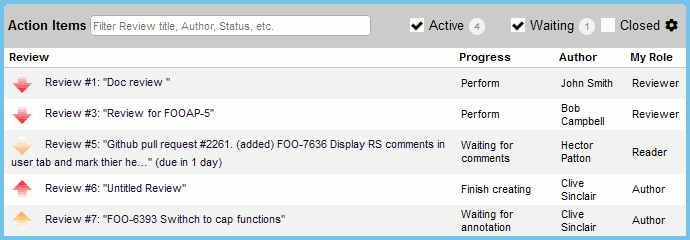
You will know that you are part of a review because it will show up in your Action Items list, clicking a review in the list will take you to the Review Summary screen.
The Review Summary Screen is displayed any time you are creating, editing or participating in a review. This page includes a fixed header-toolbar and a number of sections:

The header of Review Summary Screen has fixed position and is always displayed whenever you scroll the screen up or down. It contains the following items:
Returns back to Home page. |
|
Displays the ID of current review. On mouse over, displays links to 10 most recent reviews, so you can navigate to another review directly. |
|
Displays the title of current review. |
|
Moves the review from current phase to the next phase. The actual number of available actions depend on current review phase. See Review Steps section below. |
|
Displays a list of various actions available for the current review. The actions are: |
|
Details - Opens the Review Details Report on current review. |
|
Copy - Creates a new review on the basis of current review. You may copy list of participants, custom field values, review materials. See Copying Previous Review. |
|
Delete - Deletes a review before it has started. Deleted review cannot be reactivated even by administrator. Displayed only on planning phase and only for review authors/creators. Enabled if authors are allowed to delete their reviews. When deleting a review, Collaborator deletes files that were uploaded for this review from the content storage as well (unless they are used in some other reviews). |
|
Cancel - Cancels an in-progress review. Canceled review can only be reactivated by administrator. Users will still be able to find cancelled reviews when searching and can view them in read-only mode. Displayed only for review authors/creators. Enabled if authors are allowed to cancel reviews, otherwise only administrators can do this. |
|
Uncancel - This action restores a review that was previously canceled. Only administrators can perform the Uncancel action. The review will be returned to its previous review phase. |
|
Reject- Rejects an in-progress review. Could ask to specify reject reason in ensuing dialog. Rejected review cannot be reactivated even by administrator. Enabled if participants are allowed to reject reviews, otherwise only administrators can do this. |
|
Reopen - Reopens a review after it was finished. Displayed for closed reviews. Enabled if participants are allowed to reopen reviews, otherwise only administrators can do this. |
|
Archive - Creates an archive containing all the information related to the review. Enabled if participants are allowed to archive reviews and only on appropriate phases (on completed, cancelled or rejected phase, or on any phase). |
|
Summary, Participants, Links, Defects, Chat, Materials |
Navigates to the respective section of the Review Summary Screen. Currently displayed section is underlined. Each section will be described below. |
Planning, Annotation, Inspection, Rework, Completed |
Displays the review workflow and phases. Current phase of the review is highlighted by solid-fill background. |
The Review Steps section of Review Summary header toolbar allows each review participant to move the review from one phase to another, or to wait in the current phase until certain specified activity occur. To learn more about review phases, see the Review Overview topic.
The choice options vary depending on the current and the expected phases of the review and the role of the participant. The choice options can be: Annotate, Inspect, Wait, Send to Rework, Send to Completed, Sign, Decline and so forth.
Pressing any of the Review Steps buttons (except for Wait) indicates that you have passed through the current review phase and moves the review to another phase.

Pressing the Wait button keeps the review in its current phase.

Wait Options
Most of the choices also allow to select in which case Collaborator will notify you of certain activities related to the given review. The action options are:
| • | Any activity occurs - any action that occurs in the review; for example, comments, file uploads, or added participants |
| • | Activity by author occurs - any action that occurs in the review that is initiated by the author |
| • | File activity occurs - any action that occurs to change the file content of the review; for example, the upload of a new file or the upload of a new version of an existing file |
| • | Someone pokes me - only notifies you in the event that you are poked |
The General Information section provides basic information about the review: current state, number of participants, uploaded files, chat messages, found defects and so on.
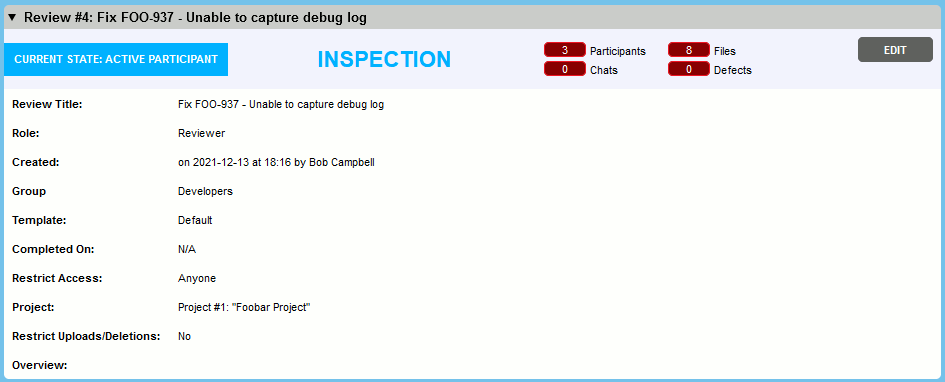
This section includes the following fields:
| • | Review title - a brief description for the review. The title is used all over the place -- in Action Items, in notification emails, to web page titles, and so forth. Titles do not have to be unique in the system; reviews already have a unique ID that is assigned by the server. |
| • | Role - your role in the current review. This field is read-only. Your and other participant's roles will be set through the Participants section described below. |
| • | Created - a date when the review was created and a user who created it. This field is read-only and filled out automatically. |
| • | Group - a group of users associated with the review. This field only appears when the Groups feature is enabled and you belong to some user group. This field displays only the first 1000 groups and it excludes groups which have no members. Once you select a group, the participants list will be updated accordingly to show only those users belonging to the selected group. If you belong to only one user group, the group is set automatically. Changing the user group will cause you to lose any unsaved data applied to the review and may invalidate any saved data that is not applicable to the new group. |
| • | Template- a template for the review. The template defines all the rules and workflow that governs the review. This includes custom fields for reviews and defects as well as the set of roles and rules for participants in the review. Your system administrator will have already configured the templates you can pick from and probably has some guidelines as to which templates should be used under which circumstances. If there is only one configured template, this template will be applied automatically. |
| • | Deadline - a date when the review should be completed. This field only appears if a system administrator has set the default review deadline to a value other than 0. In that case, you will see the Deadline field with a default date that is calculated based on the value provided by the administrator. You can set the review deadline to any date that is on or after the current date. On the day before the deadline, participants will see a note in their action items that review is 'Due today'. This is intended to alert participants that if the review is not completed by midnight of the current day, it is overdue. |
| • | Completed on - a date when the review was completed. This field is read-only and filled out automatically. |
| • | Restrict access - allows you to limit those users who may access your review. By default, any user in the system can view and comment on any review at any time. However, there are circumstances where you may want to restrict viewing to those users specifically invited to the review, and this option enables you to do so. Please note that system administrators are able to view all reviews regardless of restricted access selections, and also have the ability to require that all reviews be restricted. In such cases, you will not be given an option to restrict access. |
| • | Project - a project the review belongs to. Projects are a high-level way to group reviews, that represent different artifacts, but still relate to some common entity: product, application, product area, change-set. For example, one project could host product requirements documents, design documents, source code files, test cases and marketing materials. You can filter all projects by their names and select only those, where you are a participant. |
| • | Restrict uploads/deletions - allows you to limit who can upload files into the review and delete files from the review. If this setting is enabled, only the creator and the administrators will be allowed to upload or delete files. |
| • | Overview - a detailed description of the review. This field is optional and does not have to be filled out if you would like to leave it empty. |
| • | <Custom Fields> - any other review custom fields that are enabled for current template. |
Unless you are creating a new review, most of section fields are in read-only mode. To modify field values, click Edit, make your corrections and then click Done editing to submit your changes.
Depending on the configuration of the review template, the Review Screen can have one or multiple checklists for a review. A checklist is a set of items with check boxes. You may want to use these lists to remind review participants about certain actions or verifications to perform on the review, for instance, to check the spelling and punctuation or to verify that the reviewed files match style guides adopted in your organization.
You can see these lists in the Checklists section of the review screen (this section is hidden, if the review template doesn’t use any checklists):
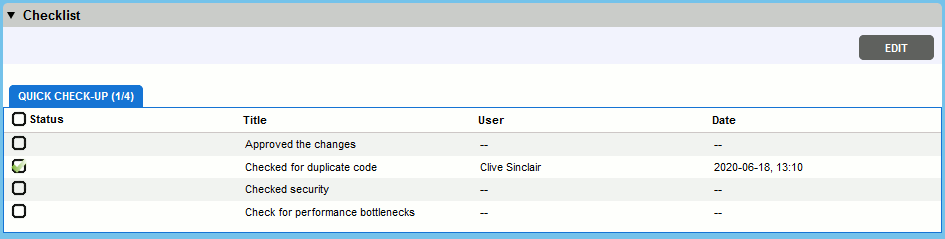
Collaborator track all activities on checklists. For example, when a review participant selects a check box in the checklist, Collaborator logs their name and the timestamp of the change. Also, it adds a message about the change to the Chat section of the review. If a participant clears some check box, Collaborator also adds a message about this to the Chat section.
For auditing purposes, you can include checklist status changes into the Review Details Report. Make sure that Checklist History is set to Display Checklist History for this.
To learn how to create and modify checklists, see administrator reference.
Checklist actions
| • | You can sort checklist items by Status, Title, User or Date. |
| • | Depending on the review template’s settings, you may be required to check all the items before a review can be approved. In this case, a checklist has an asterisk in its title: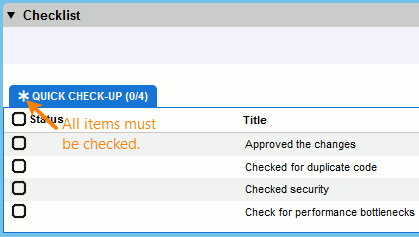 Asterisk in the checklist title |
| • | To check all items at once, click the check mark in the Status column header: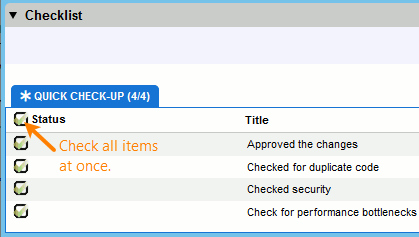 |
| • | By default, only one checklist is visible on the Review Screen. If the review template allows using several checklists, you can add more checklists manually: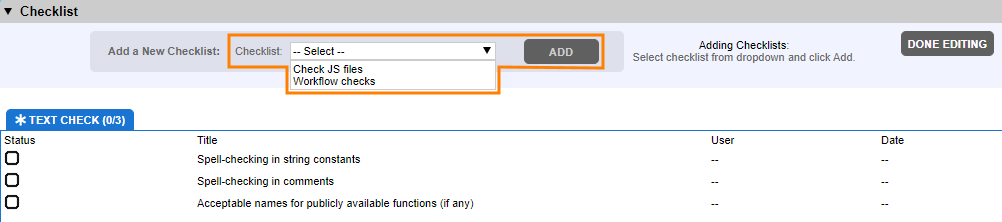 Adding a checklist to a review |
The Participants section lists all participants in the review, their statuses, and their roles:
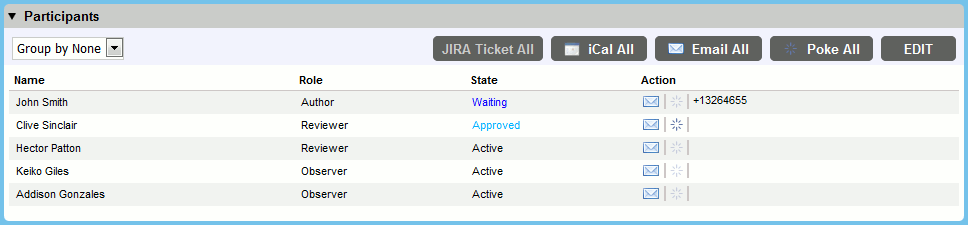
The drop-down list at the top left allows you to select the way participants are grouped when displayed in this section. The options are "Group by Role", "Group by State" or "Group by None". The "Group by None" option lists all participants in the review in a single list which is sortable by clicking the headers for each column (name, role, state).
There are the following states of review participants:
| • | Active: participant is going to do some action to move review process forward: creating comments, adding changes to the review materials, etc. For example, when reviewer creates a defect and sends review to rework, author is moved to Active state (because author needs to address the defect). |
| • | Waiting: participant is waiting for specific activities. For example, when the author sends review into Inspection, author’s state is changed to Waiting (because he/she is waiting for reviewers' feedback). |
| • | Sent to Rework: participant sent the review to the rework, while other participants still are in Active state (reviewing). When all reviewers move review to the rework, author is in Active state, and reviewers are in Waiting (for some action like ‘File activity occurs’). |
| • | Approved: participant accepted changes in the uploaded materials. |
| • | Approved by workflow: participants in completed review, that didn’t complete review explicitly (usually for observers, moderators). |
| • | Completed: state of authors after completing reviews. |
From the Participants section you can send different types of notifications to other participants. Collaborator has the following types of notifications:
| • | E-mail - Launches your e-mail client and creates a draft letter which you can edit as you like and then send it. To send an e-mail notification to a specific participant, click the Email icon (  ) next to the desired participant. ) next to the desired participant.To send e-mail notifications to all participants, click the "Email All" button at the top of the Participants section. |
| • | Poke - Sends an e-mail with auto-generated content. Poke notifications may be useful when a certain participant has stalled the review or when you would like to invite a "finished"/"waiting" participant back into the review. To send poke notification to a specific participant, click the Poke icon (  ) next to the desired participant. ) next to the desired participant.To send poke notifications to all participants, click the "Poke All" button at the top of the Participants section. When you press "Poke All" button, it displays a pop-up suggesting whether to send poke notification to all participants or only to those participants who has not yet approved the review. |
| • | Calendar - Creates an email with a meeting request in iCalendar format. Calendar notifications may be useful for scheduling formal meetings on review. To send Calendar notifications to all participants, click the "iCal All" button, in the ensuing Collaborator iCal Invite dialog specify proposed date and time and click Send. |
Participant Custom Fields Section
This section complements the Participants section and displays the values of participant custom fields (if they are established and enabled for current review template).
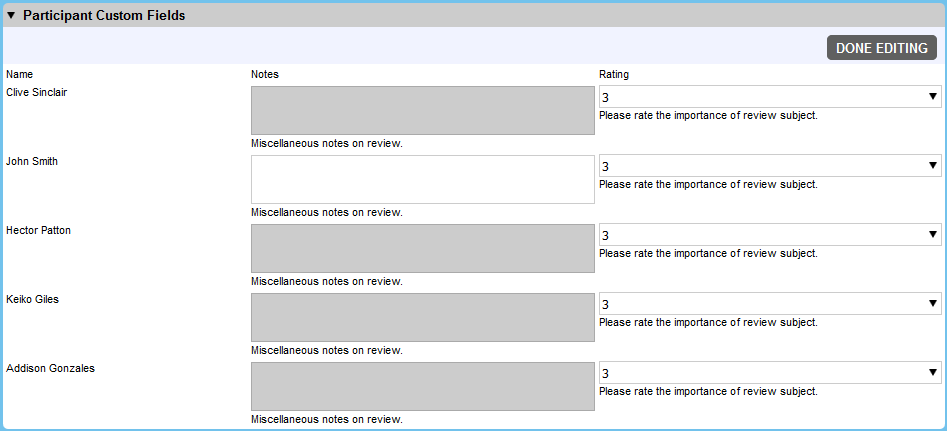
By default, participants can modify only their fields (yet, this is configured per each custom field). Fields of other participants are displayed in read-only mode.
If your current review template allows, the Remote System Links section is displayed. This section lists all pull requests, direct pushes and issue-tracking items linked with this review.
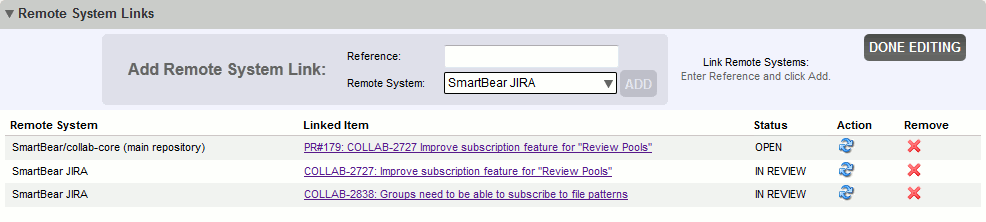
The list automatically populates with the following items:
| • | Links to the remote repository for reviews created on pull requests and direct pushes to remote repositories. (If any of repository hosting integrations is established and running.) |
| • | Build statuses of your CI systems (Jenkins, Travis and so forth) for reviews created on pull requests of GitHub repositories. (If GitHub integration is established and running and your repositories use continuous integration.) |
| • | Links to issue tracking item identifiers that occur anywhere within the review (title, custom fields, comments and so on). (If any of issue-tracking integrations is established and running.) |
The Remote System Links section also displays current statuses of linked items. Item statuses are updated upon webhook events (if a remote system supports webhooks), or periodically (default interval is every 2 minutes and can be adjusted via VM option). Also, participants may refresh item status manually.
Besides that, participants may remove linked items or append links to issue-tracking items, several pull requests from the repository hosting services.
 Azure Pull requests can be added using pull request command only.
To append a link to an issue-tracking item or pull requests, do the following:
| 1. | Type the item identifier (in JIRA it typically consists of project key and ordinal number, e.g. COLLAB-2838. For pull requests use their id) into the Reference field, |
| 2. | Select the desired configuration in the Remote System drop-down. It lists only those issue-tracking systems that are available to current review template and all repository hosting services. |
| 3. | Press Add. |
User can link pull request to review only if he/she has: an access to a review in Collaboratorpermission to add files to the review, remote user mapping to corresponding remote system and read access to repository.
Specific pull request can be mapped to one review only.
Linking pull requests to a review from Pull request comment
The Collaborator provides a few commands which help user to add/remove PR to/from existing Collaborator review or create a new review and add PR to it directly form PR comments.
Command |
Description and examples |
collab create review |
create new review and add current PR into it. |
collab add pr [empty/prId/id1,id2...] review [empty/reviewId] |
add PR to a specific review. collab add pr review 100 - add current pull request to the review 100. collab add pr 3600 review 200 - add pull request with id 3600 to the review 200. collab add pr 3600,36 review 200 - add pull requests 3600 and 36 to the review 200. |
collab remove pr [empty/prId/id1,id2...] review [empty/reviewId] |
remove PR from a specific review. collab remove pr review - remove current pull request from the linked review. collab remove pr 3600 review 200 - remove pull request with id 3600 from the review 200. collab remove pr 12,24 review 200 - remove pull requests 12 and 24 from the review 200.
|
collab resync |
Adds missed commits of the pull request in the review for Bitbucket Server (On-Premise). |
collab abort |
Add this command to abort the ongoing creation of review for the current PR, when creation of review is taking too long. |
Pull Request Merge Info Section
For reviews created by repository hosting service integrations the Pull Request Merge Info section is displayed. This section allows to check and change what action will be performed with pull request when current review will be accomplished:
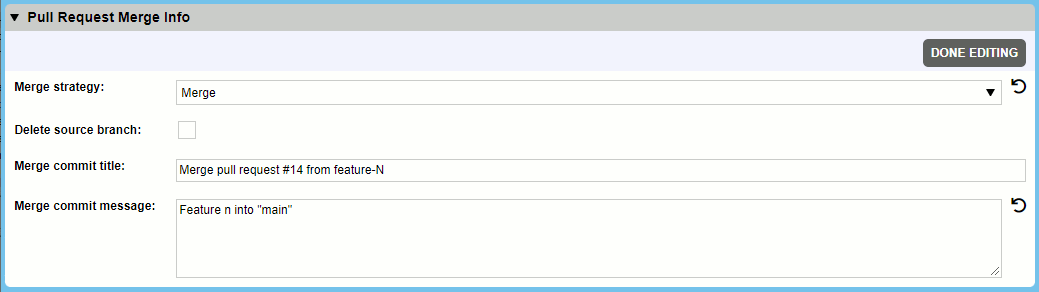
Default merge strategy is specified by the integration’s "When review completed" setting. Merge strategy selected in this section overrides the integration's default merge strategy.
The exact merge strategy cannot be specified for GitLab and Bitbucket Server pull requests. If any of merge actions was chosen, pull request will be merged according to project settings on the GitLab or Bitbucket Server side. In GitLab these are specified in Settings > General > Merge requests, while in Bitbucket Server in Project settings > Merge strategies.
To learn more about pull request merge strategies, see documentation of the respective repository hosting service:
By default, the section is displayed in the read-only mode. To modify pull request merge strategy, click Edit.
| 1. | Select the desired strategy in the Merge strategy drop-down. This control is active only when the integration’s "Allow users to select merge strategy in review" setting is set to "True". It lists only those actions that are available for the current repository hosting service integration. |
| 2. | Depending on chosen action, you can specify additional information: whether to delete source branch, commit title and commit message and so forth. |
When user links new pull request to review Collaborator adds merge strategy settings for each PR in a separate tab.

If review contains several pull requests from the same remote system (e. g., GitHub), user have possibility to enable "Use for all pull requests" option. In such case, selected configuration will be applied as common merge strategy for all linked pull requests and tab with this PR will be opened by default. Option could be checked-in for one PR in the review only; when user sets it for one PR then previously checked-in setting, if any, is set to un-checked.
"Use for all Pull Requests" is not supported for merge requests from GitLab integrations.
When user un-links PR from review Collaborator deletes a related tab with the settings.
The Defect Log lists all defects found in the review:

Initially the log will be empty. As defects are created for the review as a whole or on individual files and line numbers, all defects are collected and listed here. For defects associated with particular files, links to that file and line number appear in the table for fast access. All defect custom fields are shown in the table. If review template allows assigning defects to specific participants, the exact participant responsible for fixing the defect will also be shown in the table.
When, as the reviewer, you have verified that a defect you found has been fixed, you can indicate this by clicking Mark Fixed.
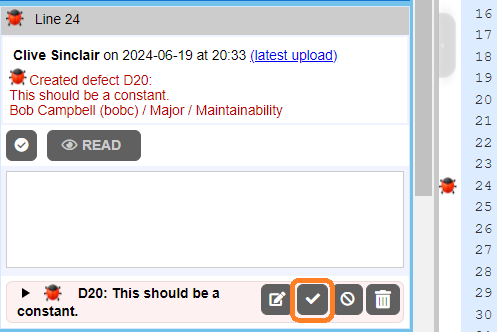
The defect is then redrawn to reflect this:

Only certain participants will be able to mark defects fixed. Which roles are allowed to do this depends on the system configuration. Also the user that created the defect is allowed to mark it fixed, and administrators are always allowed to mark any defect fixed.
Most of the time you will create defects and mark them fixed on individual lines (in text files) or on specific areas (in other types of documents).
To learn more on creating and editing defects, see the respective section of Review Chats, Comments and Defects.
You can chat with other participants about this review as a whole, rather than chatting on individual lines. Chat section contains three tabs: User messages tab displays comments and acceptance marks of other participants, including user comments from remote repositories, while System messages tab displays system information related to current review: defects, file uploads, marking checklist items and so forth, and All messages tab displays participant and system messages altogether.
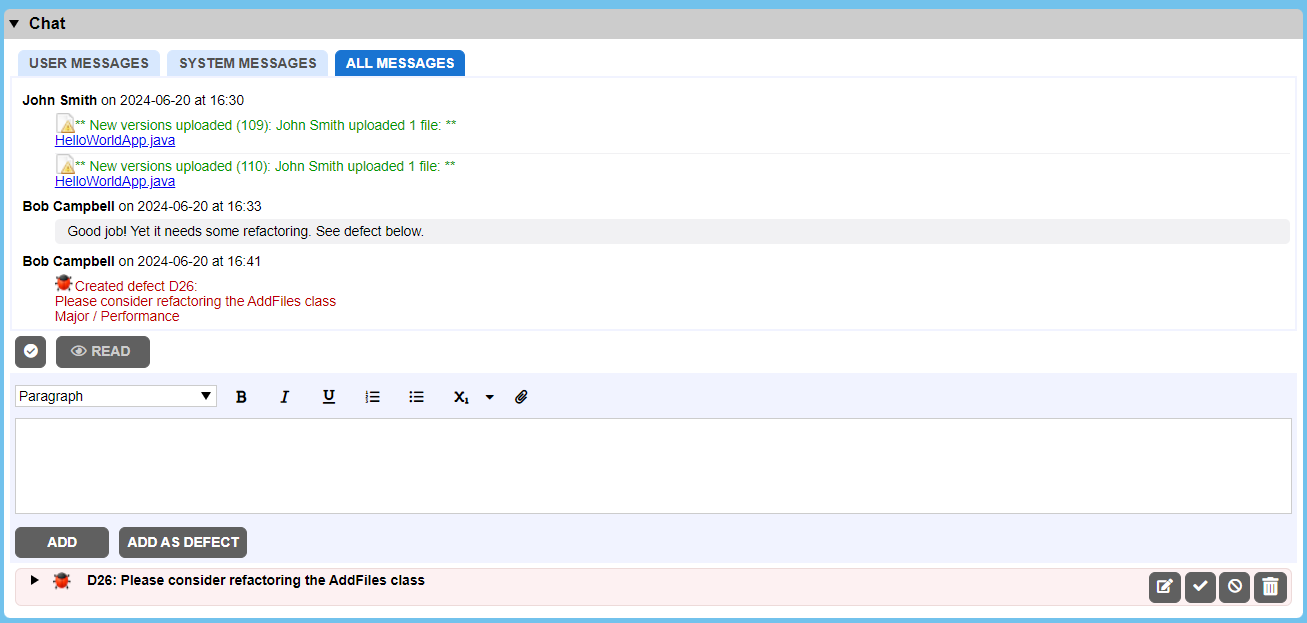
You can also use this section to enter defects related to the entire review. Clicking Add as defect button will change the interface to include a drop-down list that will allow you to specify defect information like Severity, Type and so on.
There is much to say about chat and defects, but this interface is identical to the one in the Review Chats, so please see that section for details.
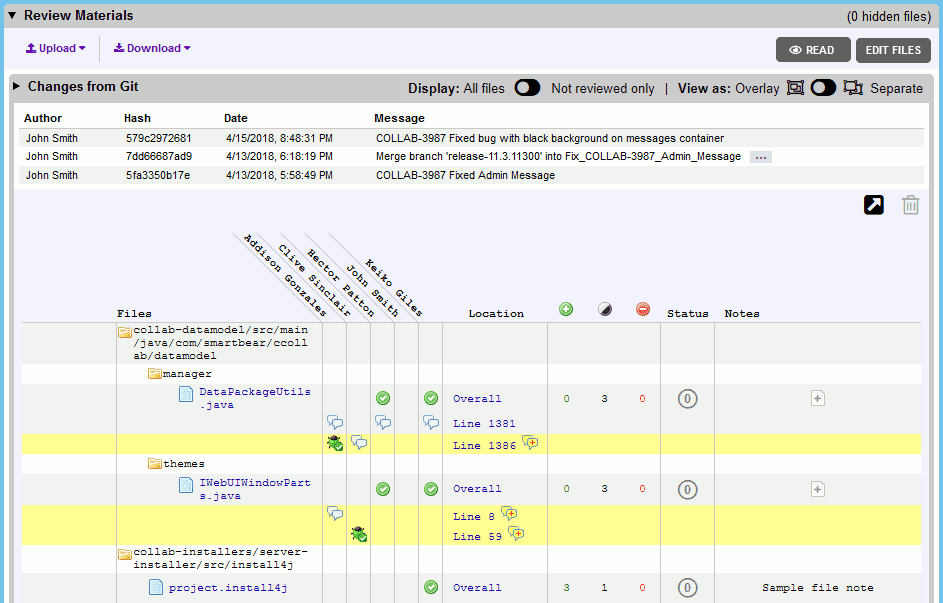
The Review Materials section is the heart of the review: All files are displayed and participants can view content and differences and create comments and defects on specific lines or coordinates within a file.
Below, we will describe each of its elements in detail.

Toolbar
The toolbar of the Review Materials section holds the following items:
Displays a list of actions for uploading data to current review. Uploads can be disabled by review creator and by administrator, in this case the The upload actions are: |
|
<Name of Version Control System> - Upload changes from one of pre-configured version control repositories. |
|
Files - Upload arbitrary files from your computer. Tip: Alternatively, you may just drag your local files and drop them to review web page. |
|
Folder - Upload all files and sub-folders from the specified folder on your computer. |
|
Simulink Archives - Upload Simulink models that have been exported as web view archives. |
|
URL - Attach live URL link. |
|
Local Changes - Upload local files using the command-line client, GUI Client, or P4V integration. |
|
Displays a list of actions for downloading review materials to your local computer. Downloads can be disabled by administrator, in this case the |
|
Files - Download a ZIP file containing all files with subdirectory structure preserved. This means you can test the proposed file changes locally: Just download the ZIP file and expand it in your own development environment. This is also useful in the single-committer model for when you want to actually commit the changes. This can take the place of a patch file. Warning: Downloading files to your local hard drive can have unintended consequences. Make sure you do not have changes of your own that you are overwriting. Also, remember that the author of these changes might not be synched to exactly the same versions of all files in version control, so if your local test fails this might be the reason. You can also download individual file versions from the Diff Viewer, but the Download Files toolbar link is the more common way because you get all files at once. |
|
Material Conversation - Download a ZIP file containing material conversation of all the files in the review. It is similar to the material conversation file, which we get when we archive a review. Permissions to download Material Conversation option is similar to Archive Review. |
|
Allows to mark all comments in all review materials as read. Use with caution, as this operation makes it extremely easy for someone to mark all comments in all review materials as read without actually reading them. Therefore typically this action is disabled by administrators. |
|
Allows to change the list of review materials by hiding files that do not need to be reviewed. Hidden files will not be listed in Files section and their content will not be displayed in the Diff Viewer. By default, only review authors can hide files, and they can perform this only in the Planning phase. To learn more about this feature, see Hiding Files From Review. |
|
Allows to filter not reviewed files in the review materials. The toggle is disabled for separate mode (no filtration in that mode to avoid of confusing behavior when there are some versions are marked as reviewed, but the latest version of file not marked). The display options are: All files (default) - display all files from the review materials. Not reviewed only - display only not marked as reviewed files in the review materials (for overlay mode only). |
|
Allows to change the format of how the review materials are listed. If a review contains only one changelist, this command is inactive. The view options are: |
|
|
|
|



The Changelist info section displays information about the uploaded files - who and when has submitted files, version control system, changelist IDs, commit messages, diff command and so on. Depending on how the materials were added, this information may vary a little. In Overlay view this section combines information from each changelist, while in Separate view this section precedes each particular changelist. If the commit message is too long, or consists of multiple lines, then the message is trimmed at 70 characters. To see the full message, press the ellipses button. The section has two more buttons:
|
Download a diff file for viewing in an external Diff Viewer. |
|
Deletes a changelist from the review materials. If you have multiple changelists in the review, you will need to go to separate view in order for the button to be enabled. You cannot delete an arbitrary file from a changelist. You can only delete the entire changelist. You cannot delete changelists that have comments to any file. Ability to delete review materials can be disabled by review creator and by administrator, in this case the To exclude unneeded files from review, we recommend hiding files rather than deleting a changelist. Read Hiding Files From Review for details. |


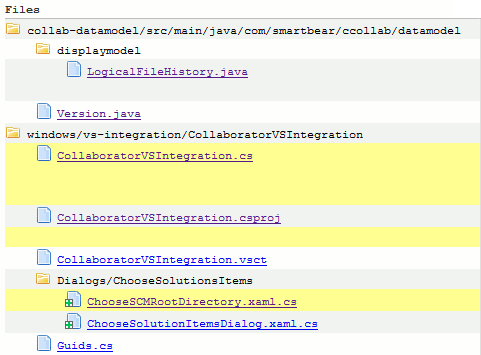
File list
The Files column shows the files in this review. This part of the screen may look different depending on the selected View as setting. The icon next to the file name indicates what operation was performed to the file.
Icon |
Meaning |
|
File was modified |
|
File was added |
|
File was reverted before the review has started |
|
File was deleted |
|
File was reverted during the review |
|
File was marked as reviewed |


To open the content of a file in the Diff Viewer and view all comments associated with that file, just click its name in the file list. In Overlay mode of review materials, Diff Viewer will display overall changes made to the file as specified by the Default Revision Comparison of Diff Viewer setting, while in Separate mode it will display changes made by a particular changeset.
The Utility column may precede the Files column, it groups various actions that could be performed over the specific file. For instance, it can display the Hide check boxes for hiding files, the  Upload new version button for uploading new revision under a different file name, or the
  Delete latest version button for deleting the latest version of manually uploaded files. Admin has permission to remove it even when there are added comments or defects to the file. In this case all comments and defects will be permanently delete from Collaborator.
The Conversation column of the Files list shows where comments and defects have been made, their location within a file as well as whether these comments have been approved by other participants.
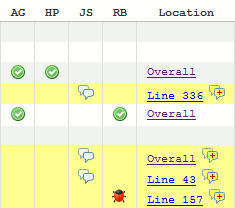
Conversation status icons and Location column
Icon |
Meaning |
|
This participant has made a comment |
|
This participant has clicked "Mark Accepted" for file revision or comment. When the author uploads new revision of a file, the |
|
This participant has created a defect, which is currently "Open" |
|
This participant has created a defect, which is currently marked as "Fixed" |
|
This participant has created a defect, which is currently marked as "Rejected" |
|
This participant has created a defect, which is currently marked as "Tracked Externally" |


The Location column indicates where within the file the conversation represented by this row is located. Yellow alert bubbles  mean there is activity on that line that the current user has not yet marked read. Click on a line number to open the content of that file and view that conversation. When the respective document is being converted, the Location column displays conversion progress indicator instead.
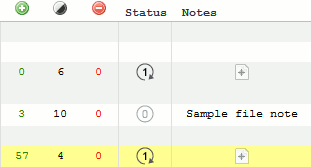
Metrics, Status and Notes columns
The next three columns show the number of text lines or lines of code (LOC) that have been added, changed, and deleted, with special cases for situations like added or deleted files.
Icon |
Meaning |
|
The number of lines that have been added |
|
The number of lines that have been modified |
|
The number of lines that have been removed |


The lines of code metrics (LOC metrics) are calculated only for source code and other text-based files. For other types of review materials (Word, Excel, PDF or Image files) the metrics are not calculated and return 0.
If the Overlay view is selected (default), the LOC metrics are calculated comparing the latest uploaded revision of file against the baseline revision of that file. Here, the baseline revision stands for the revision at the moment the review was created.
If the Separate view is selected, the LOC metrics are calculated comparing each individual file revision against its previous revision.
For reviews created by pull requests, file changes made by merge commits (if any) are displayed in Separate view, but they are not taken into account when calculating overall LOC metrics.
The lines of code metrics and conversation positions are calculated including whitespace characters, letter-case changes and COBOL sequence numbers (if any). Diff Viewer has options to ignore those when displaying file difference. When these options are enabled, line numbers and conversation position displayed in Diff Viewer may vary from line numbers and conversation position displayed in Review Summary Screen and reports.
The Status column shows how many times the file has been reworked during this review. For reviews created by pull requests, file changes made by merge commits do not affect the overall rework count of a file.
The Notes column allows any user to annotate the files. To edit the note click in the note column. This is typically used for messages to all reviewers such as "review this file first", or "ignore this file".
Electronic Signatures
When electronic signatures are enabled, users will see Sign and Decline buttons in the Review Steps section for completed reviews.

Clicking either button requires a user to provide their login and password (or only login, when single sign-on is enabled) to complete the action. This makes the electronic signature compliant with FDA regulations. When declining signature, you can also specify a comment explaining your decision.
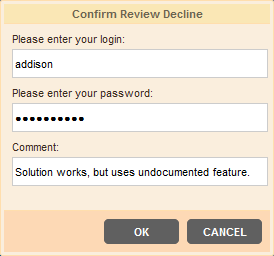
When a reviewer signs or declines a review, the Review Steps section displays, "This review has been signed off" or "This review has been declined". The Chat section shows the signature information. Collaborator notes the name of the reviewer and the date and time the review was signed or declined.
For auditing purposes, you can go to the Review Details Report. Make sure that Comments Section Format is set to Display All Comments, and in the Overall Review Conversation section, you can see the signature information.