The Review Materials screen or Diff Viewer is where most of the reviewing takes place. It shows which exact changes were made to the review materials, how a file has changed from one revision to another.
Diff Viewer includes a number of configuration and display options that may change depending on the specific type of file that is being reviewed.
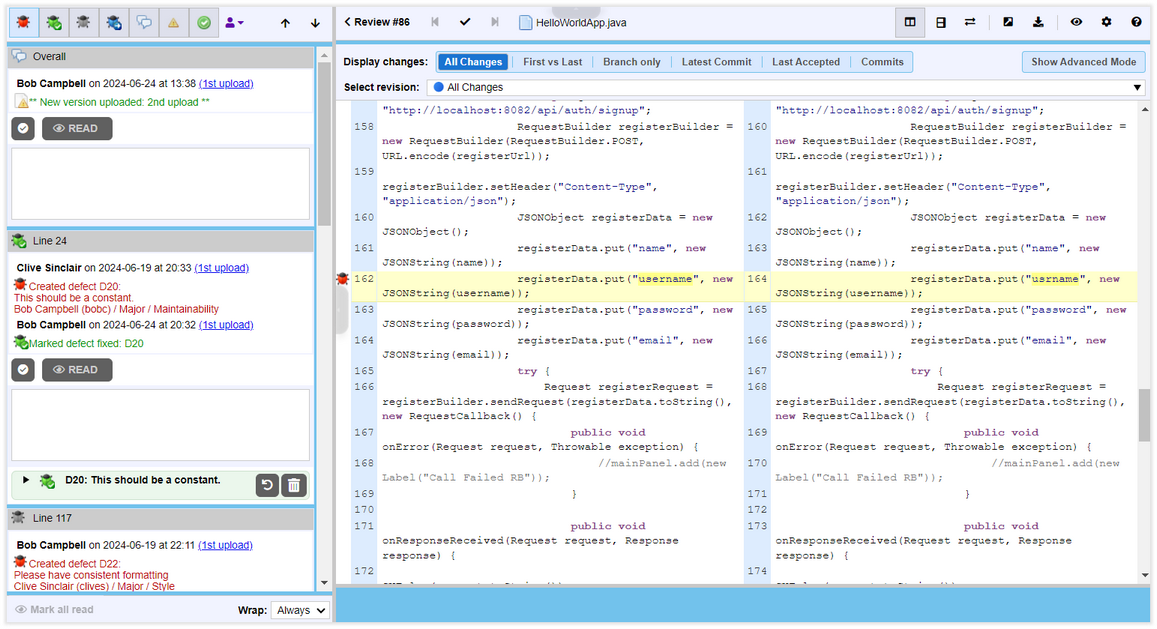
The appearance of the Diff Viewer when reviewing source code files
The Diff Viewer is divided into a number of sections:
| • | Diff Viewer Toolbar (Which includes the Display Options pane) |
| • | Diff Viewer Content (The actual content under review) |
NOTE: The Diff Viewer opens in the same window and tab, when launched from the Review Summary screen. To open it in a new window, you can Shift+click the link.
On the left of the main Diff Viewer page, there is a pane for chat threads. This pane allows you to add both global and content-specific comments and defects to the document you are reviewing. Comments may hold any information concerning the review: a question, a clarification, a remark, an encouragement, whatever else. Defects indicate a problem that needs to be fixed. Comment and defect description could be in plain-text or use rich-text and Markdown formatting, they could also mention other Collaborator users. To learn more about global and content-specific comments and defects, see Types of Review Comments and Defects.
To hide or show the Chat pane, you can either click the expander button in the pane border or the  Focus Mode toolbar button. When you click anywhere in the Diff Viewer content, the Chat pane automatically expands so that you can input your comment or see existing comment or defect. Similarly, it automatically expands when you click on a link to comment or defect (except for Overall comments and defects).
To cancel adding a comment or defect, just press Esc. This will clear input text (after confirmation) and will collapse the Chat pane if you were reviewing in Focus Mode.
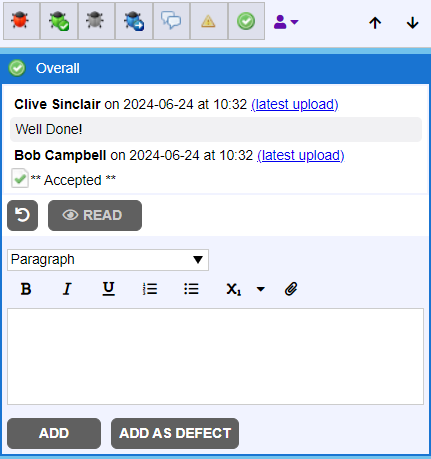
At the top of the chat pane, you will find a series of filter buttons that control whether or not certain types of comments/defects appear in full or in collapsed states (to save viewing space). Note that defects, count as unread comments until they are accepted/marked read. The combination of these toolbar options acts as a filter of what comments/defects will be collapsed in the chat pane.

The first four icons control whether defects appear collapsed or expanded in the chat panel. The red bug  controls the display for open defects, the green bug
  controls the display for fixed defects, the gray bug
  controls the display for rejected defects and the blue bug
  controls the display for defects tracked externally.
The next four icons control the display of non-defect conversations. The white conversation bubble  controls the display for all comments. The yellow hazard sign
  controls the display for unread comments. The green checkmark
  controls the display for conversations that have been marked accepted. The pushpin icon
  controls whether to display markers for coordinate comments within word-processing documents, presentations, PDF documents, images and vector graphics. The user icon with a drop-down
  specifies whether to display comments and defects from all participants who has made any comment or defect, or just from the selected participant.
The next two icons 
 allow navigating to the previous or next comment or defect within the current document. Navigation is performed according to currently selected of filter buttons. For example, if only the Show conversations with unread comments filter is enabled, navigation is performed only through unread comments.
Each comment and defect display who and when made them, as well as links to file revision where that comment or defect was submitted. For files from source-control systems, the version information link displays the commit ID, whereas for locally uploaded files it displays the upload number.
To learn how to make conversation during the review, see Types of Review Comments and Defects and Review Chats, Comments and Defects topics.
The toolbar at the top of the Diff Viewer includes options for altering the display of information and navigation through documents within the review. The number of available toolbar items varies a little depending on the reviewed material.

Toolbar appearance during code review

Toolbar appearance during document review

Toolbar appearance during Simulink model review
Returns back to review summary page. |
|||||
Navigate to the previous or next file in the review, respectively. |
|||||
|
|
Specifies whether the file is marked as reviewed or not-reviewed.
Mark is displayed and applied to only the user, that marked the file as reviewed. The mark is cancelled automatically if a new version of the file is uploaded. If two versions of the file are opened in the Diff Viewer, then ‘mark as reviewed’ is applied to the version, that is opened in ‘After'. |
||||
Displays the name of current file. |
|||||
Specifies whether the Diff Viewer displays in side-by-side mode or over/under mode.
This button is displayed only for text-based formats and images. |
|||||
Determines which pane is considered the 'After' pane, for the purposes of highlighting additions and deletions.
|
|||||
Toggles between adding coordinate comments and panning the file contents.
This button is displayed only for word-processing documents, presentations, PDF documents, images and vector graphics. |
|||||
Toggles between zooming and scrolling the file contents.
This button is displayed only for word-processing documents, presentations, PDF documents, images and vector graphics. |
|||||
Locks mouse action for both panes.
This button is displayed only for word-processing documents, presentations, PDF documents, Simulink models, images and vector graphics. |
|||||
Specifies the zoom level for both Before and After panes. You can set the scale to various percentages, Page Width or Full Page. This button is displayed only for word-processing documents, presentations, PDF documents, images and vector graphics. |
|||||
Performs a full-text search within the current document. Type-in the desired text and press Enter. This button is displayed only for Word processing and PDF documents, presentations and vector graphics. |
|||||
Launches the current document review in an external diff viewer. |
|||||
Downloads a Diff file of the current document. Downloads can be disabled by administrator, in this case the |
|||||
Expands or collapses the main toolbar and the Chat section, so that you can focus on review content.
|
|||||
Opens the Display Options panel which controls how Diff Viewer should display various data. This button is displayed only for text-based formats, for documents and for Simulink models. |
|||||
Opens the help menu with descriptions of color-code legend, keyboard shortcuts, and links to documentation. |


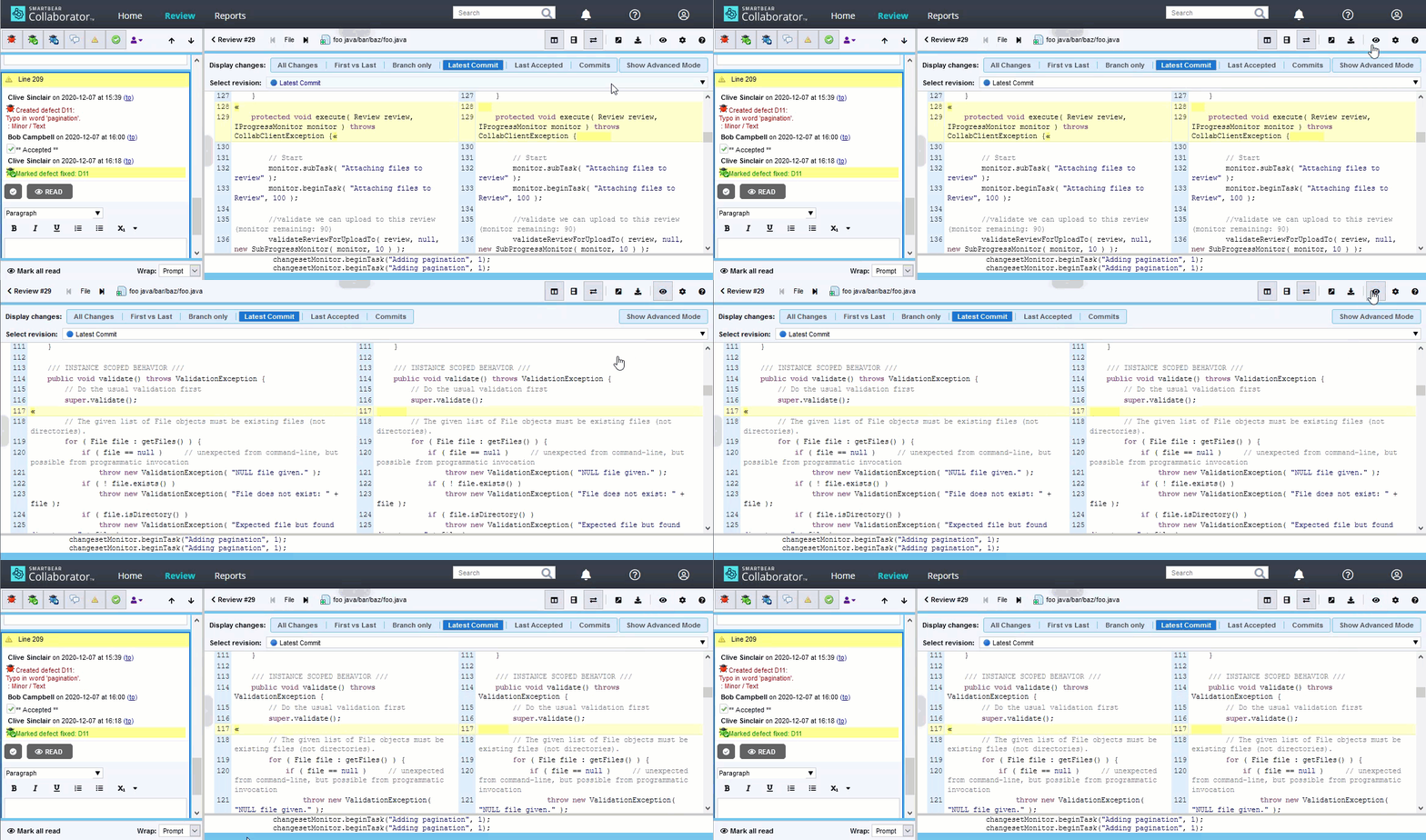


The content of the header varies depending on the type of file being reviewed, current revision selection mode, and content orientation.

Diff Viewer header in simple revision selection mode

Diff Viewer header in expert revision selection mode
Allows to select which file revisions (if available) will be compared. The available options are:
The "Branch only" mode may produce slightly different output depending on whether the review was created manually or via repository integration. In reviews created manually it is not always possible to filter-out merge changes, so sometimes they still could be displayed. Reviews created via integration have broader access to the repository and thus can exclude merge changes more thoroughly. The drawback of the latter approach is that the contents of individual merge commits will be displayed incorrectly. |
|||||||||||||
Toggles between simple and advanced modes of revision selection. |
|||||||||||||
Displays the current revision selection mode, or the file revision to be compared when the Display changes selector is set to Commits. Each file revision is identified according to the Revision Caption Pattern setting and may include provider type, creation time, item identifier and description. |
|||||||||||||
Visible in advanced revision selection mode. Specifies the file revision to be displayed in the 'After' pane. Each file revision is identified by its SHA-1 hash value. Additionally, the When you select the same file revision in 'Before' and 'After' drop-downs, Diff Viewer will unite the 'Before' and 'After' panes. In this case, added file revisions will have green background, while removed file revisions will have red background. |
|||||||||||||
Visible in advanced revision selection mode. Specifies the file revision to be displayed in the 'Before' pane. Each file revision is identified by its SHA-1 hash value. Additionally, the When you select the same file revision in 'Before' and 'After' drop-downs, Diff Viewer will unite the 'Before' and 'After' panes. In this case, added file revisions will have green background, while removed file revisions will have red background. |
File revisions in Select revision, Before and After drop-down lists are further identified by an icon which appears adjacent to the revision number denoting:
Icon shape: |
|
Square shape indicates that file was uploaded from any source control system (within changelist, commit, diff and so on). |
|
Circle shape indicates that file was uploaded from local storage without any versioning. |
|
Icon color: |
|
Green color indicates that file was added. |
|
Blue color indicates means that file was modified. |
|
|
Red color indicates that file was removed. |
|
Icon checkmark: |
|
Unchecked indicates that file change was not accepted yet. |
|
Checked indicates that file change was accepted. |


The Display Options panel contains various options that determine what data is displayed by the Diff Viewer and how it is displayed. This panel is available only for text-based formats, for spreadsheets, presentations, word processing documents and PDF documents and for Simulink models.
The list of panel option varies, depending on a format of the current file:
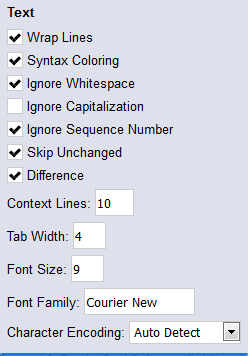
Wrap Lines |
Controls whether lines of text are wrapped to the width of the pane. NOTE: When 'Wrap Lines' is not selected, an option will appear at the bottom of the text section to enable/disable synchronized scrolling of the panes. |
Syntax Coloring |
Controls whether syntax-specific coloring is used, when supported. |
Ignore Whitespace |
Controls whether white-spaces are taken into account when showing differences. This setting affects how line differences are displayed in Diff Viewer. Once enabled, line numbers and conversation position displayed in Diff Viewer may vary from line numbers and conversation position displayed in Review Summary Screen and reports. |
Ignore Capitalization |
Controls whether capitalization is taken into account when showing differences. This setting affects how line differences are displayed in Diff Viewer. Once enabled, line numbers and conversation position displayed in Diff Viewer may vary from line numbers and conversation position displayed in Review Summary Screen and reports. |
Ignore Sequence Number |
Controls whether COBOL sequence numbers are taken into account when showing differences. This setting affects how line differences are displayed in Diff Viewer. Once enabled, line numbers and conversation position displayed in Diff Viewer may vary from line numbers and conversation position displayed in Review Summary Screen and reports. |
Skip Unchanged |
Determines whether large blocks of unchanged content is displayed. These gaps will appear, in the Diff Viewer as 'Skipping X lines...' and will include the two links labeled 'More', which will allow you to see more of this skipped content. |
Difference |
Enables highlighting of additions, deletions and differences in the viewer. |
Context Lines |
Defines the number of lines to show before and after the actual changes. So that you can better understand the context of changes performed. |
Tab Width |
Sets the number of spaces per tab. |
Font Size |
Allows customization of the font size. |
Font Family |
Allows customization of the font family |
Specifies the character encoding for the file. |
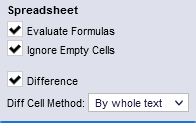
Evaluate Formulas |
Specifies whether to evaluate formulas and display the resulting value, or to display the formula itself. This setting affects the entire spreadsheet. To evaluate formulas for the selected cell, you can use the |
Ignore Empty Cells |
Specifies whether to ignore addition and deletion of empty cells, or to highlight them. |
Difference |
Enables highlighting of additions, deletions and differences in the viewer. |
Diff Cell Method |
Specifies how to calculate and highlight differences in cell content. Possible values are By whole text and By words. Each of the methods is described in the Cell content difference section of Reviewing spreadsheets. |
 button in the cell detail pane.
Word processing documents, PDF documents, presentations

Difference |
Enables highlighting of additions, deletions and differences in the viewer. |
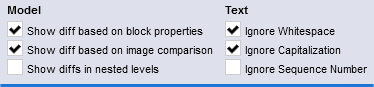
Show diff based on block properties |
Enables highlighting of additions, deletions and differences in block properties. |
Show diff based on image comparison |
Enables highlighting of additions, deletions and differences in graphical objects. |
Show diffs in nested levels |
Enables highlighting of parent block as changed when some of its nested blocks have changes. |
Ignore Whitespace |
Controls whether white-spaces are taken into account when showing differences in block properties. |
Ignore Capitalization |
Controls whether capitalization is taken into account when showing differences in block properties. |
Ignore Sequence Number |
Controls whether COBOL sequence numbers are taken into account when showing differences in block properties. |
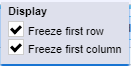
Freeze first row |
Freeze/un-freeze first row which contains name attribute for the column. Default value is enabled. |
Freeze first column |
Freeze/un-freeze first column which contains requirement ID in the document(s) under review. Default value is enabled. |
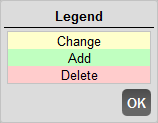
The differences are noticeably highlighted and color coded as explained by the legend: Changes appear in a yellow, additions are green and deletions are red.
The Diff Viewer is completely navigable from the keyboard. You can move around the file, jump to changes, expand conversation, make defects and mark file as reviewed/un-reviewed. To get the list of keyboard shortcuts, click the "Help" link in the menu bar, then "Keyboard Shortcuts".
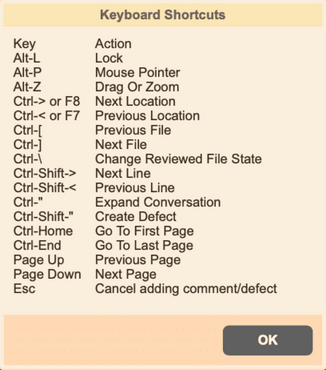
Option key is used in shortcuts instead of ALT on Apple Macintosh.
Limitations
Collaborator does not guarantee that Diff Viewer will display correct comparison results for the following cases:
| • | Subversion, Perforce, TFS, RTC, Git: If you have "gaps" while adding subsequent atomic changelists to the same review. For example, add changelists 1, 2, and 4, but forget to add changelist 3. |
| • | Perforce, TFS, RTC: If you add pending changelists from different workspaces to the same review. |
| • | Git: If you add changelists from different branches or repositories to the same review. |
| • | RTC: If you add changelists from different workspaces or streams to the same review. |
| • | All source control systems: If you add several diffs (non atomic changelists) to the same review. |