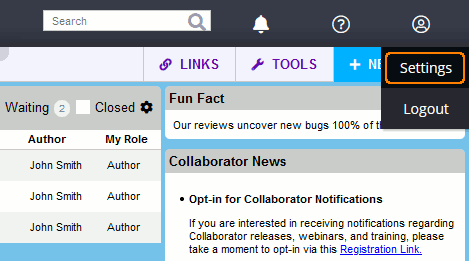
To edit your settings and preferences, use the Settings menubar command:
Login |
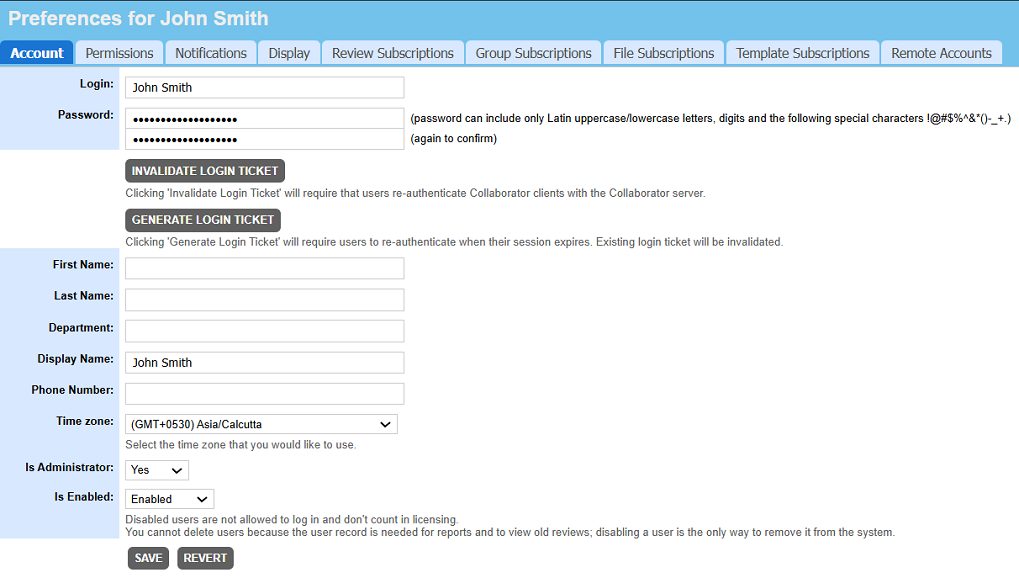
The token you use to log into the system. Typically this will be identical to your version control login name. Normally, you cannot edit your own login name. However, Collaborator administrators are able to edit anyone's login name, so contact an administrator if you need this done. |
Password |
The password needed to log into the system. Can be blank for "no password," although in all cases the password will be displayed with many dots as shown in the screenshot above. This prevents the causal observer from knowing anything about your password, even its length. Password can include only Latin uppercase/lowercase letters, digits and the following special characters !@#$%^&*()-_+. When changing your password you have to type it in twice to confirm.
Instead of using password, you can use login ticket for authentication in Collaborator desktop clients. Login tickets are special alpha-numeric identifiers that act as user credentials for a limited time period. By default, tickets are valid for 30 days. Collaborator administrators can decrease or increase ticket's time-to-live. To obtain a ticket, press Generate Login Ticket and copy the resulting alpha-numeric identifier. Now you can specify it instead of password in Collaborator desktop clients. Generating new login ticket, invalidates any existing login tickets. To invalidate your existing login tickets immediately, press Invalidate Login Ticket. This will cause Collaborator desktop clients to re-authenticate. |
First Name and Last Name |
Your first and last name, respectively. If your server uses LDAP or AD authorization, these fields are read-only. |
Department |
Name of your department, if any. If your server uses LDAP or AD authorization, this field is read-only. |
Display Name |
Your display name as seen by other users everywhere in the system. Up to 128 characters long. Typically, you can modify this setting yourself. However this can be disabled by Collaborator administrations, so that only administrators could modify all user display names. If you leave this field blank your login name will be used for your name. This is undesirable however; most other users will not know you by your login name. |
Phone Number |
The phone number other users can reach you at. This field is optional. |
Time Zone |
Your time zone. This will be used to determine users's displayed date/time. This is defaulted to the time zone selected on the Collaborator server. |
Is Administrator |
Controls whether you are a system administrator. Typically, you are not able to change this field, unless you are an administrator. Be careful: If you remove administrative access from yourself, there is no going back! (Unless another administrator adds you back.) |
Is Enabled |
This field is used by system administrators to determine whether you are allowed to log into the system. If you are looking at your preferences, you can log in, so you will always see this as "enabled". |
Can Edit Templates |
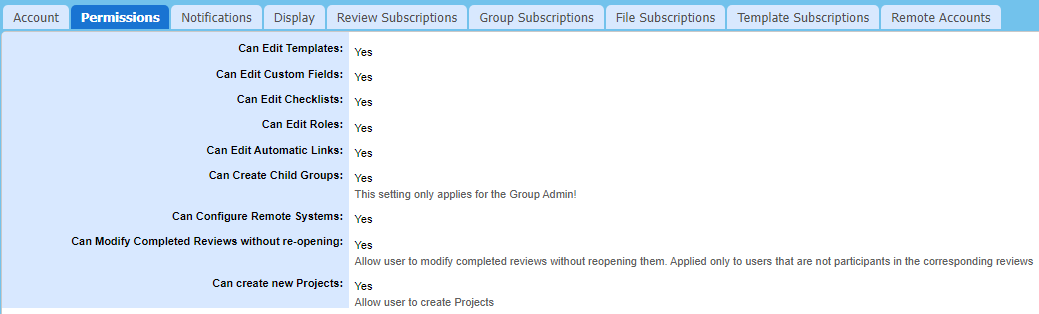
Controls whether you have permissions to manage templates. Typically, you are not able to change this field, unless you are an administrator. |
Can Edit Custom Fields |
Controls whether you have permissions to manage custom fields. Typically, you are not able to change this field, unless you are an administrator. |
Can Edit Checklists |
Controls whether you have permissions to manage checklists. Typically, you are not able to change this field, unless you are an administrator. |
Can Edit Roles |
Controls whether you have permissions to manage roles. Typically, you are not able to change this field, unless you are an administrator. |
Can Edit Automatic Links |
Controls whether you have permissions to manage automatic links. Typically, you are not able to change this field, unless you are an administrator. |
Can Create Child Groups |
Controls whether you have permissions to create child groups. Actual for group administrators. Typically, you are not able to change this field, unless you are an administrator. |
Can Configure Remote Systems |
Controls whether you have permissions to manage remote system integrations. Effective when the Allow users to configure remote systems global setting is enabled as well. Typically, you are not able to change this field, unless you are an administrator. |
Can Modify Completed Reviews Without Re-opening |
Controls whether you have permissions to modify review details after the review is closed. If enabled, you can modify general review information and add comments in the Chat section of closed reviews even when you are not participant of that review. Typically, you are not able to change this field, unless you are an administrator. |
Can create new Projects |
Controls whether you have permissions to create projects. Permission is enabled when Allow to create Projects option is set to "Specified users only". |
E-Mail Address |
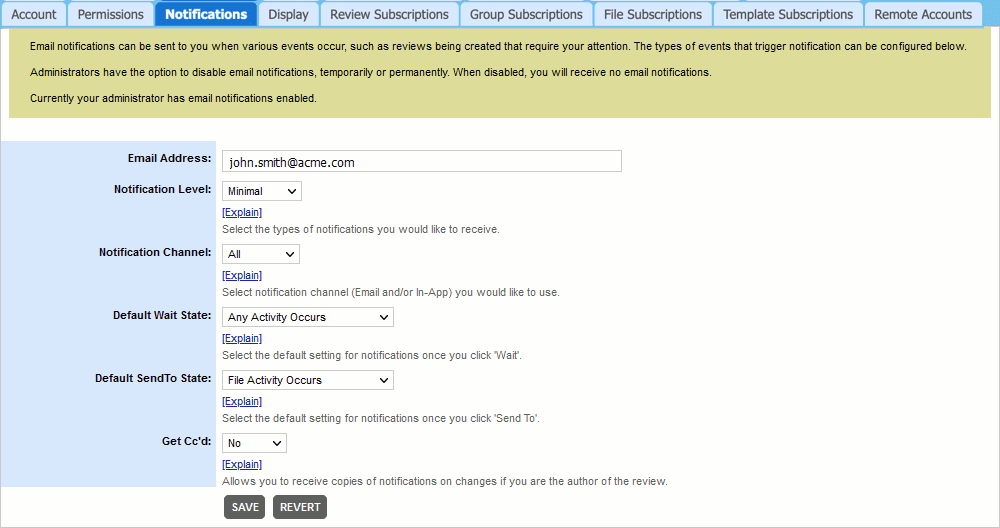
The email address that you want all notifications delivered to, and also to display to other users in the system in case they want to contact you directly via email. Although this field is technically not required, you really should fill it in, and if you do not, you will get a warning in your Action Items list. |
||||||||
Notification Level |
This controls how many e-mails you want to get. See the [Explain] link for details on the options. Generally, these are the choices:
|
||||||||
Specifies how to deliver notifications: as e-mail notifications, as in-app notifications or use both channels. |
|||||||||
Specifies the default level of notifications when you perform the "Wait" action during reviews. Possible values are:
|
|||||||||
Specifies the default level of notifications when you perform the "Send To" action during reviews. Possible values are:
|
|||||||||
Get Cc'ed |
This allows you to receive copies of notifications on changes if you are the author of the review. |
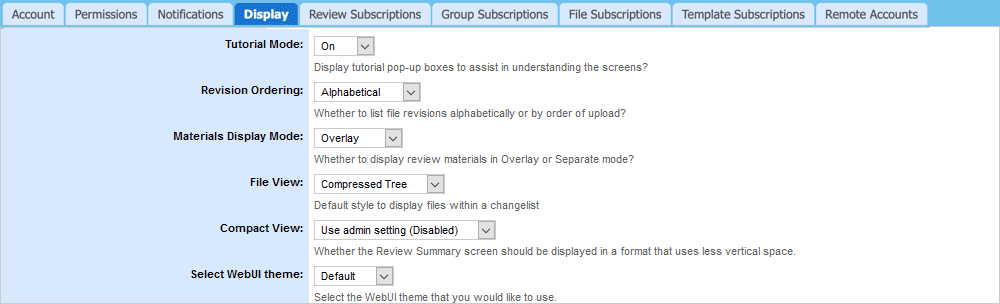
Tutorial Mode |
Controls whether those little yellow tutorial boxes are displayed throughout the system. By default, these boxes are displayed to help you understand the user interface. |
Revision Ordering |
Controls how file revisions are displayed, alphabetically or by order of upload. |
Materials Display Mode |
Allows the selection of the default display mode (Overlay or Separate) of materials on the Review Summary page. |
File View |
Controls which style should be used to display files within a changelist. Choices include Compressed Tree, Tree, or Flat. |
Compact View |
When enabled, the Review Summary screen is presented in a format that uses less vertical space. |
Specifies which of pre-defined Web client themes you would like to use. This setting overrides the default WebUI theme selected by administrator. |

Date Format Pattern |
Specifies the preferred format of date values. The format pattern may include the following elements:
Allowed date separator symbols are: slash (/), dash (-), period (.), comma (,), blank space or empty separator (no symbols at all). Year, month and day of month portions are mandatory for date format patterns. Below are some examples of date format patterns:
|
||||||||||||||||||||||||||||||
Time Format Pattern |
Specifies the preferred format of time values. The format pattern may include the following elements:
Allowed time separator symbols are: colon (:), dash (-), period (.), comma (,) or blank space. Hour portion is mandatory for time format patterns. Below are some examples of time format patterns:
|
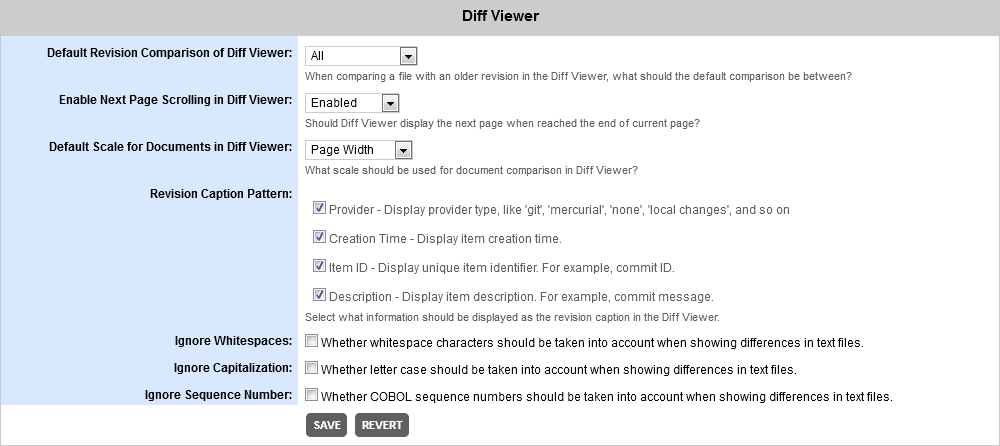
Allows the user to select which file revisions (if available) will be compared, by default, when the Diff Viewer is launched. The available options are:
The "Branch only" mode may produce slightly different output depending on whether the review was created manually or via repository integration. In reviews created manually it is not always possible to filter-out merge changes, so sometimes they still could be displayed. Reviews created via integration have broader access to the repository and thus can exclude merge changes more thoroughly. The drawback of the latter approach is that the contents of individual merge commits will be displayed incorrectly. |
|||||||||||||
Specifies whether Diff Viewer should display the next page when reached the end of current page in document reviews. |
|||||||||||||
Specifies the initial zoom level when reviewing word-processing documents, presentations, PDF documents, images and vector graphics. You can set the scale to various percentages, Page Width or Full Page. When you change scale of current document in the Diff Viewer it will be cached so that all further pages of that document would be displayed in the same scale. |
|||||||||||||
Specifies what information should be displayed as the revision caption in the simple mode of revision selection of Diff Viewer. Any combination of the following is possible:
|
|||||||||||||
Ignore Whitespaces |
Controls whether white-spaces are taken into account when showing differences. This setting affects how line differences are displayed in Diff Viewer. Once enabled, line numbers and conversation position displayed in Diff Viewer may vary from line numbers and conversation position displayed in Review Summary Screen and reports. |
||||||||||||
Ignore Capitalization |
Controls whether capitalization is taken into account when showing differences. This setting affects how line differences are displayed in Diff Viewer. Once enabled, line numbers and conversation position displayed in Diff Viewer may vary from line numbers and conversation position displayed in Review Summary Screen and reports. |
||||||||||||
Ignore Sequence Number |
Controls whether COBOL sequence numbers are taken into account when showing differences. This setting affects how line differences are displayed in Diff Viewer. Once enabled, line numbers and conversation position displayed in Diff Viewer may vary from line numbers and conversation position displayed in Review Summary Screen and reports. |
Review Subscriptions Preferences

Review Subscriptions allow you to automatically subscribe and be included in reviews with a preferred author. Under the "review creator" field, select the login name of the user to whose reviews you would like to be subscribed. If no authors are selected for a given review, the subscription will use the name of the review creator instead - unless the review creator is flagged as a system admin. Choose your role type (Reviewer, Observer, or Moderator) in the review. Keep in mind that actual role names may vary depending on your role configuration.
Group Subscriptions Preferences

Group-based subscriptions allow you to be automatically included in reviews where an author belongs to a given group at the moment, when review is created. Select the group to which you would like to be subscribed and where you are a member. Choose your role type (Reviewer, Observer, or Moderator)in the review. Keep in mind that actual role names may vary depending on your role configuration. If user is deleted from the group he/she was subscribed to, such subscription is deleted. Changes in group such as adding/removing users to/from group affect subscription behavior only for new review (created after changes in group). Subscription is applied to directly selected group only: child groups, if any, are ignored.
File Subscriptions Preferences

File Subscriptions allow you to automatically subscribe and be included in reviews where a particular file is under a review. Choose your role type (Reviewer, Observer, or Moderator). Select an Ant-style expression as the pattern to match the file(s) of interest. The expression will be matched to the file path and repository name; it will not look for matches in the complete repository path with URL and other server descriptions. Ant-style expressions can include "*" to match any substring within a given directory, or "**" to match any substring of any length, ignoring directory separators. If possible, avoid beginning the pattern with wildcard characters as it can significantly decrease the performance of subscription processing.
Template Subscriptions Preferences

Template Subscriptions allow you to automatically subscribe and be included in reviews having a particular template. Select the name of a template you would like to subscribe to in the "Review Template" field and specify your desired role type (Reviewer, Observer, or Moderator).
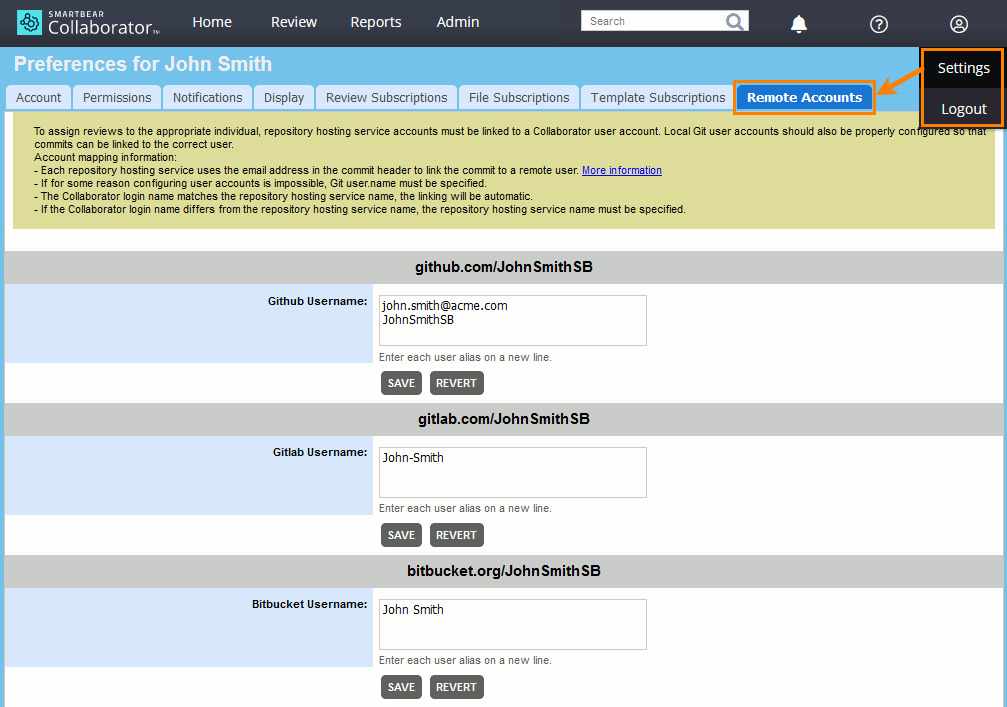
Remote Accounts allow you to specify correspondence between your user name or email address in Collaborator and your logins on various remote servers. These settings are used to match user names for Collaborator integrations with remote servers. See Linking User Accounts.