|
This topic provides an overview of integrations with repository hosting services.
Supported Repository Hosting Services
Requirements
How Web-Repository Integration Works
Technical Details
System Specifics
Supported Repository Hosting Services
| • | Bitbucket (both Git and Mercurial repositories) |
| • | Bitbucket Server (both Git and Mercurial repositories) |
| • | Bitbucket Data Center (both Git and Mercurial repositories)
|
Collaborator's Bitbucket integration will no longer be able to support Mercurial starting on June 1, 2020, when Atlassian will officially remove Mercurial features and repositories from Bitbucket and its API.
| • | GitLab Community Edition |
| • | GitLab Enterprise Edition |
| • | Azure DevOps Services (cloud hosting at dev.azure.com), |
| • | Azure DevOps Services (cloud hosting at visualstudio.com) formerly named Visual Studio Team Services (VSTS), |
| • | Azure DevOps Server (on-premises hosting) formerly named Team Foundation Server (TFS). |
 Team Foundation Version Control (TFVC) repositories of Azure DevOps are not supported. Team Foundation Version Control (TFVC) repositories of Azure DevOps are not supported.
LFS is not supported for remote systems (supported for native Git only).
Requirements
| 1. | Setup, configure and enable integration - Your Collaborator administrator should create a new Remote System Integration configuration. The configuration defines what repository hosting services to use, what repository and what branches to monitor, repository access credentials so on. Each single configuration instance tracks changes in a single web-based repository. To track multiple repositories, your administrators should create a separate configuration for each repository. For detailed instructions on how to setup each integration, see Configuring Repository Hosting Service Integrations. |
| 2. | Create webhook - Webhooks notify Collaborator about the activity of the remote repository. Collaborator tries to create webhooks automatically. Your administrators would need to make your Collaborator server be accessible through Internet (configure a firewall, enable tunneled connections and so on). |
| 3. | Setup user mapping - In order to assign reviews to the appropriate person, we need to link the owner of web-based repository with some of Collaborator user accounts. If Collaborator fails to match the web-based repository owner with any of Collaborator users, it will make the Collaborator Administrator the creator and author of the new review. See Link User Accounts for detailed instructions on how to setup user mapping. |
How Web-Repository Integration Works
When a review is created
Once configured Collaborator tracks changes at target web repository and automatically creates reviews in the following cases:
| o | when a pull request (or a merge request, depending on service terminology) is made within one or several specified branches of the repository, |
| o | when a direct push to one or several specified branches of the repository is performed. The latter can be suppressed by the "Ignore pushes for branches" configuration setting. |
Additionally Collaborator reviews are registered as repository's continuous integration tests (status checks in terms of GitHub, builds in terms of Bitbucket and Bitbucket Server and pipelines in terms of GitLab). Thus the current status of corresponding review will be displayed in the pull request. Moreover, for protected branches, Collaborator reviews must be accomplished in order to apply the changes.
Click to see examples
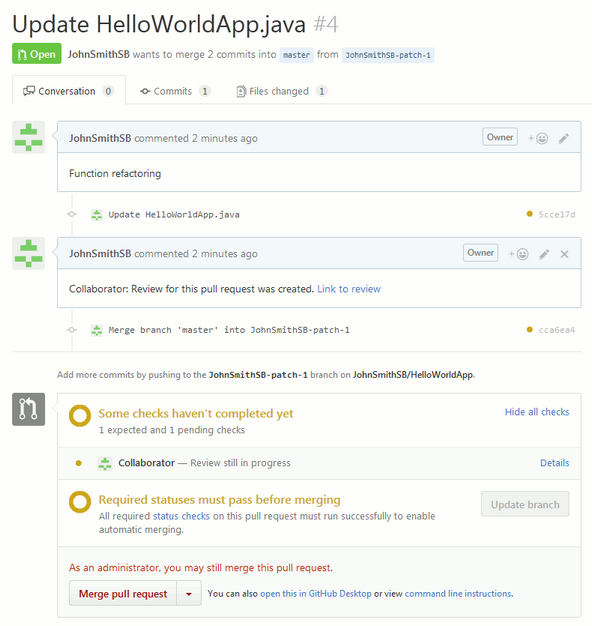 An example of pull request in a GitHub repository |
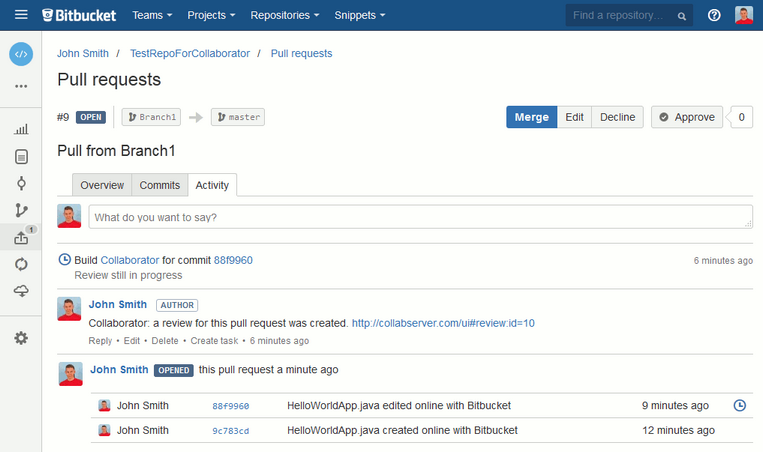 An example of pull request in a Bitbucket repository |
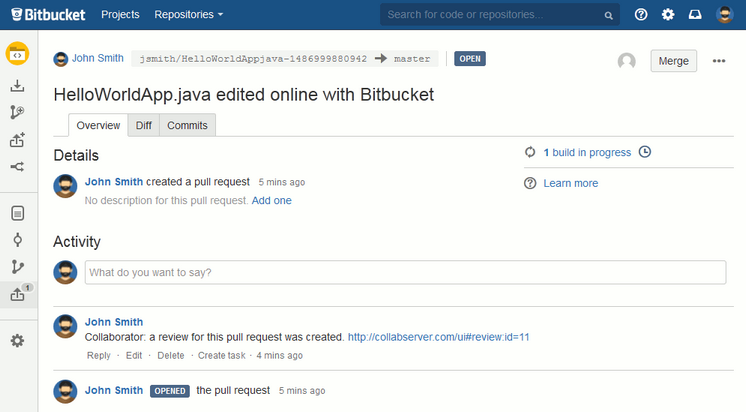 An example of pull request in a Bitbucket Server repository |
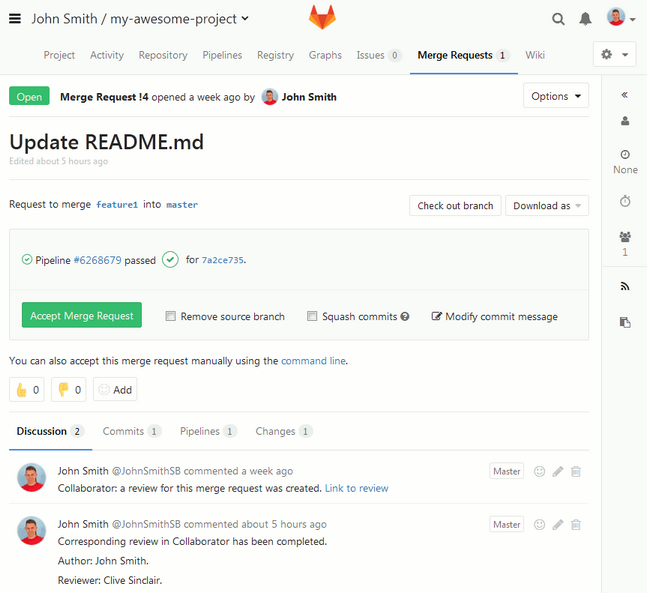 An example of merge request in a GitLab repository 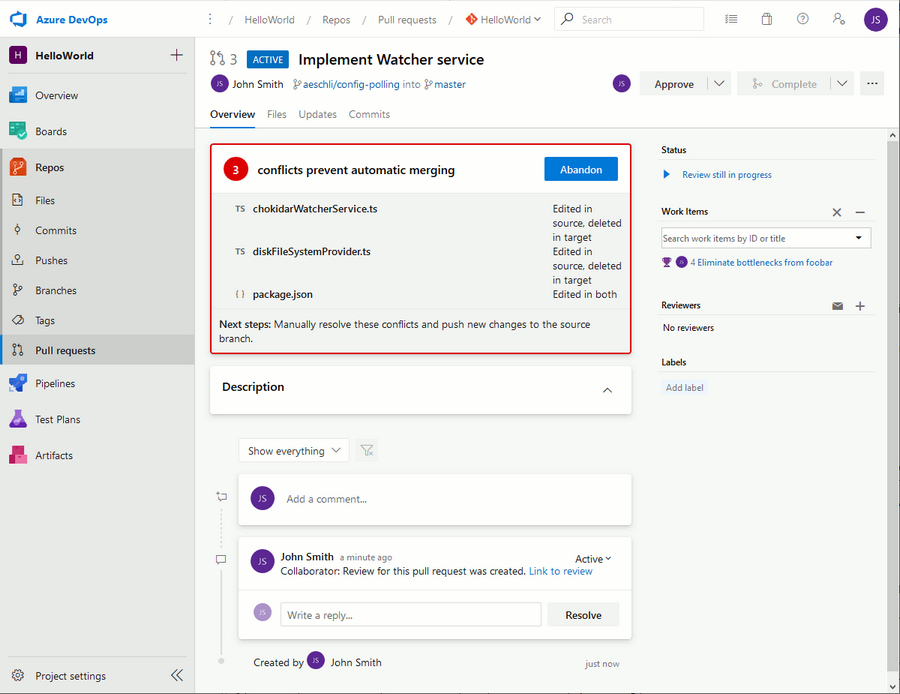 An example of pull request in a Azure DevOps Git repository |
Whom the review is assigned to
When Collaborator gets a notification about changes in a repository, it also retrieves information about the source-control user, who made these changes. So, it attempts to find a corresponding user in Collaborator to assign the new review to that user. In order for the search to be successful, you and your teammates need to link their Collaborator and source-control accounts in Collaborator settings. See Link User Accounts for details.
| • | For direct commits, Collaborator retrieves the commit author from the source-control and assigns the matching Collaborator user as a review author and creator. |
| • | For pull/merge requests Collaborator tries to obtain information about its author from the source-control and assigns the matching Collaborator user as a review author and creator. Some repository hosting services do not provide e-mail addresses of pull request authors, even when source-control users made them public. Thus Collaborator could fail to find a user matching to pull request author. In this case Collaborator retrieves the author of pull request’s last commit and assigns the matching Collaborator user as a review author and creator. |
If Collaborator does not find a matching user, it assigns the Collaborator administrator as a review author and creator.
Additionally, Collaborator can assign reviewers in the following cases:
| • | GitHub, GitLab: If repository contains a CODEOWNERS file that defines users responsible for certain files in a repository and integration can match those GitHub/GitLab users with Collaborator users, |
| • | GitHub: If some team was added as reviewer when creating pull request on the GitHub side, or some team was specified in CODEOWNERS file and integration can match members of that team with Collaborator users, and the Auto assign reviewers option is on. |
| • | Bitbucket, Bitbucket Server: If some specific users were added as reviewers when creating pull request on the Bitbucket side and integration can match those Bitbucket users with Collaborator users. |
| • | Github, Gitlab, Bitbucket, Bitbucket Server, Azure DevOps: If some specific users were added as reviewers when creating pull request on the remote system side and integration can match those remote system users with Collaborator users, and the Auto assign reviewers option is on. |
What the review will contain
The new review includes changes made to the remote repository. Namely —
| • | When creating a new review, Collaborator automatically uploads copies of the pull request’s or commit’s files to the review. That is, the review contains the modified files, not the file links or commit IDs. You can see these files in the Review Materials section of the review. |
| • | The Remote System Links section contains the links to pull requests or commits, as well as their current statuses. |
| • | The Pull Request Merge Info section allows to check and change what action will be performed with pull request when current review will be accomplished. |
| • | The Chat section would display a link to the remote repository, names of pull request branches, pull request description (if provided) and comments that users made to pull request/commit on the remote repository side. |
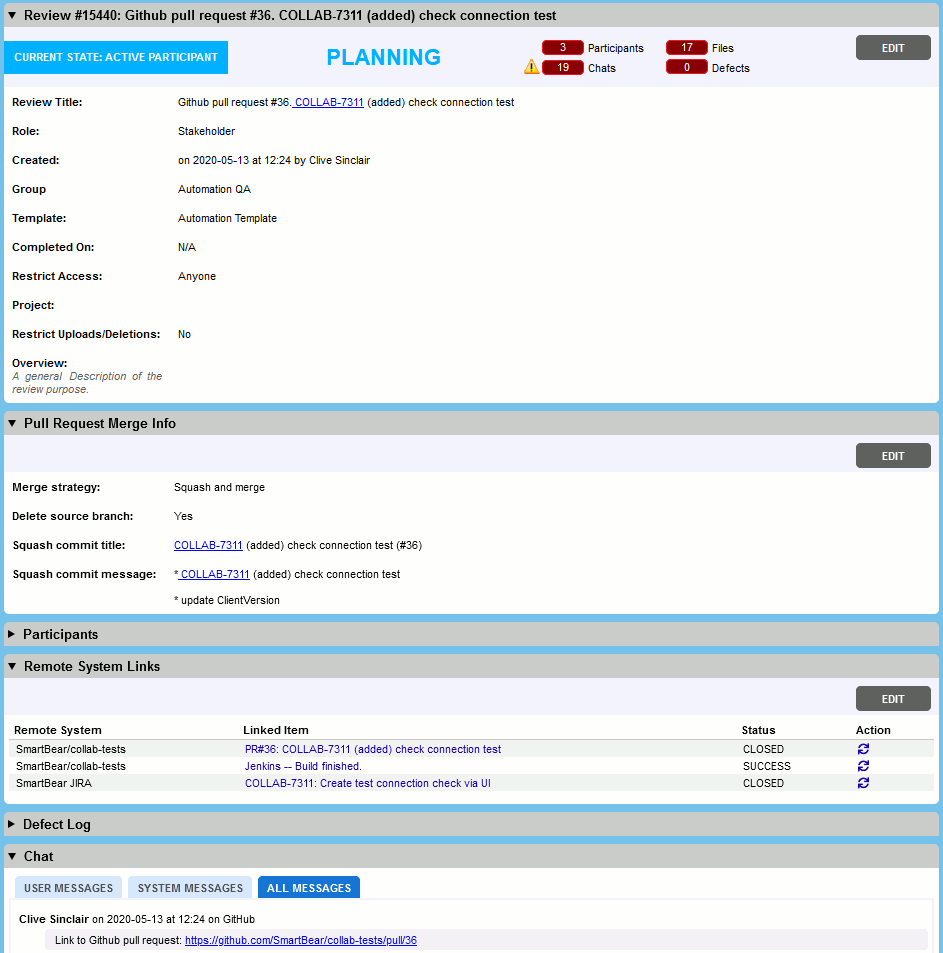 An example of review created on changes in GitHub repository The initial phase of the newly created review will be Planning, so authors could check the review, add notes or upload additional materials before notifying other participants. Alternatively, Collaborator administrators can enable the Move pull request reviews to Inspection setting to start reviews automatically. In this case Collaborator will verify if the review meets the workflow requirements (for example, has minimal number of participants) and will move it to the Inspection phase on success.
When further commits are made
| • | If a review was created for a pull request |
If your teammates make more changes to the branch after a review was created, and if the pull request is not closed, Collaborator uploads new file versions to the created review. This works until the pull request is closed. If the review remains open after the pull request is closed, then Collaborator will not upload files from subsequent commits to the review.
| • | If a review was created for a commit (push event) |
Collaborator will not upload new file versions to the review automatically.
When files conflict
By default the integration does not allow to complete a review when the respective pull request has some conflicts. This behaviour is controlled by the "Allow to complete review with conflicts in pull request" setting.
Once a file conflict could be resolved automatically, the merge commit will not be added to the review. If a file conflict was resolved manually (that is, if some files have been changed to complete the merge), then Collaborator will update the review with the changes from the resolving commit.
Note: Changes from merge commits will not be displayed in the Diff Viewer only when the Default Revision Comparison of Diff Viewer setting is set to 'Current Branch Changes Only'. You can find this setting under User Preferences in Display tab.
When merge commit was added
File changes made by merge commits will only be displayed in Separate view of the Review Materials section of the review. They will not be displayed in Overlay view. Besides, file changes made by merge commits are not taken into account when calculating overall LOC metrics and they do not affect the overall rework count of a file.
When commit history is modified (rebasing or squashing commits)
Collaborator will process the outdated commits and will reorder the list of file revisions to keep it up-to-date.
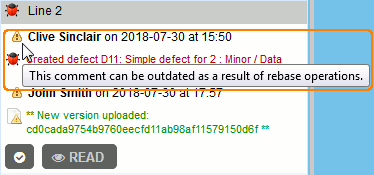
| • | If some file revisions have been removed, the comments or defects addressing that file revision will be promoted to resulting revision and will display a special icon  indicating that the comment/defect could be outdated. indicating that the comment/defect could be outdated.
 |
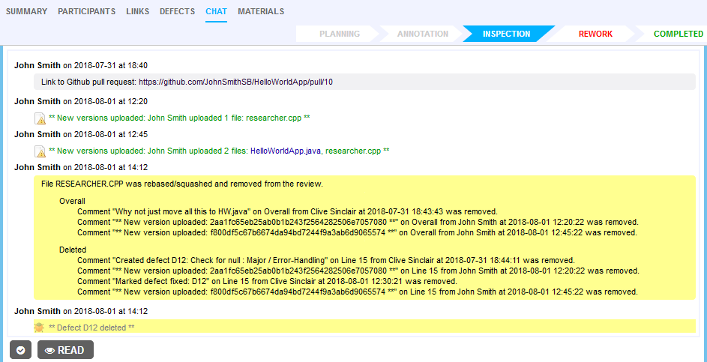
| • | If some files have been removed, they will also be removed from the review materials. For audit purposes, comments and defects for removed files will be copied to the review's general chat.
 |
When a review is completed
The integration may automatically merge, squash or rebase changes. This behaviour is controlled by the "When Review Completed" setting and by the current merge strategy selected in the Pull Request Merge Info section:
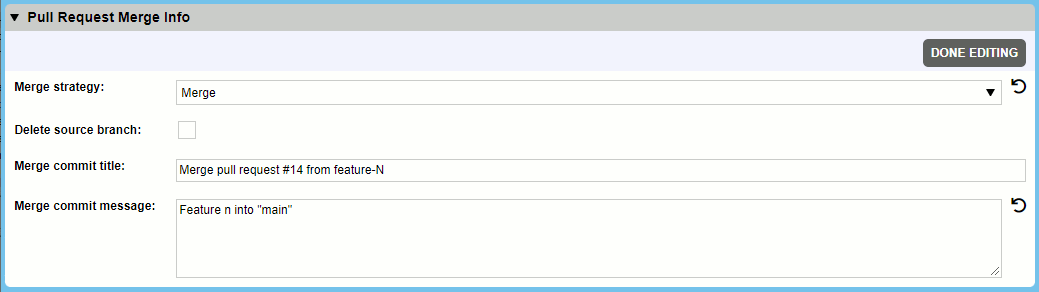
If integration fails to automatically merge pull request, it notifies the authors of the respective review, so that they can resolve the issue manually.
When a review is completed and pull request is updated
If review was completed and further commits are made in a branch which initiated a pull/merge request - depends on the "Allow to reopen review" setting of the remote system configuration. By default this setting is true, and review will be reopened.
When a review is cancelled, deleted or rejected
The integration may automatically close pull/merge request. Additionally it may automatically delete the corresponding feature branch upon closing or merging a pull request. This behaviour is controlled by the "When Review Cancelled/Deleted/Rejected" setting.
When a pull/merge request is closed or deleted
When a pull/merge request was closed by the remote repository, the integration posts a comment and closes the corresponding review. Reviews in planning phase will be deleted, while in progress reviews will be cancelled.
For review with multiple linked pull/merge requests all of them should be closed or deleted.
When pull request is reopened
If review was completed and pull request being reopened - review will be reopened.
If review was cancelled/deleted/rejected and pull request being reopened - new review will be created.
When repository contains submodules
Repository hosting integrations can display changes in the submodules of tracked repositories. (Other Collaborator clients cannot do that and ignore submodule changes.)
Submodules must belong to the same owner/project/organization.
Commits that add a new submodule, or remove an existing submodule will be represented as changes in the .gitmodules file. Other changes in submodule files will be ignored in this commit.
Once submodule is added, further changes in submodule files will be displayed as file changes in submodule folder.
Technical Details
| • | Integration creates reviews on any pull/merge requests - no matter whether it came from the same repository or from the forked repository. |
| • | By default, webhooks created by the Easy Add Repository wizard do not check the if the server's SSL certificate is valid. This is done intentionally, in order to avoid handshake issues on Collaborator servers with self-signed or untrusted certificate authority (CA) root certificates. To enable SSL verification on existing webhooks, modify them on the remote repository server. To enable SSL verification for all new webhooks created by the Easy Add Repository wizard, use the -Dcom.smartbear.collab.datamodel.remotesystem.webhooks.ssl.enable=true Java VM Option. |
| • | In order to decrease number of calls to repository hosting servers, Collaborator caches some of the most often retrieved entities from APIs (commits, pull request diffs, commit diffs). By default cache contains up to 20000 entities for each active remote system integration. To change the default cache size or disable caching, use the server's -Dcom.smartbear.collab.datamodel.remotesystem.cache.size Java VM Option.
Usage statistics of cache and all outgoing API calls from Collaborator could be found in the remoteSystemApi.log when the debug logging level is enabled as described in Enable remote system logging section of Logging. |
| • | Currently, Collaborator incorrectly displays non-latin characters in pull request names, branch names, pull request descriptions. |
System Specifics
GitHub
| • | If repository contains a CODEOWNERS file that defines users responsible for certain files in a repository and integration can match those GitHub users with Collaborator users, and the "Auto assign reviewers" option is on, then it will automatically add those users as reviewers on Collaborator's side. |
| • | You can specify GitHub users as reviewers when you are creating a pull request. If your teammates link their GitHub accounts with their Collaborator accounts correctly, and the "Auto assign reviewers" option is on, then Collaborator will automatically add those users as reviewers to the created review on the Collaborator side. |
| • | Similarly, you can specify some team as reviewer when creating pull request on the GitHub side, or specify team in CODEOWNERS file. In this case, Collaborator tries to match members of that team with Collaborator users, and if the "Auto assign reviewers" option is on, it will automatically add those users as reviewers on Collaborator's side. |
| • | It is possible to additionally secure webhook calls by providing a Secret token while creating/modifying a webhook on GitHub server and a GitHub configuration on the Collaborator side. This token will be used as server signature for verifying webhook events. The Secret token parameter is optional and is not specified by default. |
| • | If your GitHub repositories use continuous integration, the Remote System Links section will also display current build statuses of your CI systems (Jenkins, Travis and so forth). |
| • | Just after a new GitHub configuration has been created, the very first push to a repository will not be tracked. Subsequent pushes will be tracked as they should. |
| • | Collaborator will not create reviews on merge commits of pull requests when their merge commit message starts with the 'Merge pull request #' substring or when merge commit message was specified in the Pull Request Merge Info section. |
| • | If the remote repository server is not accessible, Collaborator will retry connecting after a certain time period and will perform several retry attempts. Wait time is increased with each attempt: wait_time*1, wait_time*2, wait_time*3 and so on. Default wait time is 1 second and Collaborator will perform 3 retries. Wait time and maximal number of attempts could be configured via Java VM Options. If the server did not respond after all attempts, Collaborator will mark the respective webhook as inactive and put an exception to the remoteSystem.log |
| • | Note that Collaborator makes API calls to https://api.github.com which is a machine separate from https://github.com. When using trusted connections, ensure that the security certificates from both machines are accepted. |
GitLab
| • | If repository contains a CODEOWNERS file that defines users responsible for certain files in a repository and integration can match those GitLab users with Collaborator users, then it will automatically add those users as reviewers on Collaborator's side. |
| • | It is possible to additionally secure webhook calls by providing a Secret token while creating/modifying a webhook on GitLab server and a GitLab configuration on the Collaborator side. This token will be used as server signature for verifying webhook events. The Secret token parameter is optional and is not specified by default. |
| • | Collaborator will not create reviews on merge commits of merge requests when their merge commit message starts with the 'Merge branch' substring or when merge commit message was specified in the Pull Request Merge Info section. |
| • | The exact merge strategy cannot be specified on the integration level. If any of merge actions was chosen, merge request will be merged according to project settings on the GitLab side (Settings > General > Merge requests). To learn more about merge request strategies, see GitLab documentation. |
| • | If your GitLab repository is configured to use merge request pipelines, Collaborator integration will use them as well. Otherwise, it will use regular pipelines. |
| • | Currently, GitLab integration does not support connecting to the target GitLab server through the proxy server. |
| • | GitLab Community / GitLab Enterprise |
| • | If repository contains a CODEOWNERS file that defines users responsible for certain files in a repository and integration can match those GitLab users with Collaborator users, then it will automatically add those users as reviewers on Collaborator's side. |
| • | It is possible to additionally secure webhook calls by providing a Secret token while creating/modifying a webhook on GitLab server and a GitLab configuration on the Collaborator side. This token will be used as server signature for verifying webhook events. The Secret token parameter is optional and is not specified by default. |
| • | Collaborator will not create reviews on merge commits of merge requests when their merge commit message starts with the 'Merge branch' substring or when merge commit message was specified in the Pull Request Merge Info section. |
| • | If your GitLab repository is configured to use merge request pipelines, Collaborator integration will use them as well. Otherwise, it will use regular pipelines. |
| • | Currently, GitLab integration does not support connecting to the target GitLab server through the proxy server. |
Bitbucket
| • | While creating pull request on Bitbucket, you can add specific Bitbucket users as reviewers to this request. If integration can match those Bitbucket users with some Collaborator users (that is, if User Remote Accounts are properly configured), then it will automatically add those users as reviewers on Collaborator's side as well. |
| • | In order to create reviews on pull requests from forked repositories the following conditions must comply: Forked repository of the same repository owner can be public or private. Forked repository of a different repository owner must be public repository. |
| • | Just after a new Bitbucket configuration has been created, the very first push to a repository will not be tracked. Subsequent pushes will be tracked as they should. |
| • | First push to newly created branch will be tracked only if it was branched out of main. Workaround: create new branch without commits - second push is tracked as it should. |
| • | Collaborator will not create reviews on merge commits of pull requests when their merge commit message starts with the 'Merged in' substring or when merge commit message was specified in the Pull Request Merge Info section. |
| • | If the remote repository server is not accessible, Collaborator will retry connecting after a certain time period and will perform several retry attempts. Wait time is increased with each attempt: wait_time*1, wait_time*2, wait_time*3 and so on. Default wait time is 1 second and Collaborator will perform 3 retries. Wait time and maximal number of attempts could be configured via Java VM Options. If the server did not respond after all attempts, Collaborator will mark the respective webhook as inactive and put an exception to the remoteSystem.log |
| • | Bitbucket will deprecate their API 1.0 starting from 29th of April 2019. You will need to upgrade to Collaborator version 11.5.11502 or later to use Bitbucket integration. |
Bitbucket Server
| • | Current version of Collaborator supports Bitbucket Server and Bitbucket Data Center versions 5.4 and later. |
| • | Due to limitation on Bitbucket Server side, integration is not able to create reviews if the paths of submitted files contain the percent symbol (%). |
| • | While creating pull request on Bitbucket, you can add specific Bitbucket users as reviewers to this request. If integration can match those Bitbucket users with some Collaborator users (that is, if User Remote Accounts are properly configured), then it will automatically add those users as reviewers on Collaborator's side as well. |
| • | In order to create reviews on pull requests from forked repositories the following conditions must comply: Forked repository of the same repository owner can be public or private. Forked repository of a different repository owner must be public repository. |
| • | Collaborator will not create reviews on merge commits of pull requests when their merge commit message starts with the 'Merged in' substring or when merge commit message was specified in the Pull Request Merge Info section. |
| • | The exact merge strategy cannot be specified on the integration level. If any of merge actions was chosen, pull request will be merged according to project settings on the Bitbucket Server side (Project settings > Merge strategies). To learn more about pull request merge strategies, see Bitbucket Server documentation. |
| • | If the remote repository server is not accessible, Collaborator will retry connecting after a certain time period and will perform several retry attempts. Wait time is increased with each attempt: wait_time*1, wait_time*2, wait_time*3 and so on. Default wait time is 1 second and Collaborator will perform 3 retries. Wait time and maximal number of attempts could be configured via Java VM Options. If the server did not respond after all attempts, Collaborator will mark the respective webhook as inactive and put an exception to the remoteSystem.log |
Azure DevOps
| • | Team Foundation Version Control (TFVC) repositories of Azure DevOps are not supported. |
| • | If a pull request is associated with some work item on Azure DevOps side, the link to work item will be added to the review's Remote System Links section. Moreover, if the integration's "Auto close related work items" option is enabled, the respective work item will be automatically closed when pull request is merged. |
| • | You can specify Azure DevOps users as reviewers when you are creating a pull request. If your teammates link their Azure DevOps accounts with their Collaborator accounts correctly, and the "Auto assign reviewers" option is on, then Collaborator will automatically add those users as reviewers to the created review on the Collaborator side. |
| • | Collaborator will not create reviews on merge commits of pull requests when their merge commit message starts with the 'Merge pull request #' substring or when merge commit message was specified in the Pull Request Merge Info section. |
| • | If the remote repository server is not accessible, Collaborator will retry connecting after a certain time period and will perform several retry attempts. Wait time is increased with each attempt: wait_time*1, wait_time*2, wait_time*3 and so on. Default wait time is 1 second and Collaborator will perform 3 retries. Wait time and maximal number of attempts could be configured via Java VM Options. If the server did not respond after all attempts, Collaborator will mark the respective webhook as inactive and put an exception to the remoteSystem.log |
| • | Currently, Azure DevOps Server (on-premises version of Azure DevOps) does not trigger webhook on comments made in pull requests. Therefore, these comments could not be copied into Collaborator reviews. |
|