General system settings are organized into the following tabbed sections:
This tab contains settings that affect the entire system.

The URL to use as the valid externally accessible URL of the Collaborator server. If the port number is other than default 8080, then specify it as well. This URL will be reported to clients, used in notification emails, webhooks and so forth.
|
 The server’s External URL should be accessible to all Collaborator clients, database server, repository hosting services, issue-trackers and other remote systems. You may need to configure your firewall or enable tunneled connections to expose it.
Administrators can optionally insert a message to be displayed throughout the system. This can be useful for reminders, Collaborator announcements, or general information. |

List of additional links to be displayed on the Home page. One link per line. Links should be specified in the following format: LinkTitle - LinkURL |
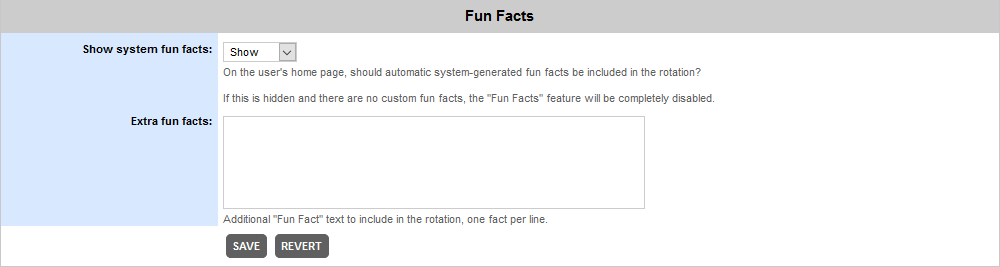
Fun facts are lines of information displayed on the home page. Collaborator rotates through a number of internal facts based on aggregate review metrics. If this is set to "Hide" and there are no extra fun facts listed, this feature is completely disabled. |
|
Additional lines to be displayed can be entered in this field. |

Send anonymous Collaborator usage statistics to SmartBear Software |
Specifies whether Collaborator server should collect and send usage statistics to SmartBear. Collaborator server should be re-started to apply new setting. To learn about our privacy policy, visit https://smartbear.com/privacy/. |

Send exceeding licenses notification to |
Specifies whether exceeding licenses notifications is to be sent to System admin or All admin users. |
This tab contains settings that affect the visual appearance of web-interface, its labels, prompts and so forth.
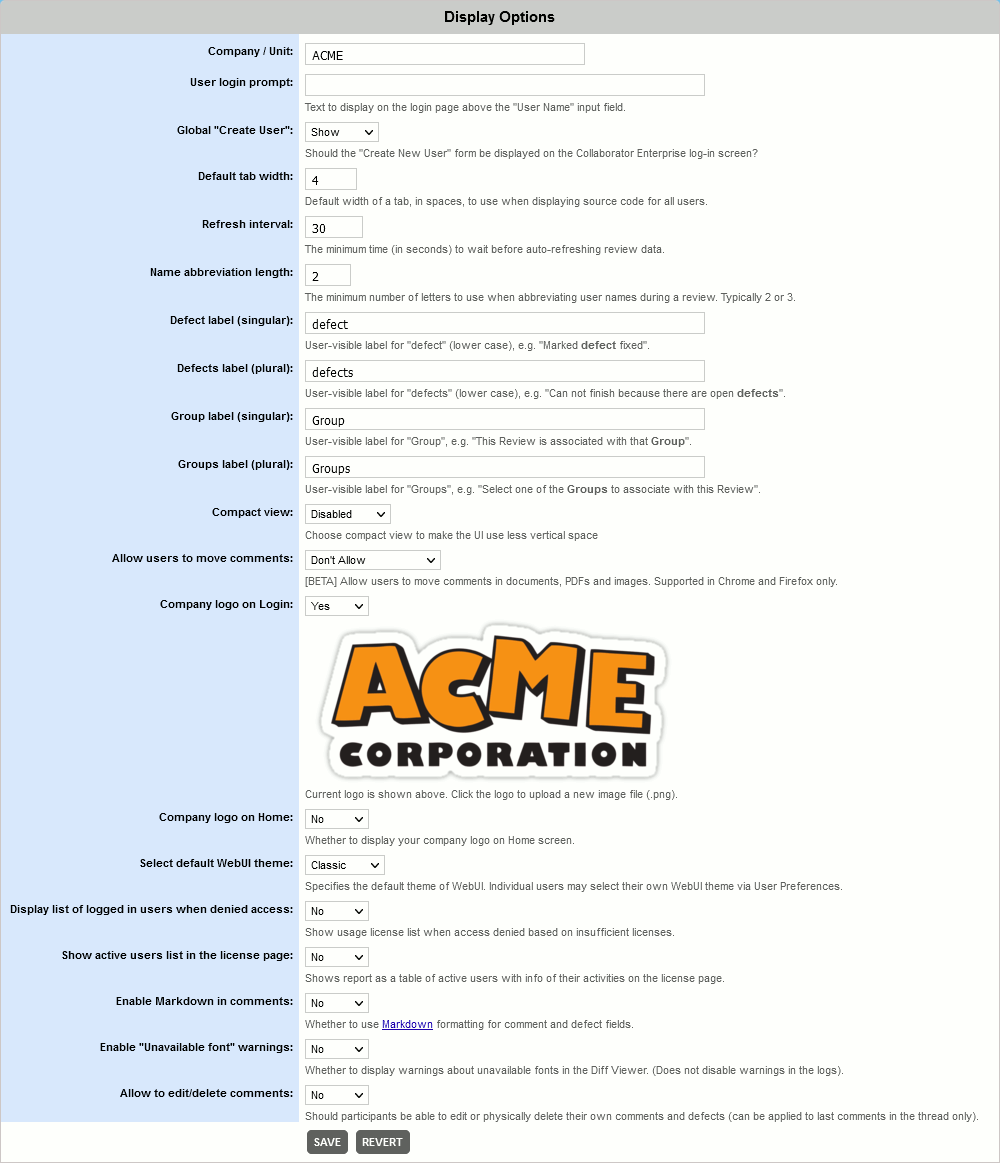
Arbitrary text that will be displayed at the top of the Collaborator web page. This distinguishes the server from other servers. This personalizes the server and also makes it easy for users to distinguish between different installations you might have. |
|
The text to display on the front page when the user logs in. This text is displayed just above the "Username" field. The default text suggests using the same login as the version control system, however you might want to change this to be more specific, or in the case of LDAP authentication, you could instruct the user to use that login. |
|
If you are not using LDAP authentication, every user in the system must be explicitly created. The system administrator can create users at any time, but an easier technique is to allow users to create their own accounts from the "Login" screen. |
|
Width of a tab (in spaces) for all users to use when displaying reviewed files. |
|
The minimum time (in seconds) to wait before auto-updating review data. If increase the refresh time, Review Summary and Diff Viewer will become less responsive, but server load will decrease. This also reduces contention for connections on the browser side because most modern browsers limit the number of simultaneous server connections to 2. |
|
The minimum number of letters to use when abbreviating user names during a review. |
|
User-visible label for "defect" (lower case). Shows in phrases, like "Marked defect fixed". If the word 'defect' has a negative connotation in your environment, specify a different word (for instance, "item" or "finding" and so on). |
|
User-visible label for "defects" (lower case). Shows in phrases, like "Can not finish because there are open defects". If the word 'defects' has a negative connotation in your environment, specify a different word (for instance, "items" or "findings" and so on). |
|
User-visible label for "Group". Shows in phrases, like "This Review is associated with that Group". |
|
User-visible label for "Groups". Shows in phrases, like "Select one of the Groups to associate with the Review". |
|
When this option is enabled, some user interface elements will be collapsed to occupy less vertical space. |
|
Should users be able to move comments in documents, PDFs, presentations, images and vector graphics. Possible values are: Don't allow, Allow for creator only and Allow. |
|
Whether to display your company logo on Login screen and on Home and Review Summary screens, respectively. See Branding Your Server. Once enabled, click on the placeholder/current logo and upload new image with your company logo. The company logo images must be in PNG format. Transparent background is recommended. Image resolution is not limited. Large images will be resized to fit into 640x480 area on Login screen and into 250x50 area on Home and Review Summary screens. Note: Ability to display your company logos on Login and Home screens is only supported in Collaborator Enterprise. For a complete list of differences between Collaborator editions, please see the comparison page. |
|
Specifies the default pre-defined theme of WebUI client. The specifies the visual style of Web client for new and existing users (unless they explicitly specify their own preferred WebUI theme in User Preferences). |
|
Whether to display a list of currently logged-in users on the Login page when a new user fails to login because of insufficient floating licenses. |
|
Whether to display a list of active users on the Licensing page. |
|
Enables support for Markdown formatting for comment and defect fields. This setting affects newly created comments and defects. Existing comments and defects will retain their current formatting. |
|
Specifies whether DiffViewer should display or hide a warning when some fonts used in a document were not available on a Collaborator server. This setting affects DiffViewer behavior only. Warnings about missing fonts would be appended to server logs in any case. |
|
If enabled, participants would be able to edit or delete their own comments. If disabled, participants could only cross out their comments, making them much more difficult to read. |
This tab contains settings that control different types of access restrictions.
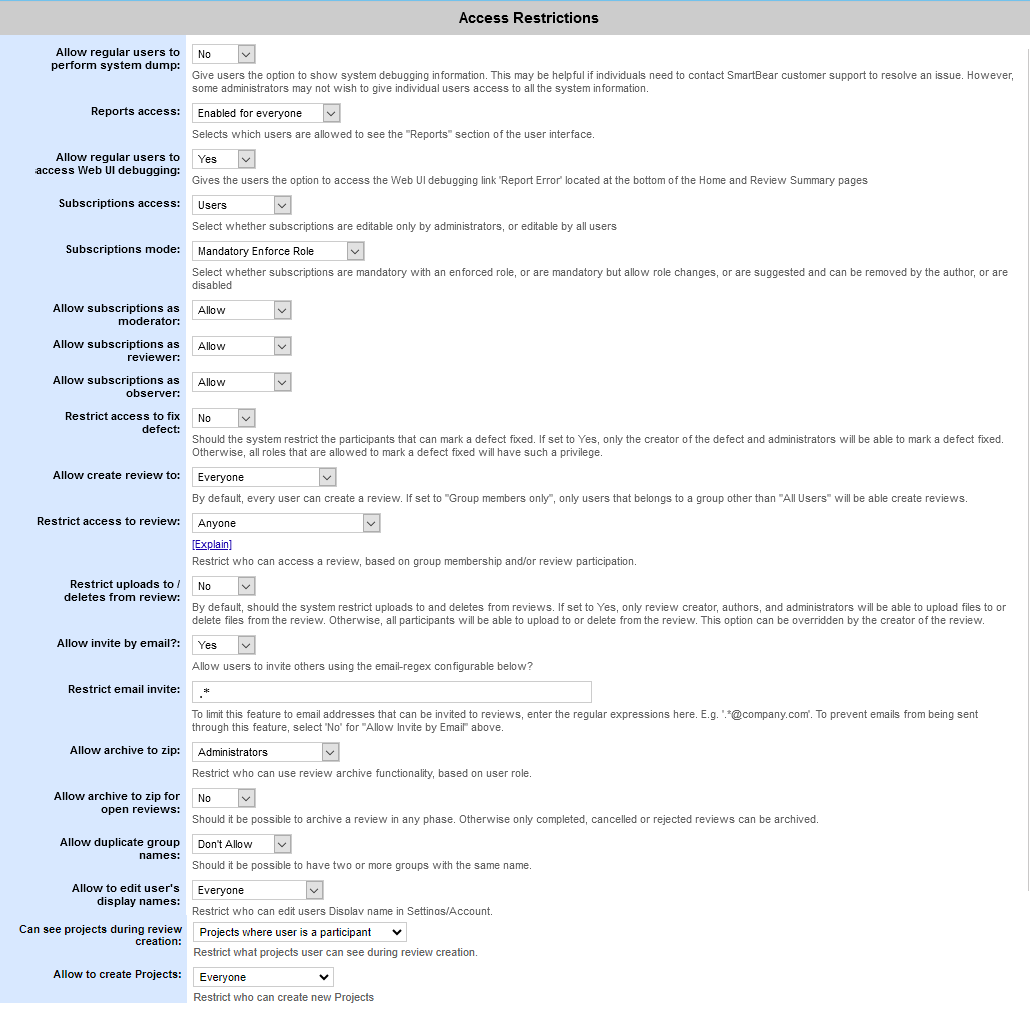
Should regular users be allowed to perform system dump? Selecting "Yes" will give users, as well as administrators, access to the system debugging information. |
|
Who should be allowed to view the "Reports" section of the user interface? You can choose everyone, everyone but with review permissions applied, only administrators, or disabled (no one). Enabled for everyone: Everyone will see the "Reports" section; no restrictions are enforced on what information is returned. Respect permissions: Everyone will see the "Reports" section; users can only see report content for reviews that they can access. Note that since administrators can always access all reviews, this setting does not affect the content of their reports. Administrators only: Only administrators will see the "Reports" section. Disabled: No one will see the "Reports" section. |
|
Selecting "Users" will allow users, as well as administrators, access to edit subscriptions. Choose "Administrators" to give access to only administrators. |
|
Mandatory Enforce Role: Subscribed users must be participants in a review, and they must use the role specified on their subscription page. Mandatory do not Enforce Role: Subscribed users must be participants in a review, however they can change their role once added to the review. Requested: Subscribed users are automatically added to a review but can be manually removed. Disabled: Subscriptions are not used. |
|
The Administrator can choose whether users that subscribe to a review can subscribe as a Moderator, Reviewer, or Observer by choosing "Allow" or "do not Allow" from the drop downs below. |
|
Should the system restrict the participants that can mark a defect fixed? If set to Yes, only the creator of the defect and administrators will be able to mark a defect fixed. Otherwise, all roles that are allowed to mark a defect fixed will have such a privilege. |
|
Specifies who is able to create new reviews. By default, every user can create a review. If set to "Group members only", only users that belongs to a group other than "All Users" will be able create reviews. |
|
Should the system always restrict access to review such that only certain users are allowed to view the review? In each review the review creator can select to further restrict access. Administrators can always access all reviews. Anyone: No global restrictions on who can access reviews Group Based: Users must have access to the review's associated group to access reviews Participants: Users must be participants in the review to access reviews Participants and Group Based: Users must be participants in the review and currently have access to the review's associated group to access reviews Participant or Group Based: Users may be participants in the review or have access to the review’s associated group to access reviews Note: 'Group Based' and 'Participants and Group Based' review access are not allowed if Subscriptions mode has value Mandatory Enforce Role. |
|
Should only creators of a review be allowed to upload files to and delete files from a review? If set to "yes," only review creators and administrators will be allowed to upload files to or delete files from the review. However, the option will be available on the Create Review screen to override at the review creator's discretion. If set to "no," all participants will be allowed to upload and delete files. Note: This feature is only supported in Collaborator Enterprise. For a complete list of differences between Collaborator editions, please see the comparison page. |
|
Should it be possible to invite a colleague by e-mail? |
|
Used for the "Invite a colleague" feature, the regular expression in this field is used to match email addresses that can be invited to Reviews. For example, '[\w\.-]+@company.com'. |
|
Should the system restrict access to archiving of reviews? Administrators: Only users with administrator privileges can use this feature. Group Administrators: Only users with administrator or group administrator privileges can use this feature. All users: All users, who can access the review (based on the review permissions), can use this feature. |
|
Should it be possible to archive a review in any phase. Otherwise only completed, cancelled or rejected reviews can be archived. |
|
Allow duplicate group names |
Should it be possible to create groups having the same names? |
Specifies who should be allowed to modify Display name field in user account settings. You can choose between everyone (default) or administrators only. |
|
Specifies what projects user can see during review creation. You can choose between "Project where user is a participant" (default) or "All projects". |
|
Specifies who can create projects. You can choose between "Everyone" (default) or "Specified users only". If "Specified users only" option is selected then Can create projects permission in User Preferences/Permissions is visible and enabled for admins for editing. Default value is No. |
This tab contains settings that control different aspects of review process.
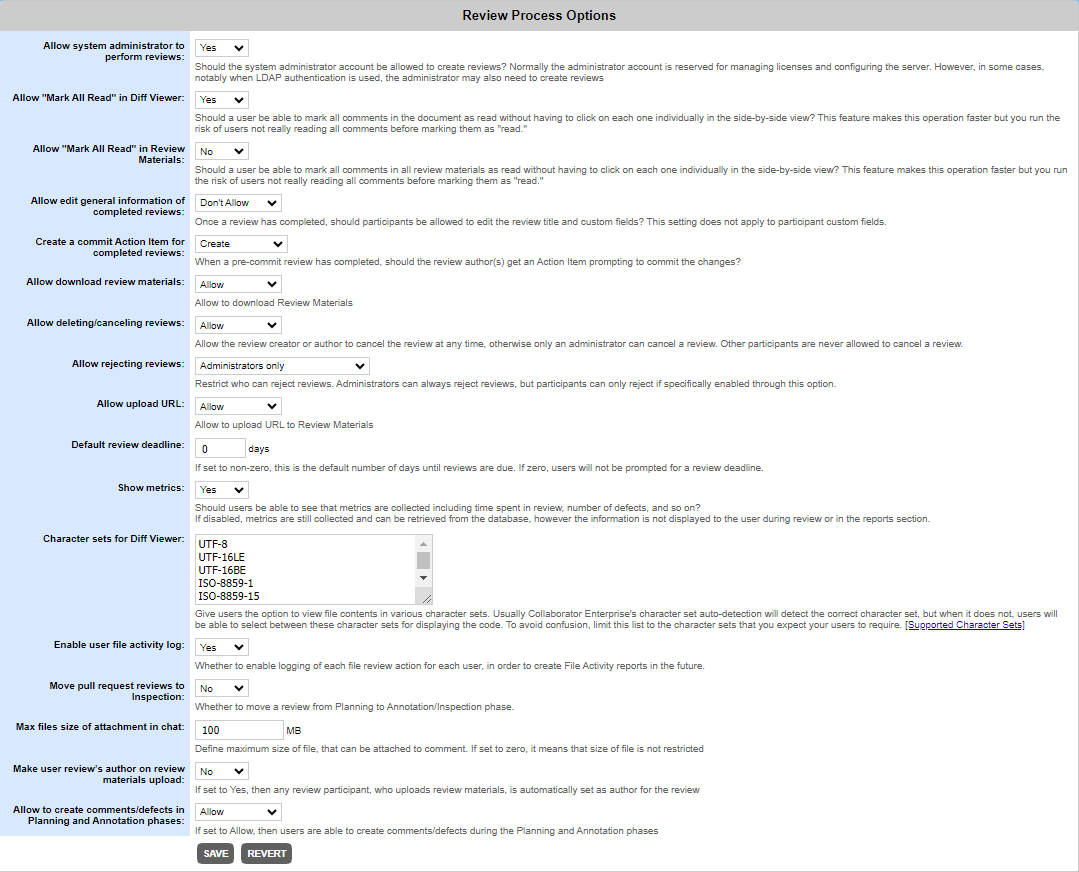
Should the main system administrator be allowed to participate in reviews? |
|
Should users be given the option to "mark all conversations read" in one click in the conversation area of the Diff Viewer? |
|
Should users be given the option to "mark all conversations read" in one click in the Review Materials section of the Review Summary Screen? |
|
Once a review has completed, should participants be allowed to edit the review title and custom fields? This setting does not apply to participant custom fields. |
|
By default, when a pre-commit review is completed, the author(s) are given an action item as a reminder to commit the changes to the underlying source control system. The author then has the option of using the Tray Notifier to commit the changes. In some workflows, this is not the correct behavior. In that case, choose "Do Not Create" to avoid this prompt. |
|
Should it be possible to download review materials from the Review Materials section of the Review Summary Screen and Diff Viewer to local computer? |
|
Should the review creator or author be able to cancel the review at any time? If "do not allow" is selected, only an administrator will have the permissions to cancel a review. Other participants are never allowed to cancel a review. |
|
Reject review allows a user to stop a review which has passed the planning state but yet in a terminal state such as completed or cancelled. Rejecting a review is different than cancelling or deleting because the administrator can require the user to specify a reason for the rejection. The reason values can be configured in the Review Custom Fields section of the administration pages. Administrators can always reject reviews. Select Administrators and Reviewers to allow non-observer participants to reject reviews. |
|
Should users be able to review live URLs? |
|
If set to non-zero, this is the default number of days until reviews are due. If zero, users will not be prompted for a review deadline when creating a new review. |
|
Should users be able to see that metrics are collected including time spent in review, number of defects, and so on? If set to "No", metrics are still collected and can be retrieved directly from the database, however the information is not displayed to the user during review or in the reports section. |
|
Give users the option to view file contents in various character sets. Usually Collaborator's character set auto-detection will detect the correct character set, but when it does not, users will be able to select between these character sets for displaying the file contents. To avoid confusion, limit this list to the character sets that you expect your users to require. Click [Supported Character Sets] to view all supported character sets. |
|
Specifies whether to log file activity of review participants. The gathered data is used when generating File Activity section of Review Detail Reports. |
|
Specifies whether to automatically move reviews created by repository hosting integrations from Planing to Inspection phase (if the review meets workflow requirements). |
|
Define maximum size of file, that can be attached to comment. If set to zero, it means that size of file is not restricted |
|
If set to Yes, then any review participant, who uploads review materials, is automatically set as author for the review |
|
Allow to create comments/defects in Planning and Annotation phases |
If set to Allow, then users are able to create comments/defects during the Planning and Annotation phases. This setting does not affect the review’s creator, author(s) and admin(s) |
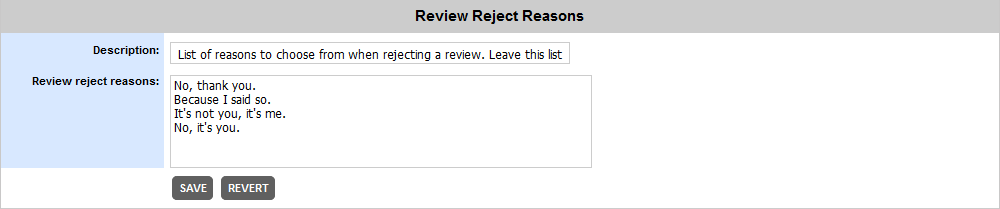
List of reasons to choose from when rejecting a review. Leave this list empty if providing a reason is not required. |
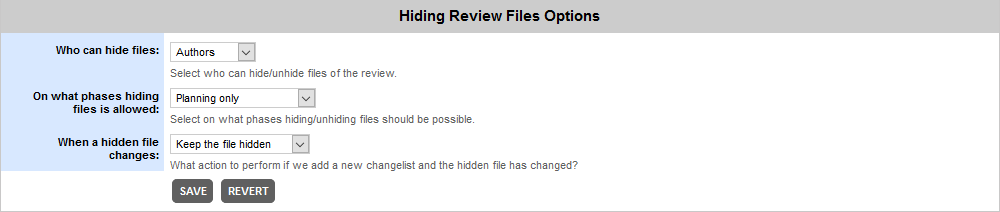
Specifies who is able to hide and unhide files in reviews. Available options are: Authors, Participants, Nobody. |
|
Specifies on what phases users could hide and unhide files. Available options are: Planning only, Planning and Annotating and At any time. |
|
When a hidden file changes |
Specifies what action to perform in case the hidden file has been changed. Available options are: Keep the file hidden and Un-hide the file. |
This tab holds different types of cache settings.

Allows browser to cache pages for MS Word, PowerPoint and PDF documents under review to improve performance. If the page is in the cache, then it takes from there (instead of sending a request to the server), otherwise - adds to the cache. Default setting value is No. |
This tab holds settings that control electronic signature process.
Note: Electronic Signatures are only supported in Collaborator Enterprise. For a complete list of differences between Collaborator editions, please see the comparison page.
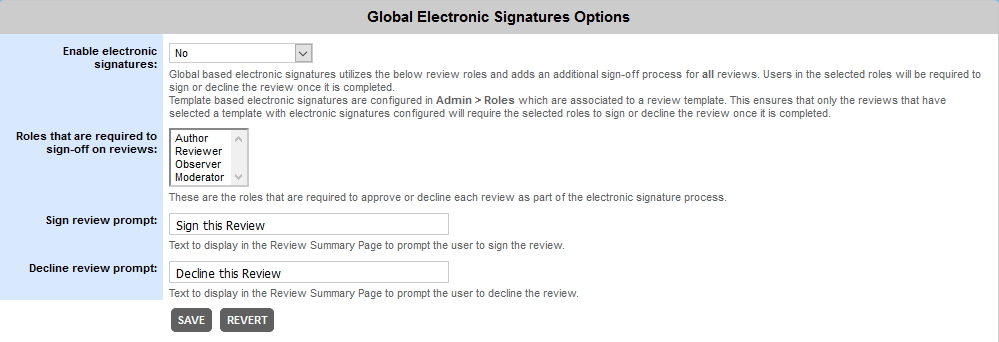
Electronic Signatures allow users in the selected role(s) to either sign off on or decline to sign off on a completed review. Global based electronic signatures adds an additional sign-off process for all reviews. Users whose roles were selected in the "Roles that are required to sign-off on Reviews" setting will be required to sign or decline the review once it is completed. Template based electronic signatures add an additional sign-off process only to reviews with specific templates. Users whose roles were selected in the Role Configuration screen will be required to sign or decline the review once it is completed. |
|
Here, the admin can select one or more roles that will be prompted to sign off on Completed reviews. This setting takes effect when global based electronic signatures are enabled. |
|
This is the text that will appear on the review summary screen next to the Sign button. |
|
This is the text that will appear on the review summary screen next to the Decline button. |
This tab holds settings that allow create items in your bug tracking system directly from Collaborator reviews.
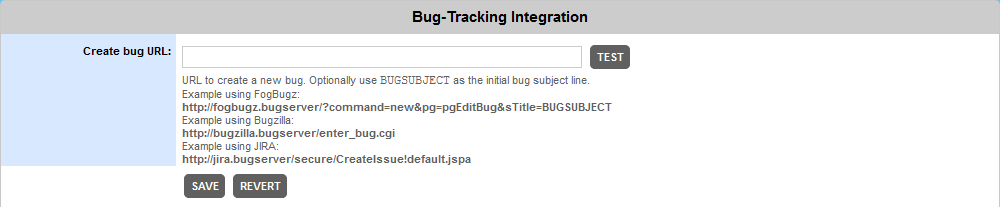
The URL to your bug tracking system that creates a new bug. Optionally use the special text BUGSUBJECT as the starting subject line for the bug. This setting is used when the user is prompted to create a bug in your external issue tracking system. To track a defect externally, the user must first create the defect in Collaborator, then select and edit that defect to choose the 'Track Externally' option. Below are examples of URL, for some popular bug tracking systems: FogBugz: http://bugserver/default.php?command=new&pg=pgEditBug Bugzilla: http://bugserver/enter_bug.cgi JIRA: http://bugserver/secure/CreateIssue!default.jspa |
This tab holds settings that relate to Web Client, Command-Line Client, GUI Client and other desktop clients.
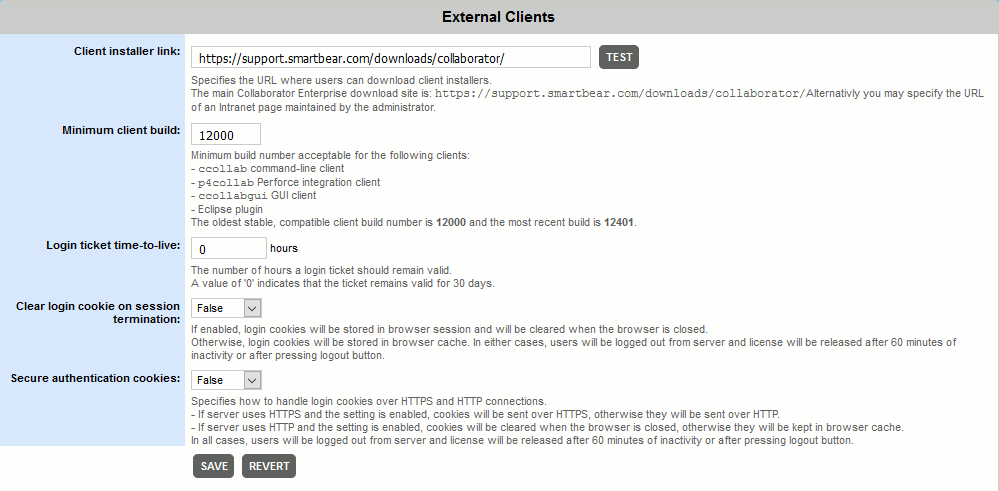
URL to the version of the client installers that you want presented to users of the system. This is typically redirected to an intranet page maintained by the administrator. |
|||||
Minimum allowable build number for the various client applications including the Command-Line Client, the GUI Client, the Tray Notifier, and IDE Clients. Use this to ensure your clients are reasonably up to date. This is especially important if there is a feature or bug-fix you know is necessary for your system. The help text in the GUI will identify the oldest stable, compatible build number and will list the most recent known build number for your reference. |
|||||
Login tickets are special alpha-numeric identifiers that act as user credentials for a limited time period. This setting defines how long a login ticket should remain valid. A value of '0' indicates that the ticket remains valid for 30 days. |
|||||
If enabled, login cookies will be stored in browser session and will be cleared when the browser is closed. Otherwise, login cookies will be stored in browser cache. In either cases, users will be logged out from server and license will be released after 60 minutes of inactivity or after pressing logout button. |
|||||
Specifies how to handle login cookies over HTTPS and HTTP connections.
In all cases, users will be logged out from server and license will be released after 60 minutes of inactivity or after pressing logout button. |
This tab controls how Collaborator server should treat certain types of files: images, binary, executables.

Specifies which files cannot be uploaded to reviews (to avoid malicious file uploads). By default Collaborator blocks the following file types: executable files (.exe), batch files (.bat), Windows Installer files (.msi), Mac OS disk images (.dmg) and Unix script files (.sh). Filename matching is done using the '*' and '?' wildcards characters. '*' matches 0 or more contiguous characters, and '?' matches exactly one character. The character matching is case-insensitive on Windows platforms and case-sensitive on all other platforms. |

Binary files attached to reviews are not displayed in the Diff Viewer, and instead must be opened by external applications. Here you can configure which files are to be treated as binary. Filename matching is done using the '*' and '?' wildcards characters. '*' matches 0 or more contiguous characters, and '?' matches exactly one character. The character matching is case-insensitive on Windows platforms and case-sensitive on all other platforms. |

Image files are reviewed in the browser in the Diff Viewer using a special image Diff Viewer. Here you can configure which files are treated as images. By default, GIF, JPEG, and PNG images are handled as images. The content of the files must be renderable by the users' browsers for images to actually be reviewable. Images that require special software to view should be treated as Binary Files so they can be rendered by that software. Filename matching is done using the '*' and '?' wildcards characters. '*' matches 0 or more contiguous characters, and '?' matches exactly one character. The character matching is case-insensitive on Windows platforms and case-sensitive on all other platforms. |

Diff Viewer detects type of review materials based on the extension of the uploaded files. For example, .java files typically stand for Java source code, .rtf and .doc are typically word-processing documents and so on. However, some extensions could stand for multiple types of data and this could mislead the Diff Viewer. For instance, the .pot extension could be either a PowerPoint template file or a portable object file. In this case, you can use this setting to specify explicitly which file types should be treated as text-based files. Filename matching is done using the '*' and '?' wildcards characters. '*' matches 0 or more contiguous characters, and '?' matches exactly one character. The character matching is case-insensitive on Windows platforms and case-sensitive on all other platforms. |
This tab is visible only if LDAP or Active Directory authentication is enabled.
This tab specifies whether Collaborator should retrieve user settings and group members from the LDAP or Active Directory and defines the mapping between Collaborator user settings and LDAP/AD scheme attributes. For LDAP directories, mapping users requires additional configuration, as described in LDAP or Active Directory Authentication.
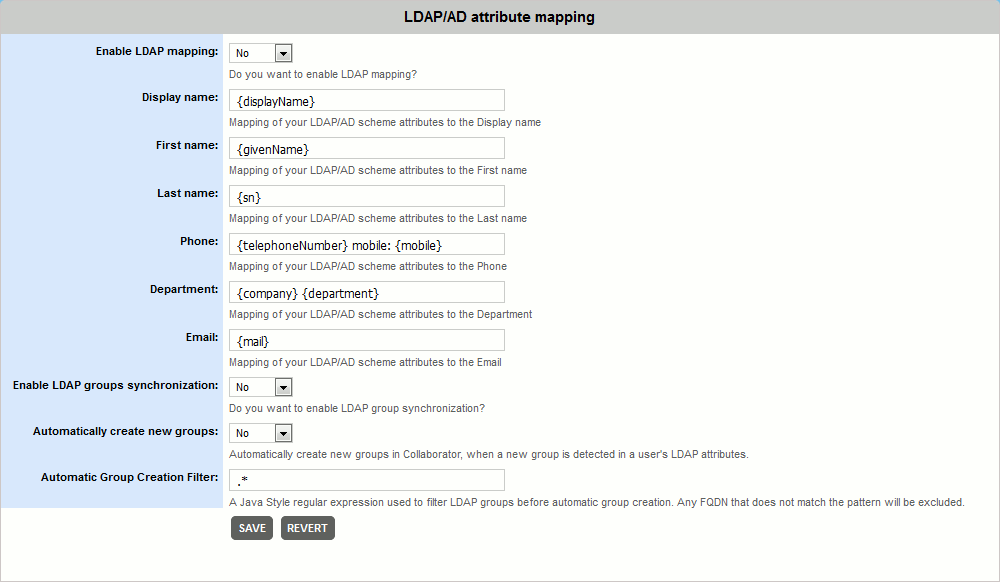
Specifies whether Collaborator should retrieve user settings from the LDAP or Active Directory? Once enabled, Collaborator will automatically populate user settings when a user logs into the server. |
|
Defines the mapping between the respective user settings and the LDAP or Active Directory scheme attributes. May contain attribute placeholders (attribute names enclosed in curly braces) and plain text: "{telephoneNumber} mobile: {mobile}". Placeholders will be replaced with the matching attribute values for the particular user: "+1987456 mobile: +28467913". If the attribute does not exist, or its value is not specified for some particular user, the placeholder will be replaced with blank value: "+1987456 mobile: ". To learn about possible LDAP and Active Directory attributes, see this comprehensive list |
|
Specifies whether Collaborator should synchronize its native groups with group information from the LDAP or Active Directory? Once enabled, Collaborator will check user membership in groups in the LDAP/Active Directory and automatically add this user to the corresponding groups on the Collaborator server. If a group with the specified name does not exist, Collaborator will act according to the "Automatically create new groups" setting below. See Syncing Groups for details. |
|
Specifies whether to create new groups on the Collaborator server when a group with the specified name does not exist. If enabled, Collaborator will create new group, if disabled Collaborator will only synchronize membership of existing groups. |
|
A Java-style regular expression used to filter LDAP groups before automatic group creation. Any FQDN that does not match the pattern will be excluded. |