Changelists may include files that do not necessarily need to be reviewed. However, since these files are still part of the atomic changelist, these files cannot be deleted from the review. In this case review authors (or all review participants, depending on the "Who can hide files" setting) can mark unneeded files as hidden.
| • | Hidden files are not displayed in Diff Viewer. So reviewers will not be able to view their content, create comments of defects to these files. |
| • | Hidden files are not listed in Overlay view mode of Review Summary Screen. In Separate view mode, hidden files are displayed, but will have a special mark. |
| • | Hiding a particular revision of a file, will hide all other revisions of this file as well. |
By default, you can hide files only in the Planning phase of the review. However, Collaborator administrators could enable this feature for the Annotating phase or for any other phase via the "What phases can you hide/unhide files" setting.
If a file has any comment or defect, it cannot be hidden.
To hide and unhide files from the review:
| 1. | Open the review in the Review Summary Screen. |
| 2. | Scroll to the Review Materials section. |
| 3. | Click Edit Files button. This will display Hide check boxes in front of file names. |
| 4. | Select which files you want to hide or unhide.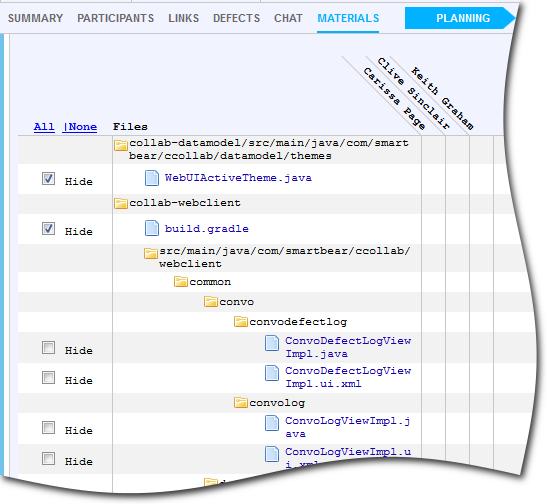 |
| 5. | Click Done Editing Files when finished. |
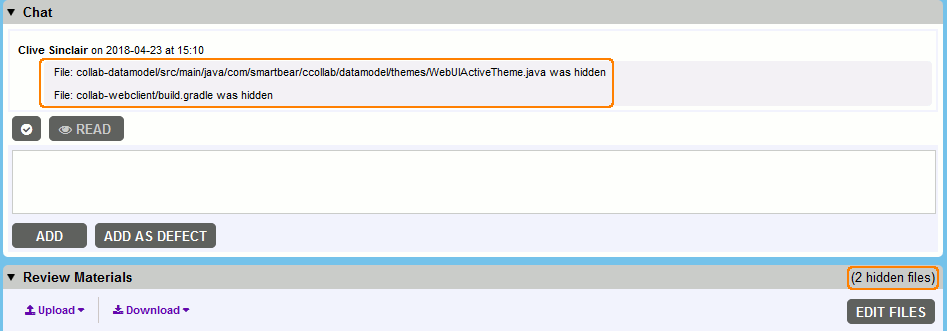
Once a file is hidden or unhidden, a comment is made in the Chat section which says that a particular file was excluded or included in the review. Also the counter of hidden files is incremented or decremented, respectively.
Once a subsequent changelist is uploaded and a hidden file was changed, it may remain hidden (default) or become visible depending on the "When a hidden file changes" setting.