This section describes a typical review and its phases.
Review Creation
Any of the following actions will create a review:
| • | Clicking the New Review button in the Web Client Home page. |
| • | Adding new materials to a new review through the GUI Client, Command-Line Client, Eclipse Plug-in, Visual Studio Extension, or Perforce Plugins. |
| • | Using the ccollab admin review create command in the Command-Line Client. |
| • | Triggering a script that creates a new review. |
Once a review is created it goes into the Planning phase.

In the Planning phase, only the review creator is active to customize the review using the Review Creation Wizard. Here the creator enters review attributes including the title, custom fields, attaches review materials, and assigns participants to the review.
Using the "Annotate" and "Inspect" buttons on the review header toolbar, you can save your current information and move the review to another phase.
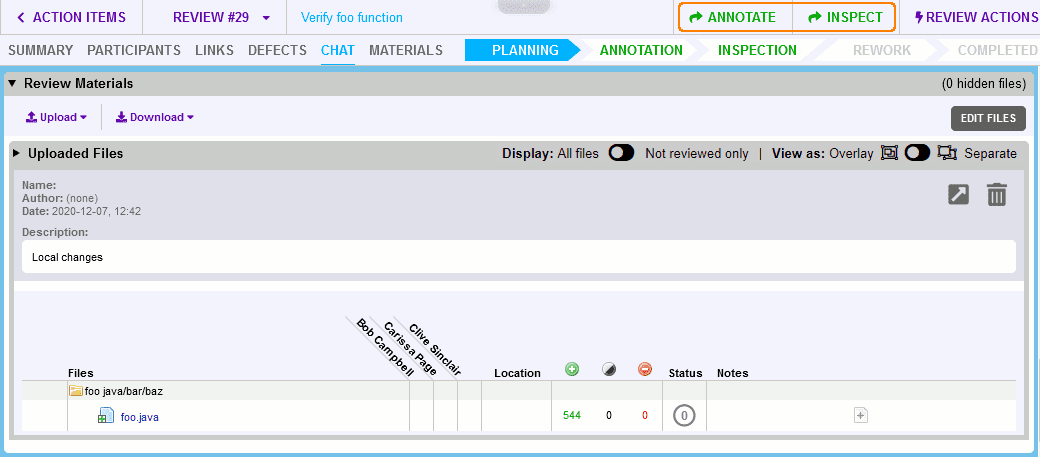

The Annotating phase is an optional phase that an author may select before the Inspection begins. It provides the opportunity for other participants to add comments, review materials or open defects prior to the Inspection phase. When a review is moved to Annotating, Collaborator will send notifications to all selected participants inviting them to participate in the review. Like Planning, Collaborator will not automatically move the review from the Annotating phase.
The review header toolbar includes only the "Inspect" button for moving the review to the Inspection phase.


Once the review has begun, Collaborator activates all roles and notifies the participants that their actions are required in the review. Participants are presented with the files, file-differences, and other review material. Everyone can make comments on individual lines of a file or on entire documents.
Comments work a bit like "instant message" chat and a bit like "newsgroups". If everyone is chatting at the same time, you have a real-time "instant message" environment so the review can progress swiftly. If one or more participants are separated by many time zones or just are not currently at the computer, the chat looks like a newsgroup where you post comments and receive e-mails when someone responds. This means Collaborator works equally well no matter where your developers or reviewers are located.
If reviewers find problems, they open defects right from the Web Client, associated with the file and line number if applicable. Defects are tracked through Collaborator and can optionally be mirrored or exported to an external issue-tracking system.
Once all required participants have indicated that they are finished with the current phase, the review moves to the next phase, which will depend on whether open defects remain in the review.
If there are no defects or all defects have been marked external, fixed or rejected, the review moves to the Completed phase.

If the review contains any open defects, the review moves on to the Rework phase.


In the Rework phase, the authors are the only roles active so that they may fix the defects found in the Inspection phase. When the authors are satisfied with their fixes, the fixes are uploaded into the review. The authors then indicate they are ready for the fixes to be validated by clicking the "Send to Inspection" button.

For validation, the review moves back to the Inspection phase, where reviewers have access to the new changes as well as the original changes and comments.

Only when no open defects remain and all required participants have approved the review during inspection, then the review goes to the Completed phase.

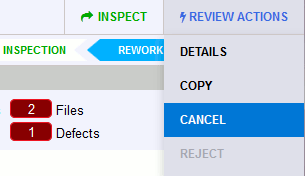
Depending on the Allow Deleting/Cancelling Reviews administrative setting, there may be an option for the author/creator to delete or cancel a review. In this case, the Delete action will become enabled for planned reviews and Cancel actions will become enabled for in-progress reviews:
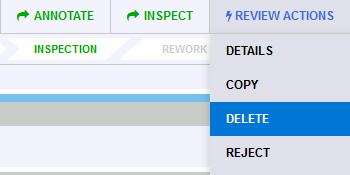
Clicking the "Delete" button completely removes the review from the database. A deleted review can never be restored.
Clicking the "Cancel" button moves the review to the Cancelled phase. A cancelled review can only be re-activated by an administrator.

Depending on the Allow Reject Review administrative setting, there may be an option for reviewers to reject a review. In this case, the Reject action will become enabled for in-progress reviews:
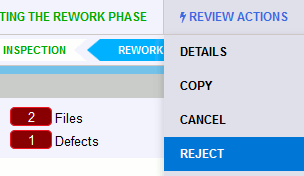
Clicking the "Reject" button invokes a dialog where you can specify reject reason and then moves the review to the Rejected phase. Rejected review cannot be reactivated even by administrator.