About checklists
Checklists are user-defined “to-do” lists that you can apply to reviews. You can use them to remind review participants to perform certain actions before the review can be completed:
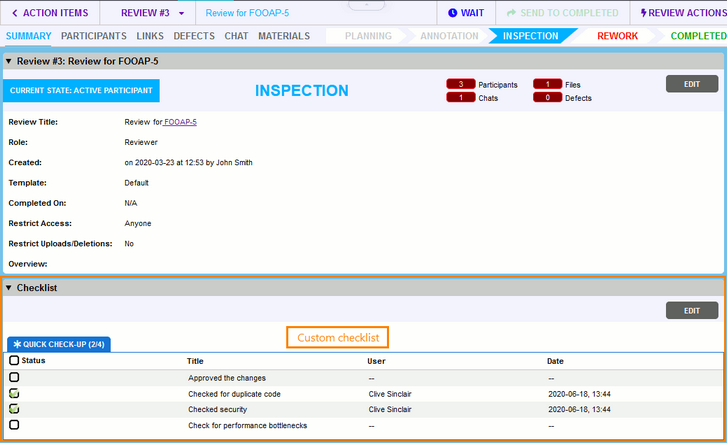
To specify which checklist should be used for this or that review, modify the review template. You can use different checklists for different review templates.
You can create multiple checklists. To specify the checklists to use in this or that review, modify the templates of these reviews. You can use different checklists for different review templates. One template can use one or multiple checklists. See Review Screen - Checklists.
Collaborator logs all user activities on the checklist. When a review participant select a check box in the list, Collaborator logs the participant’s user name and the timestamp of the change. Also, it adds a message to the Chat section of the review. If a review participant clears some check box in the list, Collaborator also adds a message about this to the Chat section.
For auditing purposes, you can include checklist status changes into the Review Details Report. Make sure that Checklist History is set to Display Checklist History for this.
Requirements
| • | Checklists are available in Collaborator Team and Collaborator Enterprise. For a complete list of differences between Collaborator editions, see Collaborator Editions. |
| • | To create, edit and clone checklists, you need administrator permissions in Collaborator. |
Create checklist
1. Create a new checklist
| 1. | Log in to Collaborator as administrator. |
| 2. | On the main toolbar, click ADMIN and then go to the Review Templates > Checklists settings. |
| 3. | Click New Checklist: 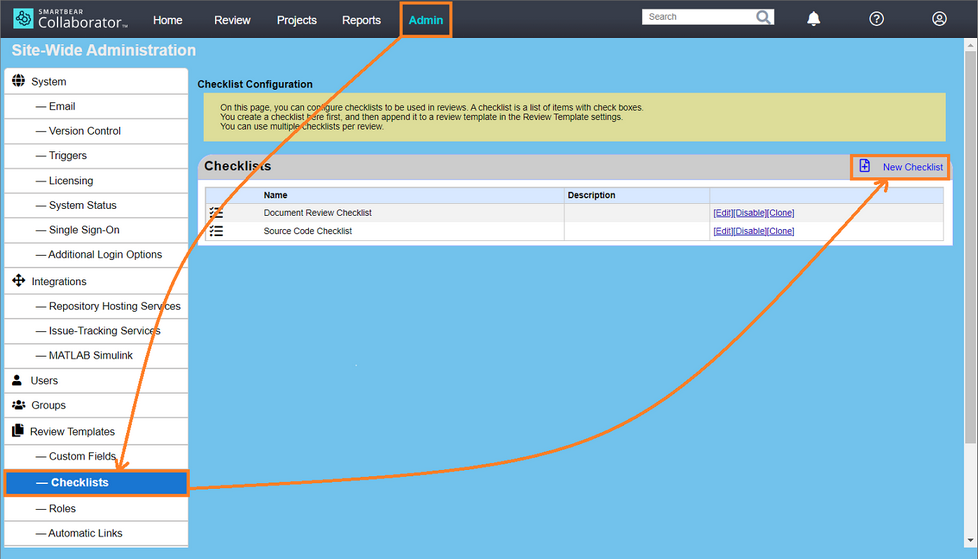 |
| 4. | On the subsequent screen, specify the checklist name and arbitrary description. They will be visible in the Collaborator settings. Checklist names must be unique. Checklist names must be unique. |
| 5. | If you have created any checklist custom fields, specify which of them should be displayed for this checklist: 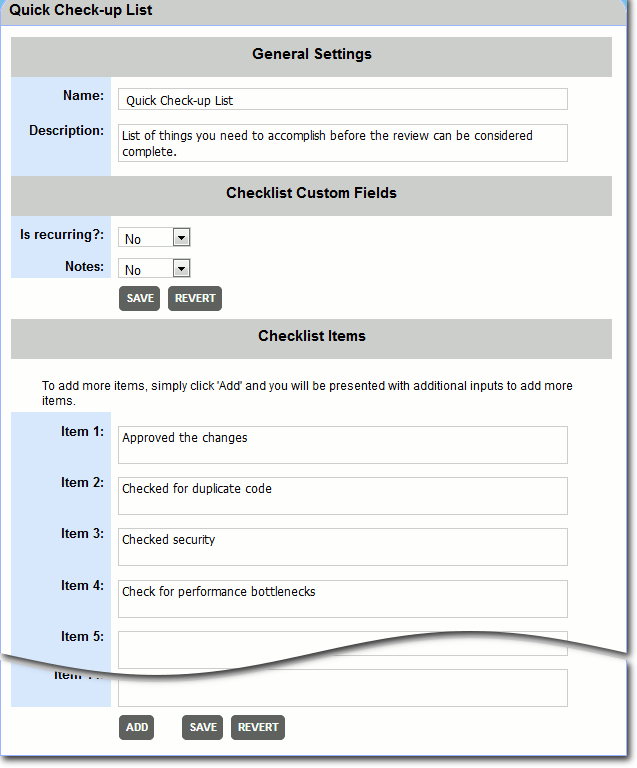 Note: Custom fields appear as additional columns in a checklist, for example: 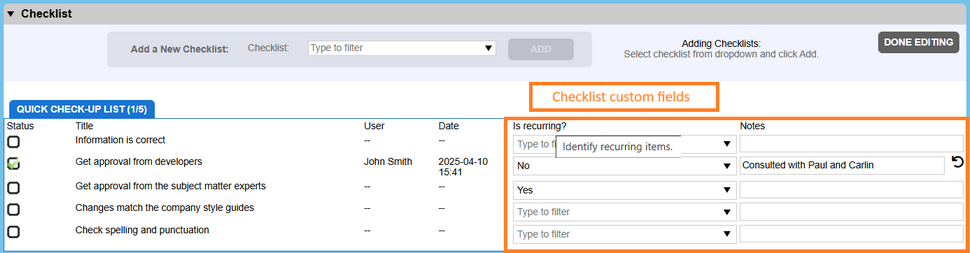 |
| 6. | Enter the list items in the Item nn edit boxes. Checklist items must be unique within a checklist. By default, Collaborator has edit boxes for 10 items. If you need more, simply click Add: 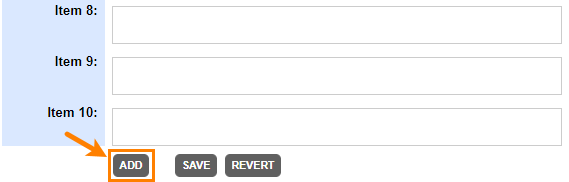 If you don’t need some item, simply clear its edit box. Collaborator will not display empty items on the review screen. |
| 7. | Click Save to apply the changes. Note: New checklist can be created by cloning as well. Click on the Clone button of desired checklist, do the changes as required and save it.  |
2. Add the checklist to a review template
After you have created the checklist, apply the checklist to a template:
| 1. | Go to ADMIN > Review Templates. Find the desired template on the Enabled Review Templates tab and click Edit: 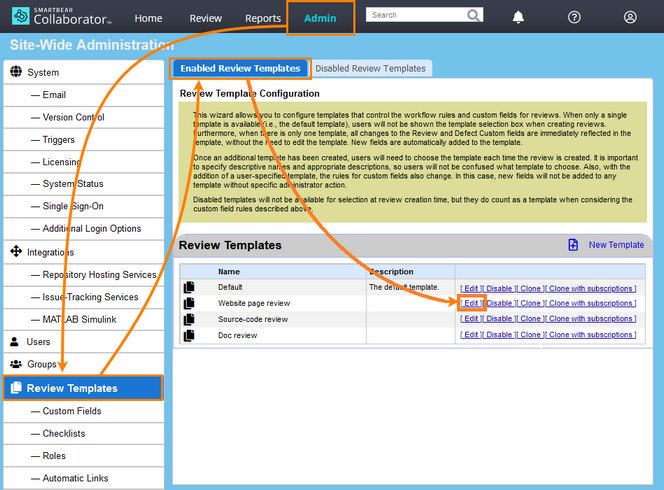 |
| 2. | In the template settings screen, find the desired checklist and specify its properties: |
Parameter |
Description |
<Checklist_Name>: Use in review |
Specifies which checklists should be available to reviews that use this template. Note: The checklist will be available in new reviews. It is not added to existing reviews based on the template. |
<Checklist_Name>: Mandatory |
Specifies whether all items must be checked before the review can be approved. |
<Checklist_Name>: Default |
Right after you create a review, the Review Screen displays only one checklist. Review participants append other checklists later, if needed. This setting specifies the checklist to be visible by default. If no checklist is selected as default, the Review Screen will show the first created checklist. |

| 3. | Click Save to apply the changes, or click Revert to cancel them. |
Edit checklist
| 1. | Log in to Collaborator as administrator. |
| 2. | On the main toolbar, click ADMIN and then go to the Review Templates > Checklists settings. |
| 3. | Find the needed checklist in the list and click Edit: 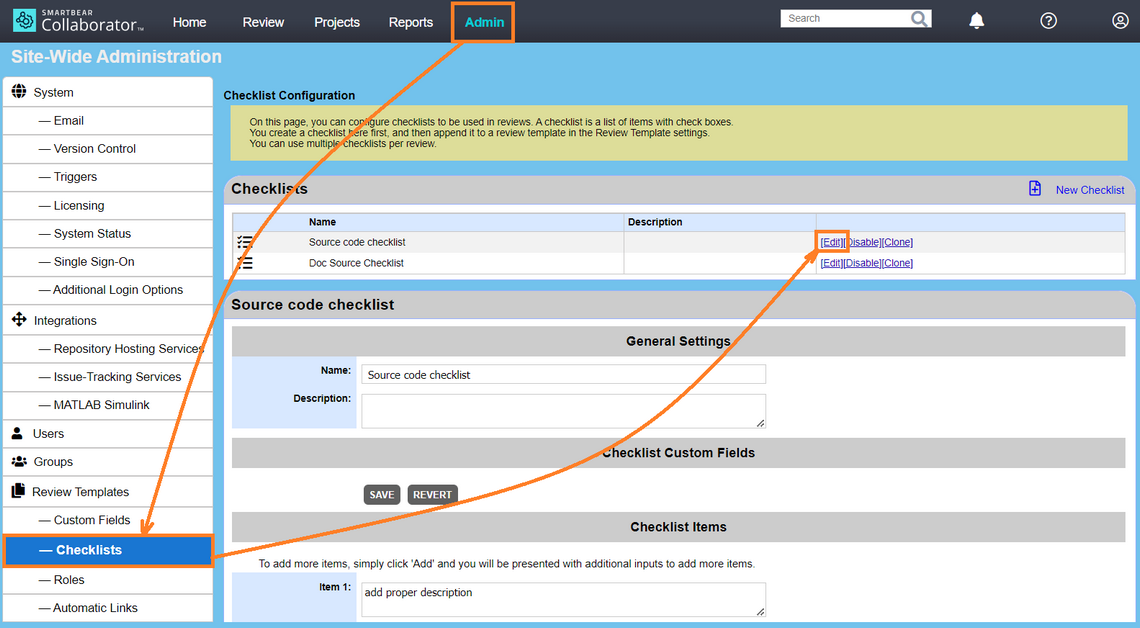 |
| 4. | On the subsequent screen, change the checklist parameters, and modify the text of list items. To delete an item, clear its edit box. Collaborator will not display empty edit boxes on the review screen. |
| 5. | Click Save to apply the changes, or click Revert to cancel them. |
If you have reviews that use your checklist, then you are allowed to change the items only: you can edit their text, delete items or append new items to the list. If the checklist is not used in any review, you can also change the checklist name, description and custom fields. To use a checklist for existing reviews, re-apply the template to them.
Disable and enable checklists
You cannot delete checklists in Collaborator. To make some checklist unavailable, you can disable it. Disabled checklists are not displayed in reviews.
To disable a checklist:
1.Log in to Collaborator as administrator.
2.Go to ADMIN > Review Templates > Checklists.
3.Find the needed checklist in the list and click Disable:
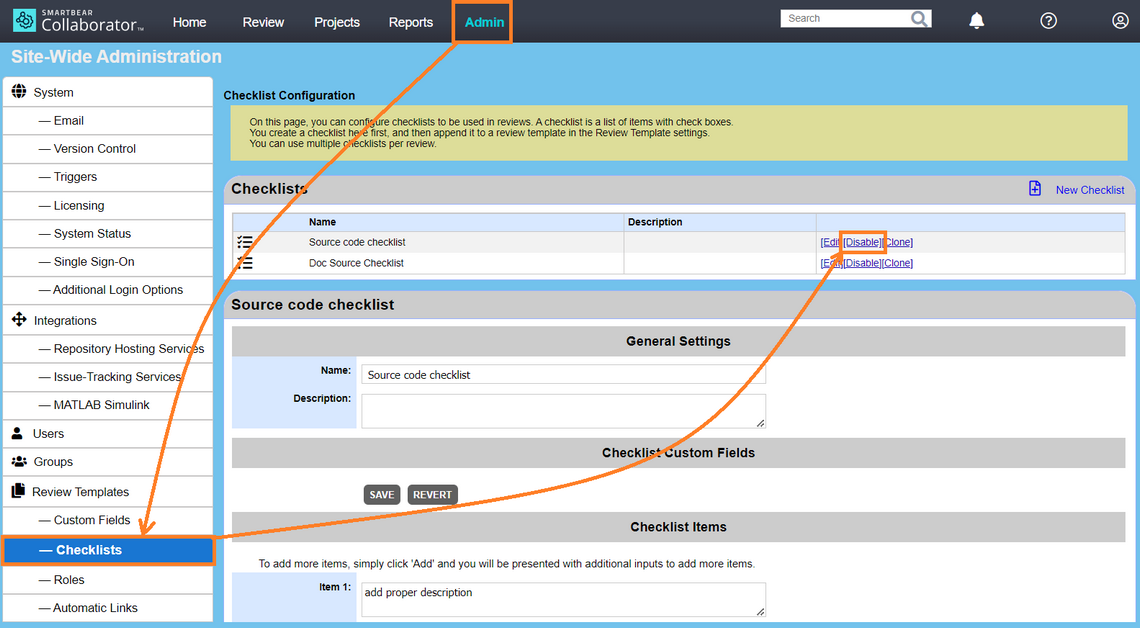
Note: If you disable a checklist after it has been applied to some reviews, Collaborator will not update these existing reviews. The changes will be applied to future reviews. To use a checklist for existing reviews, re-apply the template to them.
After you disabled a checklist, Collaborator will change the link text to “Enable”. To enable a checklist, simply click this Enable link:
