Collaborator integrates closely with your version control server to select which files to review. The administrator can configure the Collaborator server to be able to connect directly with version control. This allows users to select checked-in changelists to review from the web UI without having to install and configure client-side tools. Users can also configure their connection to the various version control servers using the client tools so they can review changes before committing them.
If you use more than one version control server Collaborator recognizes this and displays the files from the different servers separately.
Configuring Version Control Server Templates
Each version control system that Collaborator supports for server-side integration has a configurable "template". The configuration in this template is copied in to a version control server entry when you click Create in the Configure a new version control server form, or when a version control server entry is created automatically because a client uploaded files from a server that does not map to any of the existing version control server entries.
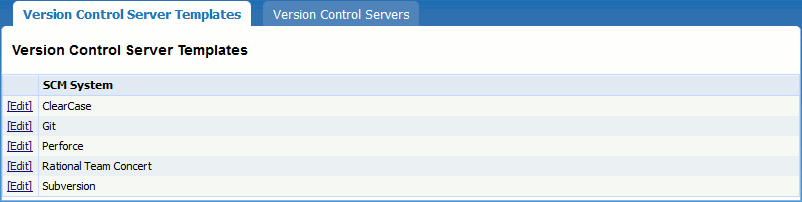
Each version control system that supports server-side version control integration includes different options in the Version Control Server Template:
| • | Git |
Next tab lists all currently configured servers, or shows a message if you have not created any yet:

Entries in this table are created automatically when one of the client tools uploads files from a server that does not map to any of the servers we currently know about. You can edit or delete entries in this list. A form to create a new entry always appears at the bottom of the screen:

The exact fields you need to configure the connection to a version control server depends on the version control system:
Most of the version control server entries have at a minimum these two fields:

The title is used to indicate this version control server to other users of Collaborator, so it should be something that everyone will understand, even if they are going through proxies, VPNs, or other such things. |
|
If enabled, this feature lets users select committed changelists to review directly from the web browser, without having to install any client programs. |
All of the version control systems also require that you specify the path to the command-line client executable for that system. This is a good example of something you might want to specify in the version control server template, since it is probably going to be the same for all the version control server entries you configure.
If you want to enable the Attach changelists from browser feature, then the server will also require some sort of authentication. This is the version control server account that Collaborator should use when querying that version control server. Note that Collaborator will use this account no matter who is logged in!
You can click Test Connection at the bottom of the form to make sure that Collaborator can successfully communicate with the server. NOTE: This test simply verifies that specified server appears to be a valid repository; it does NOT verify that your username and password can update the repository.
An unfortunate thing happens when client tools are separately configured for version control access: they can have different names for the same physical version control server. It is hard or impossible for the Collaborator server to automatically figure out whether these two names represent the same server or two different version control servers.
The administrator can fix this using the Client Configuration Mapping section of the server configuration form. You can configure Java-style regular expressions to match against each of the fields that our client tools upload. If the version control server entry was created automatically then these fields are already filled out and you probably do not need to change them. The fields available are different for each version control system:
When you submit this form, the list of configurations updates to indicate which configurations match and which do not match the current patterns. This makes it easy to iterate until you have covered exactly the right cases.