By default the Collaborator server authenticates users against the users in its database. For large organizations with hundreds or thousands of users in multiple product groups, it is simply impractical to add each would-be Collaborator user to the database. For this reason, Collaborator can integrate with an existing LDAP directory or Active Directory to perform user authentication.
Note: LDAP/AD authentication is supported in Collaborator Team and Collaborator Enterprise. For a complete list of differences between Collaborator editions, please see the comparison page.
When LDAP authentication is configured, Collaborator authenticates users attempting to login against their entry in the directory. When a user logs in for the first time, a user account is created for them automatically in Collaborator to store their user preferences. Users must be authenticated by logging into the Collaborator server through the web client before they will be able to work via GUI client, command-line interface and other clients.
Warning: Only users with accounts can be assigned to roles within reviews, so it is not possible to add a user to a review who has not previously logged in to Collaborator.
Internally, Collaborator uses the Tomcat Servlet Container's JNDI Realm for LDAP authentication. For a detailed description of how it works and for complete configuration information, consult the JNDI Realm Documentation.
The installation wizard provides a screen to perform basic configuration of LDAP authentication. This wizard minimally configures Collaborator to use LDAP authentication. For advanced configuration, see Advanced Configuration.
When LDAP authentication is selected, you are prompted for the following items:
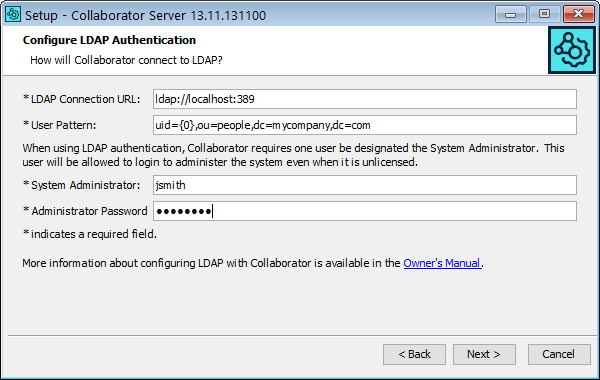
| • | LDAP Connection URL - This is a URL where Collaborator can connect to the LDAP server. The format of the URL is as follows: ldap://servername:port The standard default port for LDAP is 389. |
| • | User Pattern - This string instructs &product-name; how to locate a user within LDAP. The format of the string is the same as the LDAP-distinguished name of a user with the username replaced with the {0} string. For example, uid={0},ou=people,dc=mycompany,dc=com |
| • | System Administrator - The LDAP account of a user who will be Collaborator server administrator. For example, if your LDAP distinguished name is uid=jsmith,ou=people,dc=mycompany,dc=com, then your LDAP account is jsmith The Collaborator server administrator will always be able to log in and administer license codes and user accounts. This account takes the place of the admin account when using internal authentication. |
Active Directory Authentication
Microsoft Active Directory is an LDAP compliant directory and can be used to authenticate users to Collaborator. The installation wizard provides a screen to perform basic configuration of Active Directory authentication. This wizard minimally configures Collaborator to use AD authentication. For advanced configuration, see Advanced Configuration.
When AD authentication is selected, you are prompted for the following items:
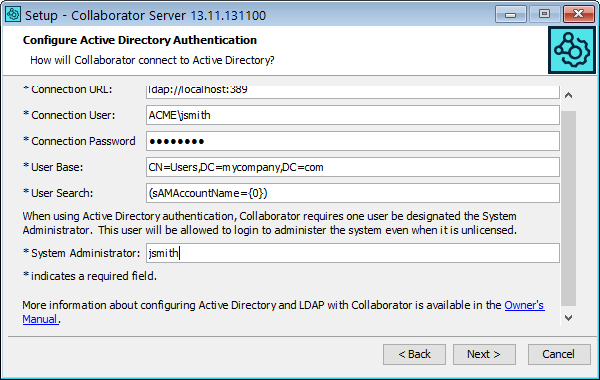
| • | Connection URL - This is a URL where Collaborator can connect to the LDAP server. The format of the URL is as follows: ldap://servername:port The standard default port for LDAP is 389. |
| • | Connection User and Connection Password - The user name (in DOMAIN\username format) and password which Collaborator will use to connect to Active Directory to find the user records. If anonymous connections are allowed to your directory (not typical), then these attributes are not required. |
| • | User Base - Specifies the starting point in the Active Directory for the subtree containing users. |
| • | User Search - Specifies a search pattern of how to locate a user within the Active Directory, with {0} marking where the username should be substituted. For example, (sAMAccountName={0}). The filter may combine multiple conditions using Boolean operators: AND (needs to be SGML encoded to "&" because the configuration file is an XML document); OR (|) and NOT (!). |
| • | System Administrator - The LDAP account of a user who will be Collaborator server administrator. For example, if your LDAP distinguished name is cn=jsmith,ou=people,dc=mycompany,dc=com, then your LDAP account is jsmith The Collaborator server administrator will always be able to log in and administer license codes and user accounts. This account takes the place of the admin account when using internal authentication. |
The basic configuration provided by the installer sets up the simplest possible LDAP or AD configuration. Many more sophisticated configurations are possible, but they may require manually editing the context configuration file (<collab server install dir>/tomcat/conf/Catalina/localhost/ROOT.xml), namely, the Realm configuration element which defines authentication information.
The JNDI Realm Documentation describes the different operational modes and explains each of the configuration attributes.
Performing the basic configuration in the installation wizard will result in the following values of the Realm element of ROOT.xml file.
LDAP:
<Realm className="org.apache.catalina.realm.JNDIRealm"
connectionURL="ldap://mycompany.com:389"
userPattern="uid={0},ou=people,dc=mycompany,dc=com"
allRolesMode="strictAuthOnly"
/>
Active Directory:
<Realm className="org.apache.catalina.realm.JNDIRealm"
connectionName="your_ldap_username"
connectionPassword="xxxx"
connectionURL="ldap://mycompany.com:389"
referrals="follow"
userBase="CN=Users,DC=mycompany,DC=com"
userSearch="(sAMAccountName={0})"
userSubtree="true"
allRolesMode="strictAuthOnly"
/>
When using LDAP or Active Directory, please check that the "collaborator-authentication" parameter is "false":
<Parameter description="Is the Code Collaborator database used for authentication?" name="collaborator-authentication" override="false" value="false"/>
Warning: Modifying the ROOT.xml file will cause Tomcat to dynamically reload the Collaborator application, terminating any active sessions. Changes to ROOT.xml should be done in the context of stopping and restarting the Collaborator service (that is, in a production environment coordinating the restart with user activity), regardless of whether the service itself is actually stopped and restarted, or just reloaded by Tomcat.
As a more secure alternative to storing LDAP passwords as plain text, you can obfuscate them. Collaborator supports two forms of obfuscation: base64 encoding, and base64-encoded AES. For instructions on enabling LDAP passwords obfuscation, see Security Considerations.
If you need to restrict access to Collaborator, we recommend that you configure your Realm definition to use userSearch for searching for user accounts rather than userPattern for direct bind (see Active Directory Configuration for examples). With userSearch, you can expand your search criteria to include only members of the specified group or groups. For example, the following userSearch would restrict access to only members of the ccusers security group:
userSearch="(&(sAMAccountName={0})(memberOf=CN=ccusers,OU=Security Groups,OU=Accounts and Groups,DC=xxxx,DC=xxxx,DC=com))"
Please note that the ampersand (&), needs to be SGML encoded to "&" because the configuration file is an XML document.
If you need to broaden the search criteria, you can use the OR operator, "|". For example, to allow users who are in group "foo" or group "bar" (or both), you might use:
userSearch="(&(sAMAccountName={0})(|(memberOf=CN=foo,OU=groups,DC=xxxx,DC=com)(memberOf=CN=bar,OU=groups,DC=xxxx,DC=com)))"
Above, the inner OR requires that the user be a member of group "foo" or group "bar". The outer AND ensures that that user's login also matches the one provided to the Collaborator login form.
When users first log in to Collaborator, their user account is created automatically, as a standard user account. It is possible to have users in certain roles (see Restricting Access above) to automatically receive administrator privileges. This configuration is done in the <collab server install dir>/tomcat/conf/Catalina/localhost/ROOT.xml file.
Near the bottom of the ROOT.xml file, there is a section of server parameters (Parameter XML elements). These are name-value pairs of configuration options. To configure certain LDAP groups to be assigned administrator rights, create an admin-roles parameter and for its value specify a pipe-separated ("|") list of LDAP group names. You must also add 'userRoleName="memberOf"' to the Realm configuration.
<Parameter description="Automated Collaborator admin rights" name="admin-roles" override="false" value="CN=foo,OU=groups,DC=test,DC=com|CN=bar,OU=groups,DC=test,DC=com|CN=baz,OU=groups,DC=test,DC=com"/>
The admin-roles parameter requires an exact match, including case. New users that are members of the specified LDAP groups will be given administrator privileges when their accounts are created. Users that already have accounts in Collaborator will not automatically be promoted to administrator. Those privileges will need to be assigned manually from the Admin screen.
Configuring Collaborator to communicate securely with an LDAP server using LDAPS (LDAP over SSL) can be done, but requires manual configuration outside of the installer wizard. To configure LDAPS, first install Collaborator configured for normal LDAP access. The service will start automatically upon completion of the install, so you will need to shut it down to continue configuration. Open the context configuration file (<collab server install dir>/tomcat/conf/Catalina/localhost/ROOT.xml) in a text editor and find the Realm configuration element. It will look something like the following:
<Realm className="org.apache.catalina.realm.JNDIRealm"
connectionURL="ldap://localhost:389"
userPattern="uid={0},ou=people,dc=mycompany,dc=com"
allRolesMode="strictAuthOnly" />
If you are configuring Collaborator for use with Microsoft Active Directory using LDAPS, follow the Active Directory instructions to make a best effort to configure the realm for your Active Directory server. Do not worry if you do not get it exactly right or cannot test the connection because the server refuses insecure connections. That issue can be resolved once connectivity is established.
To the realm configuration above (or your Active Directory realm configuration), you will need to add an attribute 'protocol' with the value 'ssl' and you will probably need to change the 'connectionURL' attribute to an LDAPS url. The updated configuration below highlights the changes:
<Realm className="org.apache.catalina.realm.JNDIRealm"
connectionURL="ldaps://localhost:636"
userPattern="uid={0},ou=people,dc=mycompany,dc=com"
allRolesMode="strictAuthOnly"
protocol="ssl" />
Depending on the LDAP server's SSL certificates, this configuration may be enough to establish the connection. However, often companies generate their own SSL certificates signed by their own Certificate Authority (CA) certificate. Unless additional measures are taken, these certificates may not be trusted so Collaborator will still not connect to the LDAP server.
To establish trust, you need to import the public key of either the Certificate Authority or the public key of the LDAP server as a trusted certificate to Collaborator keystore file:
1. Get the certificate file from your LDAP or network administrator.
2. Locate the keystore file which you have generated while configuring Collaborator HTTPS connection.
Default location is <Collaborator Server>/tomcat/conf/collab.ks, yet that could be changed while generating keystore.
3. Use Java’s keytool utility to import the server's certificate to Collaborator keystore file. You can find the keytool utility in the $JAVA_HOME/bin directory:
$JAVA_HOME/bin/keytool -importcert -alias ldapserver -keystore <collab-keystore-path> -trustcacerts -file <path-to-chain-certificate-file>
For more information on command-line arguments of the keytool utility, see keytool documentation.
4. Most likely you will be prompted to confirm the validity of the certificate. It is imperative for the security of the overall system that you verify the key matches the trusted material. Before accepting the certificate, you should contact the administrator that sent you the certificates and verify that the certificate fingerprints that you see match the certificate fingerprints that they intended to send you.
5. The final step is to configure Collaborator to use the keystore. Open the <Collaborator Server>/ccollab-server.vmoptions file in a text editor, and add the following lines to it:
-Djavax.net.ssl.trustStore=<collab-keystore-path>
-Djavax.net.ssl.trustStorePassword=<collab-keystore-password>
6. Restart the Collaborator server.
Upon restart, the Collaborator service should be connecting to the LDAP server via SSL. If you are still getting errors, check that the other LDAP configuration options have been configured correctly. If you are using Active Directory, it is now worth revisiting the Active Directory configuration above.
Finally, a note on troubleshooting SSL connections: adding the following line to the ccollab-server.vmoptions file will enable Java's network debug logging.
-Djavax.net.debug=all
Upon restarting Collaborator, this information will be written to <collab server install dir>/output.log. If you need assistance interpreting this log, contact SmartBear Customer Support.
Note: Do not run in a production environment with network debug logging enabled. This will severely impact the performance of the system and will also consume vast quantities of disk space.
You may configure user and group synchronization between Collaborator and the LDAP directory or Active Directory. In this case, Collaborator will retrieve user properties (name, phone, email, and so forth) and their membership in groups from the LDAP directory or Active Directory when the users login. Additionally, you can select whether to create new groups automatically and specify regular expression for automatic group creation.
To enable synchronization on Active Directory systems, you will need to open the LDAP Settings tab of General settings, enable the respective properties and possibly adjust the attribute mapping configuration.
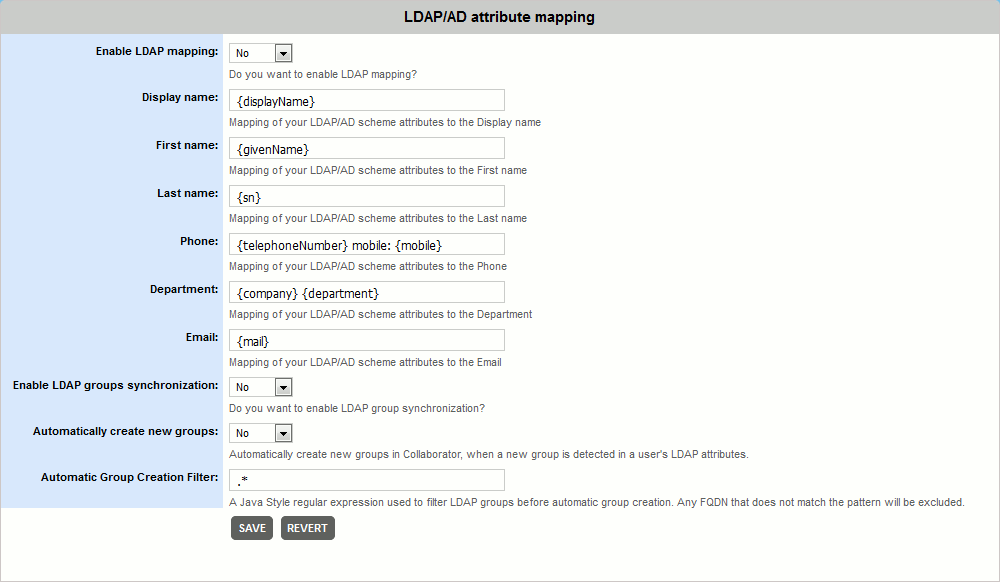
In order to perform synchronization on LDAP systems, you will need to configure the above-mentioned LDAP Settings and also need to modify the ROOT.xml. Namely, you will need to add the following fields: the connectionName and connectionPassword fields which define a user account the Collaborator will use to connect to LDAP to find the group membership user records, and the roleBase and roleSearch fields which define the base entry for the role search and the search filter for selecting role entries.
<Realm className="org.apache.catalina.realm.JNDIRealm"
connectionName="cn=read-only-admin,dc=example,dc=com"
connectionPassword="xxxx"
connectionURL="ldap://xxxx.com:389"
userPattern="uid={0},dc=example,dc=com"
roleBase="dc=example,dc=com"
roleSearch="(&(objectClass=groupOfUniqueNames)(uniqueMember={0}))"
allRolesMode="strictAuthOnly"
/>
Technical details
For mapping user membership in groups Collaborator uses the group's fully qualified domain name (FQDN) retrieved from the LDAP or AD. It checks if some of existing user groups has matching FQDN and adds the user to this group on success. Otherwise, it can create new group (if automatic group creation is enabled and group name matches filter) and adds the user to the new group.
To name the new group Collaborator uses the first entry of group's fully qualified domain name (FQDN). For example, a group having the "ou=ccusers,dc=example,dc=com" FQDN will have the ccusers title. If some other group already has the same title, Collaborator will append the ordinal number to the group title: ccusers1, ccusers2 and so on.
If users have multiple emails specified on the LDAP or Active Directory side, Collaborator will retrieve them and use the first of the emails for notifications. Email addresses should be separated by comma.
Collaborator checks existing groups created via LDAP or Active Directory synchronization and actualizes user membership in those groups on every login. Such algorithm allows to keep a consistency between Collaborator and LDAP or Active Directory.
Troubleshooting LDAP:
The directory administrator that manages the directory will be a valuable resource in resolving the issue, either directly, or in conjunction with SmartBear's Customer Support team.
If the directory administrator is unavailable, SmartBear's Customer Support team can help you resolve configuration issues, but often do not have enough information about the directory schema, permissions, and so on, to efficiently resolve issues. We will walk you through several basic configurations that we have seen work with other directories. Having an LDAP browser tool available (there are many good free and commercial browsers available) when you call will help answer some of the questions required to properly configure your server. In some cases, we will still need to discuss details with your directory administrator.
There is a process that we go through to help people debug their LDAP issues. You can do it on your own (of course, if you get stuck you can always contact technical support). We recommend using the JXplorer LDAP browser for this task because it is a Java tool and as such it uses the same underlying LDAP library that Collaborator will use. Here is the process:
| 1. | Download and install JXplorer, following the recommended installation guidelines. |
| 2. | Start up JXplorer. |
| 3. | From the File menu, choose Connect. |
| 4. | In the connect dialog ("Open LDAP/DSML Connection"), specify the following: |
Host: the hostname portion of the connectionURL attribute from the Realm declaration in ROOT.xml.
Port: the port portion of the connectionURL attribute from the Realm declaration in ROOT.xml. Usually this is 389, which is the default if unspecified. Some Active Directory configurations require connecting to the "Global Catalog" which is port 3268 (you may see errors that say "DomainDnsZones.foo.bar.com" which means you need to use this port).
Base DN: The value of the userBase attribute from from the Realm declaration in ROOT.xml.
Security Level: User + Password
Security User: The value of the connectionName attribute from the Realm declaration in ROOT.xml. This should be a name that looks like an email address (jason@…) or something that looks like an LDAP distinguished name (uid=jason,ou=people,dc=mycompany,dc=com)
Security Password: The value of the connectionPassword attribute from the Realm declaration in ROOT.xml.
Click Ok to connect to establish the connection.
If the connection establishes normally, you should see the Explore tree populate with some nodes that represent entities in your directory. Note: You may see a Error that "Search partially failed!" This seems to be normal and is a consequence of the way Active Directory does its searching.
If the connection fails to establish normally, check the error message that explains the failure.
Is it a network issue? This could mean that the hostname or port number is wrong or that a firewall (local or on the network somewhere) is preventing the connection to the LDAP server. It could also mean that the LDAP server is simply offline. Double check your connection information and firewalls and if you still cannot connect, contact your LDAP administrator. (This error looks like: "Error opening connection: 192.168.10.441:389")
Is it a login issue? The specific error messages that come back will depend on the LDAP server in question, but if it is a "security" related message it probably means the user DN or password is wrong. Double check those and try to reestablish the connection. If that fails, perhaps the LDAP account does not exist or does not have query permissions on the directory. Consult your LDAP administrator for help getting the appropriate access. An example of an error message from an Active Directory server is as follows:
Error opening connection:
[LDAP: error code 49 - 80090308: LdapErr: DSID-0C090334, comment: AcceptSecurityContext error, data 52e, vece
If it is neither of those issues, send the error message verbatim to SmartBear technical support (the JXplorer error dialog accepts Ctrl-C to copy the message to the clipboard), or consult Google or your LDAP administrator.
| 5. | Once the connection is established, it is time to verify the search parameters. From the Search menu, select "Search Dialog". |
| 6. | In the Search dialog, confirm that the "Start Searching From" is set to the value of the userBase attribute from the Realm declaration in ROOT.xml. |
| 7. | Search Level should be set to "Search Full Subtree". |
| 8. | Select the "Text Filter" tab at the bottom of the search dialog. |
| 9. | Copy and paste the userSearch attribute from the Realm declaration in ROOT.xml into the text filter box (for example, (sAMAccountName={0})). |
| 10. | Replace the {0} with the value of a user that you expect to be able to login. For example, if the user would use the login jason and the filter is (sAMAccountName={0}), change this value to (sAMAccountName=jason). |
| 11. | Press the Search button. Exactly one result should be returned. If zero results are returned, then the query is at fault. Some possible causes: |
The user name as substituted into the filter is incorrect.
The user does not exist or does not exist within the subtree rooted at userBase.
The filter itself is too restrictive. Filters can be arbitrarily complex with AND and OR clauses. If the filter is complex, we recommend simplifying the query down to only the username portion (the place where the {0} occurs) and verifying that portion and then building up the query to the ultimate query, verifying that at each step the user account is still findable.
If the user is returned and you know that user's password (for example, if it is the Code Collaborator administrator account), verify that the account can login using JXplorer.
| 12. | Select the user from the results tree. |
| 13. | Select the Table Editor tab. |
| 14. | Copy the distinguishedName attribute to the clipboard. |
| 15. | From the File menu, select Connect. Follow the login procedure as above, substituting the user's distinguished name (on the clipboard) for User DN and that user's password for Password. |
If that login fails, it is possible that the password is incorrect or has been changed or that the account has been disabled or locked. Consult with your LDAP administrator to confirm that the account has "bind access" as necessary.