This category holds SMTP server settings and other settings related to out-going notifications of review activity.
In order to establish e-mail, poke and calendar notifications for Collaborator users, administrator must properly configure the SMTP server settings below. Otherwise, notifications cannot be sent.
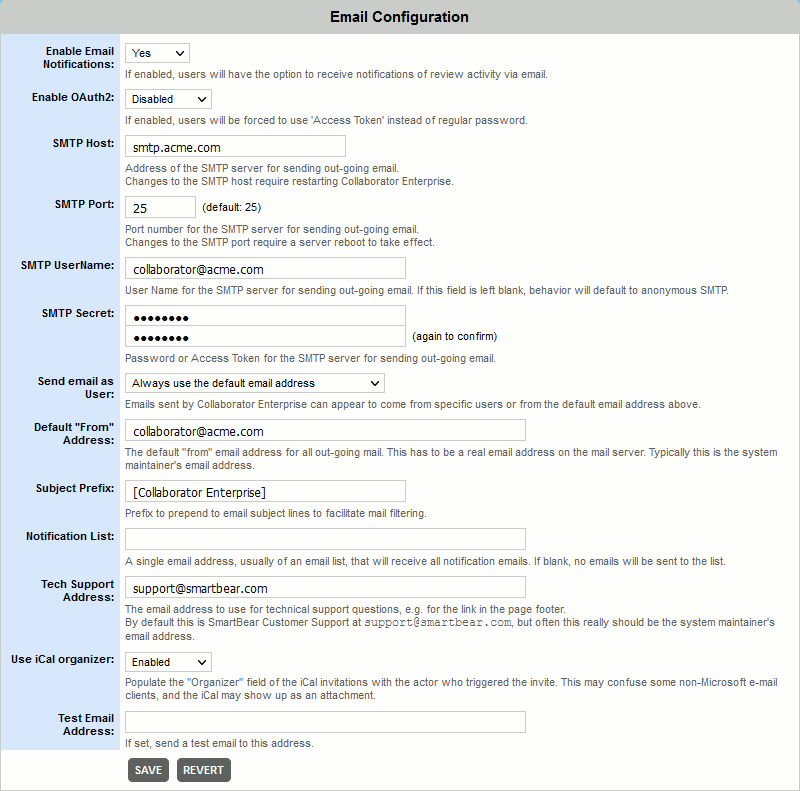
Email notifications are now optional. If enabled, users will have the option to receive notifications of review activity via email. |
|
If enabled, Collaborator will use OAuth 2.0 protocol for authentication on SMTP server. In particular, you should specify access token instead of regular password in SMTP Secret field. |
|
The domain name or IP address of the server to use to send SMTP messages. This machine must be configured to accept mail from the server on which Collaborator is installed. If your email server is Exchange you will need to get your Exchange administrator to enable anonymous SMTP. If this setting is not established properly, no emails will be sent. |
|
The port number to connect on when sending SMTP messages, typically 25. The port number might be different if a spam filter is set up in front of the primary server; in this case you probably want to bypass the spam machine, or else put a rule on the spam machine to allow Collaborator to send messages. If this setting is not established properly, no emails will be sent. |
|
User name and password or access token to use for SMTP servers that require authentication. If this field is left blank, behavior will default to anonymous SMTP. If Enable OAuth2 setting is on, specify access token instead of regular password. Do not specify these values if your SMTP server uses secure connection but does not require authentication. Otherwise an error will occur. Maximum length of SMTP Secret is 255 characters. |
|
Determines which user will be listed in the "From Address" in emails sent by Collaborator. If you select to use the "default address," emails will come from the default address given elsewhere in this configuration screen. Otherwise the system will attempt to send email from the user that caused the message to be sent. For example, if a user causes a "new review" notification to be sent, that user's email address will be used as the "from" address. Some messages cannot be associated with a particular user and will still be sent from the default address. |
|
The email address to use in the "From Address" field in notification emails. Typically this is the system maintainer's email address. |
|
This text will be pre-pended to the subject line of any email sent by Collaborator. This assists end users with mail filtering and helps to train or configure spam-filters to identify Collaborator notifications as non-spam. |
|
Specifies an e-mail address or mailing list that will receive a copy of every notification that Collaborator sends. |
|
The email address to use for technical support questions. For example, this is used in the [Support] link in the web page footer. By default this is the email address for Collaborator Technical Support, but often the system maintainer wants to get these emails first for internal resolution. |
|
Specifies whether to populate the Organizer field in iCalendar invitations. If enabled, the user who has pressed "iCal Everyone" will be set as organizer. Otherwise, the Organizer field will be blank. Important: Populating the Organizer field may confuse some non-Microsoft e-mail clients, and may result in iCalendar invitations be interpreted as file attachments. |
|
Usually left blank; if an address is supplied here a test message will be sent to this address when the form is submitted. This is used to test the email system. The email address is not saved. |
Note: If the E-Mail address includes non-Latin symbols, type it inside quotation marks. For example, if you need to use the äddress@example.com address, input it as "äddress"@example.com.
Automatic Periodic Notification
On this tab you can set-up email notifications about stalled reviews.
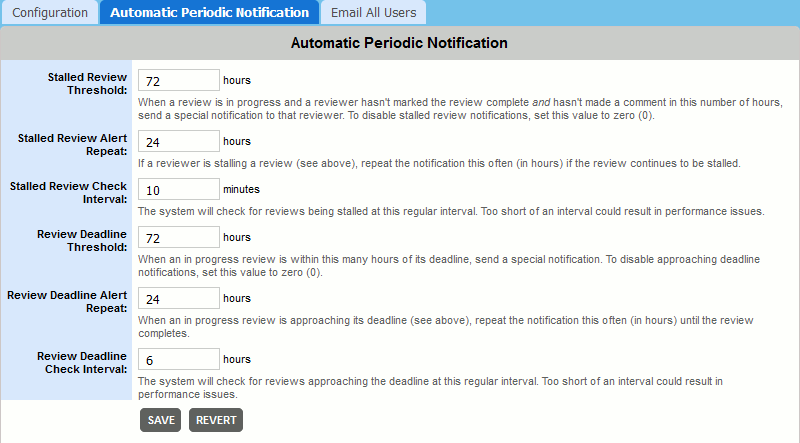
When a review is in progress and:
send a special notification to that reviewer. To disable stalled review notifications, set this value to zero (0). |
|||||
If a reviewer or author is stalling a review (see above), repeat the notification this often (in hours) if the review continues to be stalled. |
|||||
Specifies how often to check for stalled reviews. |
|||||
When an in progress review is within this many hours of its deadline, send a special notification. To disable approaching deadline notifications, set this value to zero (0). |
|||||
When an in progress review is approaching its deadline (see above), repeat the notification this often (in hours) until the review completes. |
|||||
Specifies how often to check for reviews approaching deadline. Default interval is 6 hours, minimal 1 hour. |
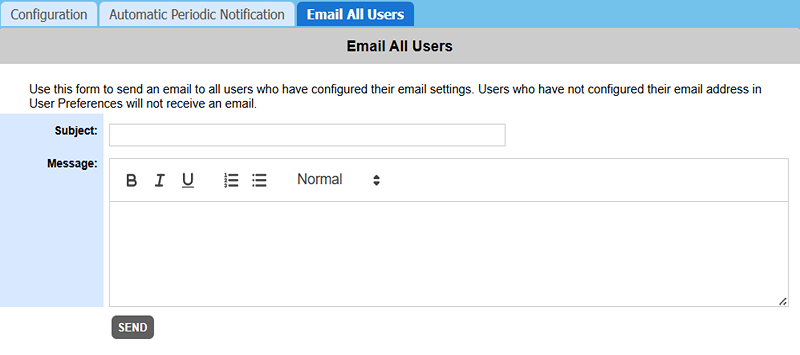
The Email All Users tab allows the administrator to send an email to all users in the system. This is easier than maintaining a separate email mailing list for users.
A typical use is to broadcast scheduled maintenance of the system, especially before and after a system upgrade. Rich Text and Markdown formatting support is provided for email, users can customize the appearance of message sent.