Main Screen
The GUI Client's main screen contains a list of SCM configurations. Each SCM Configuration entry shows its SCM system, Configuration and Local Path (if any). Use the SCM Configuration buttons on the right side of the screen to add or modify an SCM Configuration. Use the Add to Review buttons on the bottom of the screen to upload review materials to the Collaborator Server.
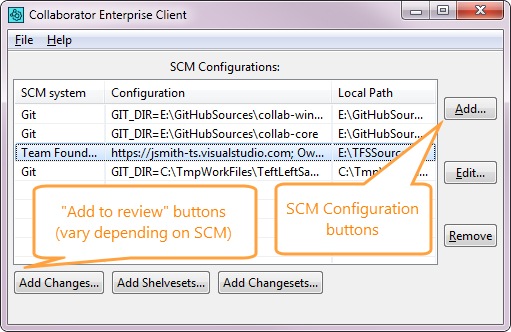
GUI Client Main Screen
Server Connection configuration
If you used the graphical installer, your connection to the Collaborator Server should be configured already. Otherwise, you will be prompted when you try to connect. You can also select File -> Preferences in the system menu to open the Server Connection preferences page.
The buttons on the right side of the main screen are used to add or modify an SCM Configuration in the SCM Configurations list.
| • | Add... adds a new SCM Configuration |
| • | Edit... edits the selected SCM Configuration |
| • | Remove removes the selected SCM Configuration |
The buttons on the bottom of the main screen are used to upload materials to a new or existing Review on the Collaborator Server. The buttons available will depend upon the selected SCM Configuration. Different buttons are available for different SCM systems:
| • | CVS |
| • | Git |
Keyboard Shortcuts
The GUI Client also offers keyboard shortcuts as follows:
File Menu
Alt + F = File menu
Alt + P = Preferences
Alt + X = Exit
Help Menu
Alt + H = Help menu
Alt + L = Capture Debugging Log
Alt + E = Email Support...
Alt + A = About Collaborator
* For Mac users, 'Alt' should be replaced with 'Cmd.'
Known Issues
Because of technical issue with GTK3, GUI Client on Unix/Linux operating systems may fail to display table data on Add Changelists, Add Commits, Add Transactions and similar pages.