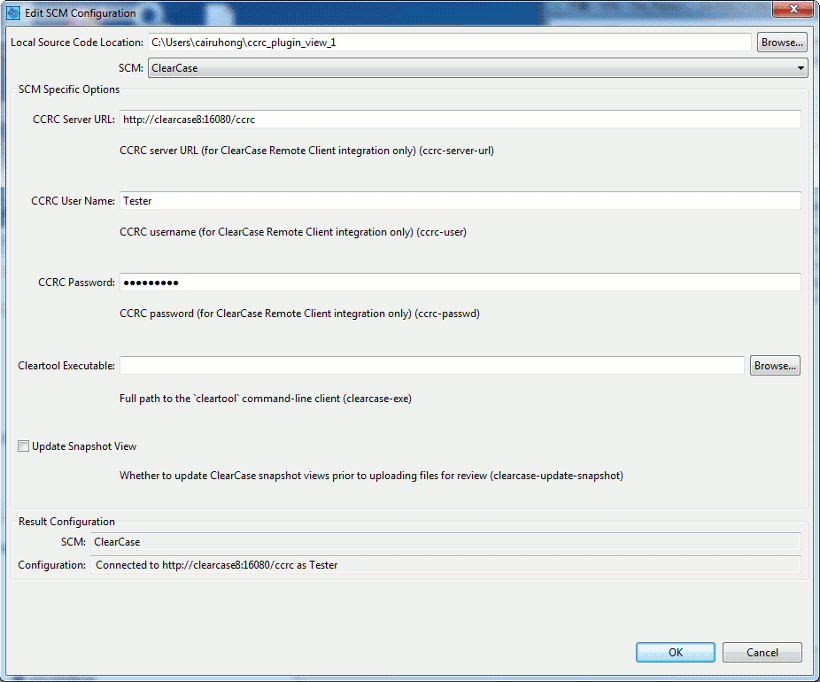
The SCM Configuration dialog has several options tailored to configure ClearCase integration.
Option |
Description |
CCRC Server URL |
An URL of the ClearCase server. Required for remote connections. |
CCRC User Name |
A user-name you want to use to authorize on the ClearCase server. Required for remote connections. |
CCRC Password |
A password you want to use to authorize on the ClearCase server. Required for remote connections. |
Cleartool Executable |
A full path to the cleartool command line client (clearcase.exe). |
Update Snapshot View |
If selected, updates ClearCase snapshot views before uploading files to a Collaborator review. |
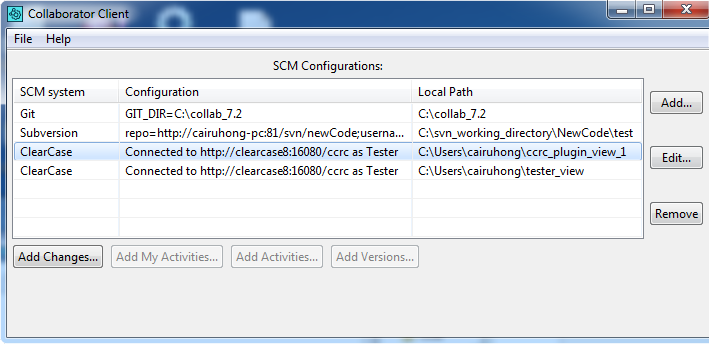
Selecting a ClearCase SCM Configuration in the GUI Client main screen enables several options for adding files for review. The Add Changes... button finds modified files or allows selection of unmodified files, for uploading to a review. The Add My Activities... button uploads changes from your activities. The Add Activities... button uploads changes from an activity or activities that you name. The Add Versions... button uploads arbitrary versions of files stored in ClearCase.
Uploading ClearCase files to a Review
Press the Add Changes... button to upload checked-out files to the Collaborator Server for review.
Add Changes
Press the Add My Activities... button to upload files from selected activities which you own to the Collaborator Server for review.
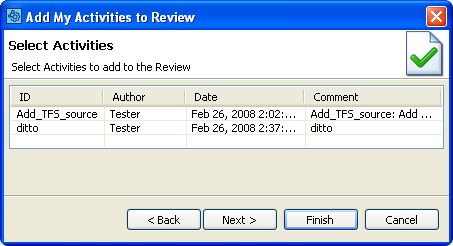
Add My Activities
Press the Add Activities... button to upload changes from a named ClearCase activity to the Collaborator Server for review. You cannot upload activities that have CHECKEDOUT versions if you are not the activity owner.
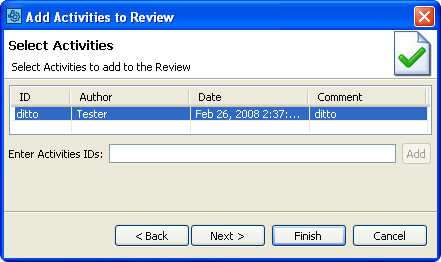
Add Named Activities
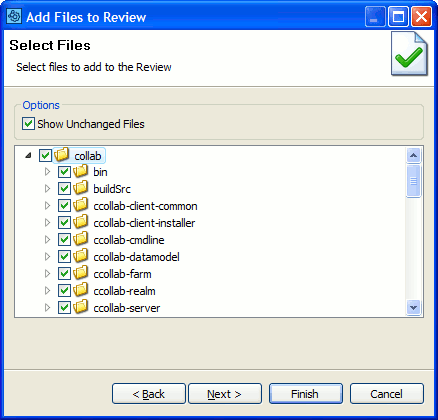
Press the Add Versions... button to upload versions of files in your working copy to the Collaborator Server for review. Specify a name for the review or select an existing review and then click Next. You will be prompted to select one or more files in your checkout path (which was specified in the SCM Configuration dialog).
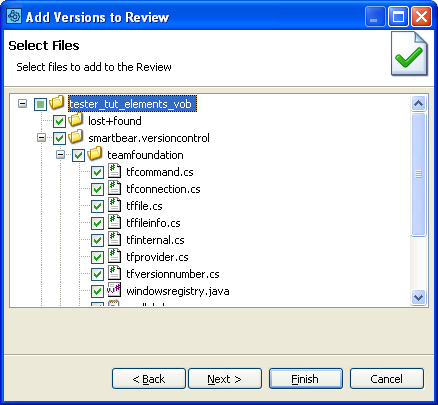
Select files
Click Next. Do not press Finish yet.
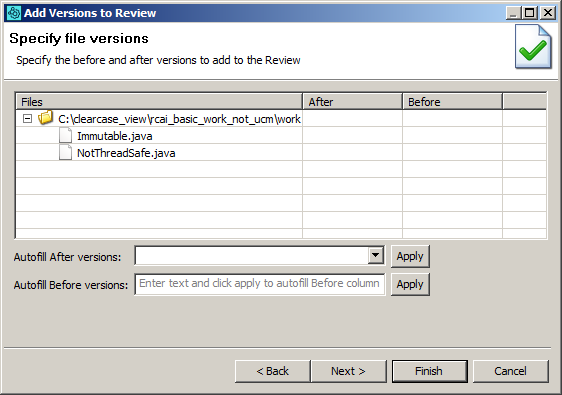
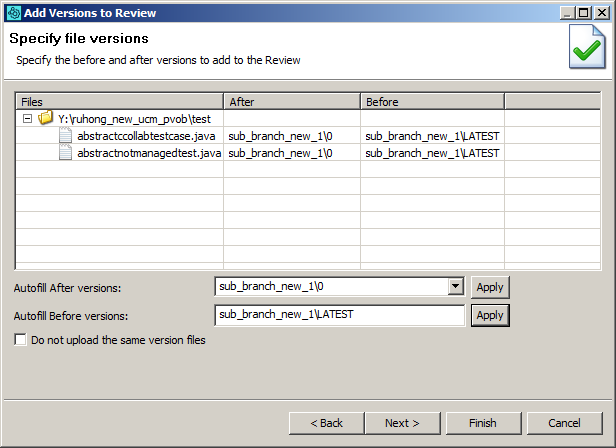
Specify versions
The next page of the wizard lists the files that you have selected. You need to specify which versions of these files should be added to the review.
Enter the ClearCase versions of each file to Before and After columns. Rows corresponding to directories are not editable. To specify a ClearCase version you can use the 'local' and 'LATEST' keywords. To learn about these keywords, see ccollab addversions command-line reference.
To fill the before and after versions for all listed files automatically, specify the needed version in the Autofill After versions or Autofill Before versions edit boxes and click Apply. To clear previously specified versions for all listed files, enter empty string to the Autofill edit boxes and click Apply.
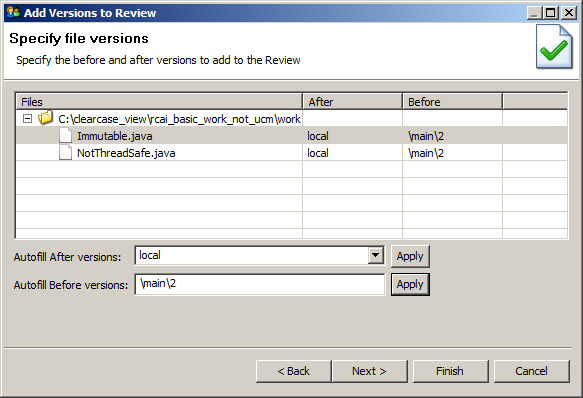
Automatically fill in before/after values
You can also specify a branch you want to work with:
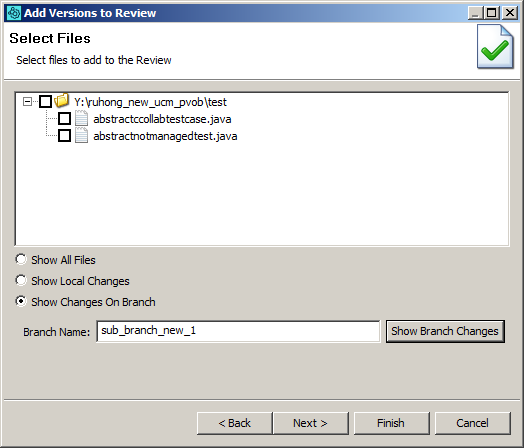
Specifying branch name
You can input the absolute branch version path (for instance, "\main\branch_new_1\sub_branch_new_1\1") or a relative path (like, "\sub_branch_new_1\1").