Setting PTC Integration Options
In order for Collaborator to be able to work with PTC Integrity, you need to specify connection settings in Collaborator's GUI Client.
To do this:
| 1. | Launch the GUI Client. |
| 2. | Click Add on the main screen. The Add SCM Configuration dialog will appear: |
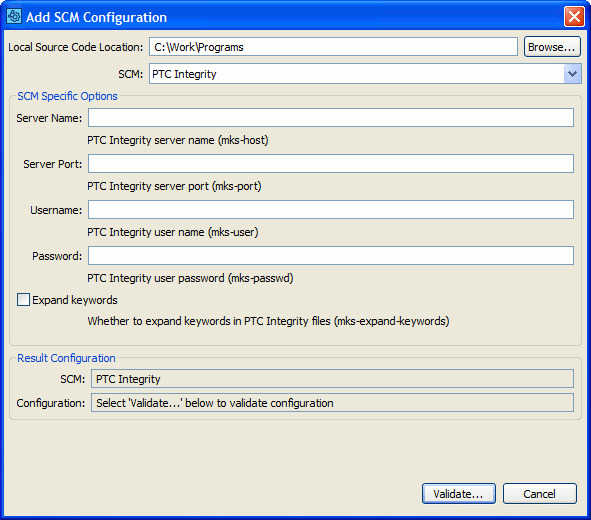
PTC Source Control Settings
| 3. | In the dialog: |
| • | Select PTC Integrity in the SCM drop-down list. |
| • | Specify the desired PTC Integrity server (host), port, user name and password. |
We would like to remind that there is no need to specify some or all of these settings, if your PTC Integrity client automatically connects to the PTC Integrity server using default local settings.
Known Issue: If your PTC Integrity server uses IPv6 connection, GUI Client cannot map the server host name. To workaround the issue, you will need to add the IPv6 address of your server to the hosts file on your machine. The hosts file resides at "/etc/environment/hosts" on Unix and at "%SystemRoot%\System32\drivers\etc\hosts" on Windows.
After you close the dialog, your PTC Integrity configuration will be added to the SCM Configurations list on the main window of the GUI Client.
To add files to a review:
1. In the SCM Configurations list on the GUI Client's main screen, select your PTC Integrity configuration.
This will enable several "Add" buttons below the list.
2. Click these buttons to append files to a review on the Collaborator server.
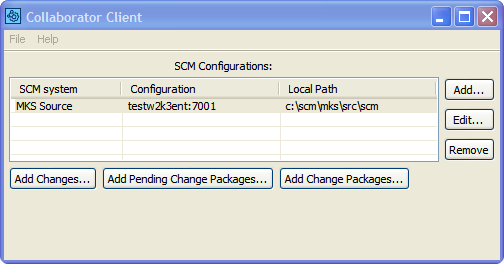
What Buttons Do
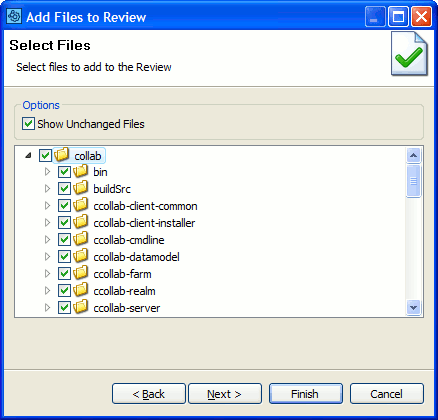
| • | Add Changes - Appends modified files from local PTC sandboxes. After you click the button, you can choose the files to be added: |
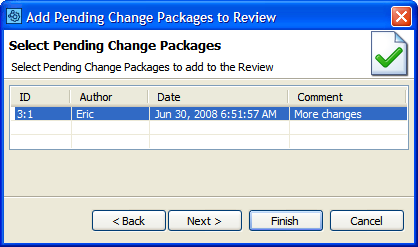
| • | Add Pending Change Packages - Append all the files from a pending change package. Click the button and select the change package you need: |
| • | Add Change Packages - Appends files from any change package from the user's sandbox to a review. Click the button and select the desired change package: |
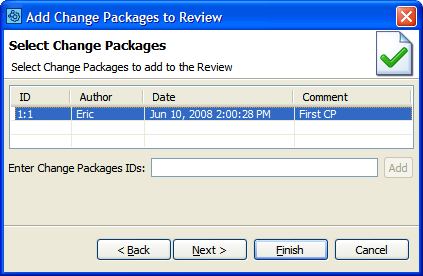
Note on Adding Change Packages
Adding a pending or committed change package to a review generates file differences based on Multiple Version Changelists.