Team Foundation Specific Options
The SCM Configuration dialog has several Team Foundation specific options.
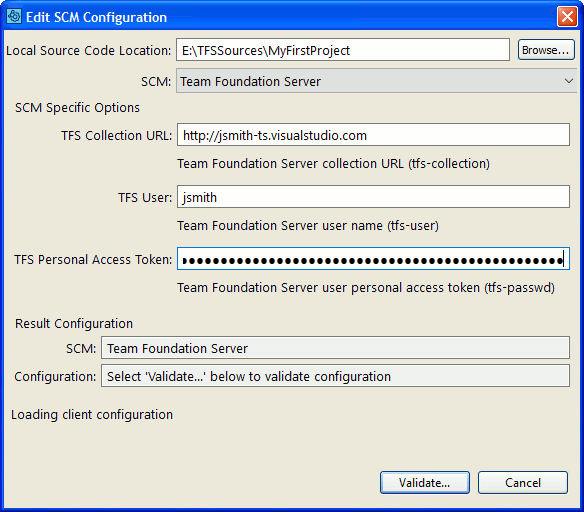
Team Foundation SCM Configuration
You will need to specify the following parameters:
Local Source Code Location |
The local path to Team Foundation Workspace on your computer. |
TFS Collection URL |
For self-hosted version of Team Foundation Server, specify the URL of Team Foundation Project Collection to work with. For instance: http://tfs.acme.com/my-collection For SaaS version of Team Foundation Server, specify the URL of your Visual Studio Team Services account (without project or collection names). For instance: http://jsmith-ts.visualstudio.com |
TFS User |
The name of Team Foundation user. |
TFS Personal Access Token |
The personal access token of the user. For detailed information on generating a personal access token, follow Microsoft documentation. |
Selecting an Team Foundation SCM Configuration in the GUI Client main screen causes three Add to Review buttons to appear. The Add Changes... button uploads modified files in a Workspace. The Add Shelvesets... button uploads the files in Shelvesets. The Add Changesets... button uploads the files in committed Team Foundation Changesets.
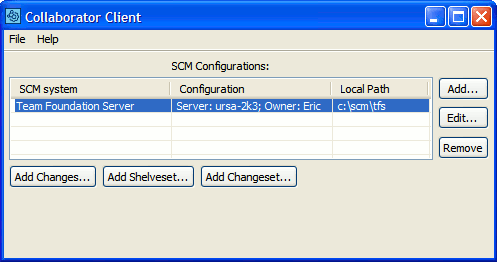
Uploading Team Foundation files to a Review
Press the Add Changes... button to upload modified files in a Workspace to the Collaborator Server for review.
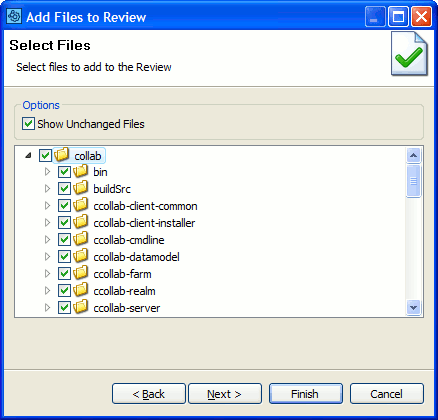
Add Changes
Press the Add Shelvesets... button to upload the files in a Shelveset to the Collaborator Server for review. See the Add Changesets... button if you want to add a Shelveset to the review that's not in your list of shelvesets.
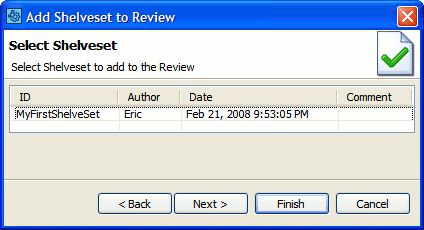
Add Shelvesets
Press the Add Changesets... button to upload the files in a Team Foundation Changeset to the Collaborator Server for review.
Select whether to display all available changesets, input ID's of particular changesets, list changelists within a specified range or within a specified date interval and press List Changesets. Then select the desired changesets in the table below and press Next to proceed.
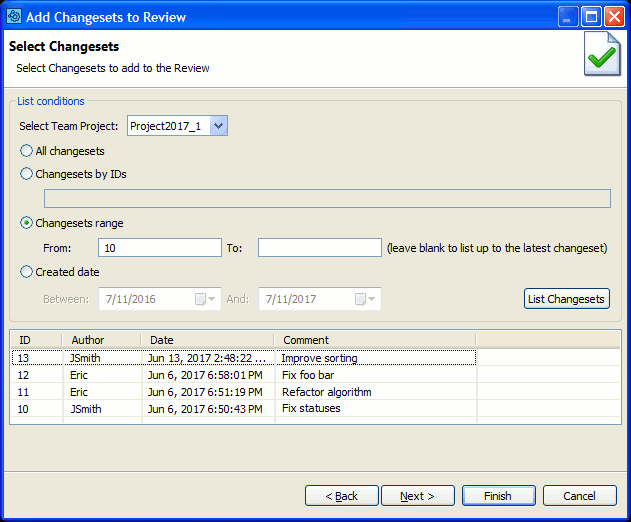
Add Changesets