If you used the graphical installer, your connection to the Collaborator Server should be configured already. Otherwise, you will be prompted when you try to connect.
The GUI Client, Command-Line Client, Tray Notifier, and SCM Triggers share a common server connection configuration file. The server connection configuration can be set with a graphical interface using GUI Client or the Tray Notifier, or on the command-line using the Command-Line Client.
Graphical Server Connection Preferences
Selecting File -> Preferences on the GUI Client main screen or selecting Preferences in the Tray Notifier context menu open the graphical Server Connection preferences page.
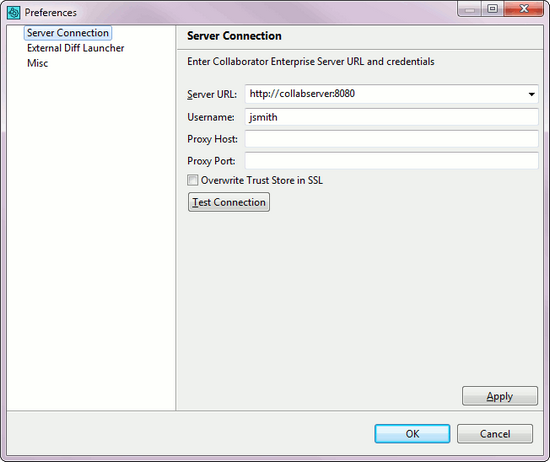
The Server URL must include the correct port number and path if applicable. The user name and password are the same as you use when logging into the web server (the password or login ticket is requested when you log in for the first time). The proxy settings should be used if you have a client proxy between your workstation and the server.
Please note that if you are connecting to a server using https and the server uses a self-signed certificate, you must run "ccollab login" using the command line client first to import the certificate information to your keystore. Also, you may specify whether client should override the java.net.ssl.truststore VM option with hard coded default values ($JAVA_HOME\lib\security\cacerts). The latter option requires restarting the client in order to apply.
Use the Test Connection button to make sure the connection is working. If it fails, the error message will be helpful.
Command-line Server Connection Global Options
The Command-Line Client uses the following global options to specify the connection to the Collaborator Server:
| • | --url - The server's fully-qualified URL. |
| • | --user - The user name for the login (same as web user login). The password or login ticket is requested and stored the first time you log in. |
| • | --server-proxy-host - The proxy's URL (specify if you connect to the Internet via proxy). |
| • | --server-proxy-port - The port number to use on the proxy server (if connect via proxy). |
| • | --overwrite-trust-store-in-ssl - Overrides the java.net.ssl.truststore VM option with hard coded default values ($JAVA_HOME\lib\security\cacerts). Restart client to apply this option. |
Use the ccollab login command to connect to the Collaborator Server and save your server connection options to the configuration file.
You can try testing your configuration to verify the configuration is working.
Collaborator uses several configuration files to store configuration. When a user sets server connection configuration using the graphical interface or the command-line, the settings are stored inside a directory called .smartbear inside the user's home directory. (Under Windows, the "home directory" is your "Documents and Settings" Profile directory.)
The .smartbear directory and the configuration files therein can be placed in other locations to establish default behavior. Each of the locations is loaded in a particular order of precedence, with each successive location overriding the settings (if any) in the previous locations:
| 1. | Custom location specified via the --pref-dir global option If the --pref-dir command-line option is specified, Collaborator will use the configuration files from the specified location. |
| 2. | INSTALLDIR/.smartbear Here INSTALLDIR refers to the Collaborator installation directory. This is typically /opt/ccollab-cmdline under Unix or C:\Program Files\Collaborator Client under Windows. This is most useful for system-wide default settings. |
| 3. | PROFILEDIR/.smartbear Here PROFILEDIR refers to a directory specified using the Java property smartbear.profile on one of the Collaborator Client executables. With this property defined, the client will look in this directory for more configuration. This is most useful for executable-specific default settings, such as settings just for SCM server-side triggers. |
| 4. | USERDIR/.smartbear Here USERDIR refers to the user's home directory (under Windows, your "Documents and Settings" Profile directory). This is the default location for configuration settings to be stored, and is useful for user-specific settings. |