There are two ways to create a GitHub configuration: automatically via the Easy Add Repository wizard and manually via the Configure Remote Systems tab. The first approach is useful for adding new configurations, while the second allows adding new and modifying existing configurations. This section describes both of these ways.
Additionally, you can create auto-polling configuration to periodically look for new repositories on GitHub server and suggest creating integrations for them.
Important. In order to use integration, your Collaborator server must be accessible to the remote system and vice versa. Configure a firewall or enable tunneled connections to expose your local Collaborator server to the Internet.
Creating GitHub configuration via the Easy Add Repository wizard
| 1. | Open the Collaborator login page in a browser and log in to Collaborator as an administrator. |
| 2. | In Collaborator, go to Admin > Integrations > Repository Hosting Services |
| 3. | Switch to the Easy Add Repository tab. |
| 4. | Select GitHub in the the Add repository for combobox and click Next. This will display the Easy Add Repository wizard. It helps to setup remote repository configuration on the Collaborator side and automatically add the webhook on the GitHub side. 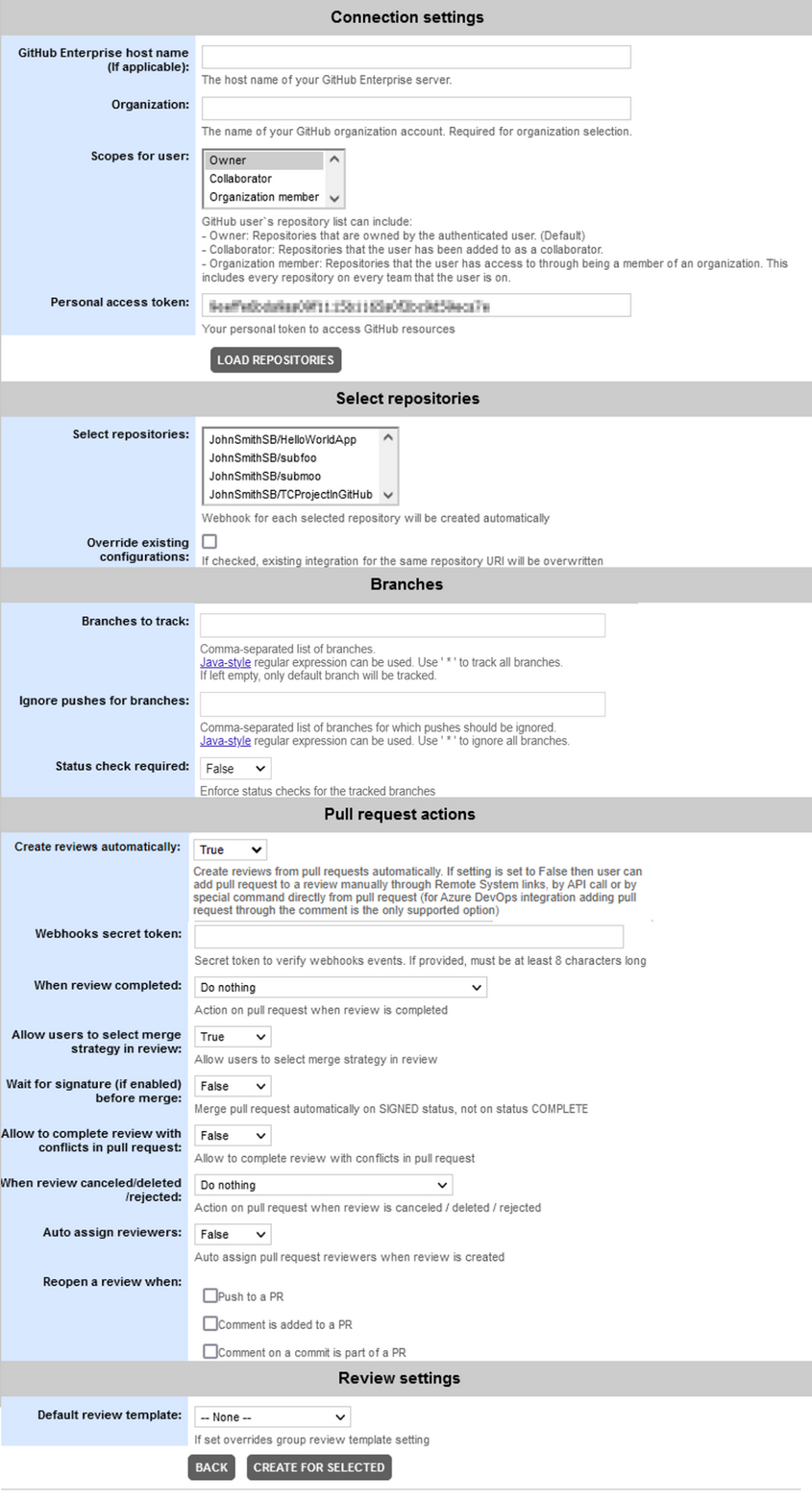 |
| 5. | Specify settings in the the following sections of the wizard: |
Connection settings
Setting |
Description |
GitHub Enterprise host name |
Required for repositories hosted on GitHub Enterprise servers. Specifies the host name of your GitHub Enterprise server. |
Organization |
Required for organization repositories. Denotes the account name of GitHub organization. |
Scopes for user |
Optional. Defines which types of repositories to track. Owner: Repositories that are owned by the specified user. (Default) Collaborator: Repositories that the user has been added to as a collaborator. Organization member: Repositories that the user has access to through being a member of an organization. This includes every repository on every team that the user is on. Webhooks will be created for those repositories where allowed by the repository permissions for the specified user. |
Personal access token |
Required. The personal access token for the GitHub account to be tracked. Read Creating an access token for command-line use on GitHub documentation to learn how to obtain it. You will need to enable the following scopes: repo, admin:org, admin:repo_hook and admin:org_hook. |
Webhooks Secret token |
Optional. The secret token for webhook events. The secret token could be set when creating/modifying a webhook on GitHub server. If provided, must be at least 8 characters long. To learn more about webhook settings on the GitHub side, see GitHub documentation: |
After specifying connection settings, you can click Load repositories to retrieve a list of repositories available for the specified user or organization.
Select repositories
Setting |
Description |
Select repositories |
Optional. Displays a list of repositories available for the specified user or organization. Select which repositories you need to track. Use Ctrl+click or Shift+click for multi-selection. If any of the repositories were chosen, the wizard will display the Create for selected button below the settings section. If none of the repositories were chosen, the wizard will display the Create for all button below the settings section. |
Override existing configurations |
Optional. Specifies whether to override existing configurations that track the same repository URI. |
Branches
Setting |
Description |
Branches to track |
Optional. The names of branches to track changes and create reviews on pull requests and direct pushes. Separate multiple branch names with commas. You may use Java-style regular expressions to match specific branch names, or you may use the '*' wildcard (alone, or separated by comma) to match all branches. If this field is empty, "main" branch will be tracked. |
Ignore pushes for branches |
Optional. Specifies branches for which Collaborator will not create reviews on direct pushes. You can enter one or several branch names. Separate multiple branch names with commas. You may use Java-style regular expressions to match specific branch names, or you may use the '*' wildcard (alone, or separated by comma) to match all branches. |
Status check required |
Specifies if the integration should enforce status checks for the tracked branches before merging pull request. If this option is enabled, you cannot use regular expressions in the "Branches to track" setting, since this option requires exact name match. |
Pull request actions
Setting |
Description |
||||||
Create review automatically |
If enabled, reviews for pull request are created automatically. If disabled, user can add pull request to a review manually through Remote System links, by API call or by special command directly from pull request. |
||||||
When review completed |
Optional. Specifies what action to perform when a review corresponding to a pull request was accomplished. Do nothing: Do not perform any action. Merge pull request: Merge pull request that corresponds to a review. Merge pull request and delete its branch: Merge pull request that corresponds to a review and then delete the respective branch. Squash and merge pull request: Squash and merge pull request that corresponds to a review. Squash and merge pull request and delete its branch: Squash and merge pull request that corresponds to a review and then delete the respective branch. Rebase and merge pull request: Rebase and merge pull request that corresponds to a review. Rebase and merge pull request and delete its branch: Rebase and merge pull request that corresponds to a review and then delete the respective branch. To learn more about pull request merge strategies, see GitHub documentation. |
||||||
Allow users to select merge strategy in review |
If enabled, regular users would be able to choose pull request merge strategies in each separate review. If disabled, all pull requests would behave as specified by the "When review completed" setting. |
||||||
Wait for signature (if enabled) before merge |
Optional. Effective, if any of merge actions (merge, squash and merge, rebase and merge) was selected in "When review completed" setting. If enabled Collaborator will wait for the completed review to be signed off before merging the respective pull request. Otherwise, pull request will be merged immediately, even if the review have not been signed yet. |
||||||
Allow to complete review with conflicts in pull request |
Should it be possible to complete a review if there are conflicts in the respective pull request. |
||||||
When review cancelled/deleted/rejected |
Optional. Specifies what action to perform when a review corresponding to a pull request was cancelled, deleted or rejected. Do nothing: Do not perform any action. Close pull request: Close pull request that corresponds to a review. Close pull request and delete its branch: Close pull request that corresponds to a review and delete the respective branch. |
||||||
Auto assign reviewers |
Whether to assign Collaborator reviewers when some specific users or teams were added as pull request reviewers or specified as code owners on the GitHub side and integration can match those GitHub users with Collaborator users. |
||||||
Reopen a review when |
Optional. Specifies in what cases Collaborator should reopen completed reviews. May include any combination of the following:
|
Review settings
Setting |
Description |
Default review template |
Optional. Specifies the initial template that will be chosen when creating review (if set to "None", the first template in the list will be chosen). The value of this setting overrides the value of Default review template setting specified on group level. |
Click the Create for selected button or the Create for all button to create repository integrations and automatically create webhooks for each repository in GitHub. To stop suggesting integrations for some specific repositories, select these repositories in the list and click Ignore selected.
For every repository a separate configuration will be created in Collaborator and a webhook will be added in GitHub.
Now you need to link some Collaborator user account to the GitHub account of repository owner.
Creating GitHub configuration via the Configure Remote Systems tab
| 1. | Open the Collaborator login page in a browser and log in to Collaborator as an administrator. |
| 2. | In Collaborator, go to Admin > Integrations > Repository Hosting Services |
| 3. | Switch to the Configure Remote Systems tab. |
| 4. | In the New Remote System Configuration section, select GitHub and click Create. |
| 5. | Collaborator will display a page with configuration settings. Specify settings in the following sections: |
GitHub settings
Setting |
Description |
Title |
Required. The configuration name as it will be displayed in Collaborator's user interface. |
GitHub repo URI |
Required. The URI of GitHub repository to be tracked. For instance: https://github.com/torvalds/linux.git You can copy it from the Clone URI field of the repository's main page on GitHub. |
GitHub API token |
Required. The personal access token for the GitHub account to be tracked. Read Creating an access token for command-line use on GitHub documentation to learn how to obtain it. You will need to enable the following scopes: repo and admin:org. |
Webhooks secret token |
Optional. The secret token for webhook events. The secret token could be set when creating/modifying a webhook on GitHub server. If provided, must be at least 8 characters long. To learn more about webhook settings on the GitHub side, see GitHub documentation: |
Webhook status |
Indicates current status of repository webhook: Webhook is absent - A webhook is not created. Webhook isn't active - A webhook is created, but is inactive. Up and running - A webhook is active. To create or activate a webhook, you can press the Update webhook button.
|
 Click this button, when you set up integration with your repository for the first time.
Branches
Setting |
Description |
Branches to track |
Optional. The names of branches to track changes and create reviews on pull requests and direct pushes. Separate multiple branch names with commas. You may use Java-style regular expressions to match specific branch names, or you may use the '*' wildcard (alone, or separated by comma) to match all branches. If this field is empty, "main" branch will be tracked. |
Ignore pushes for branches |
Optional. Specifies branches for which Collaborator will not create reviews on direct pushes. You can enter one or several branch names. Separate multiple branch names with commas. You may use Java-style regular expressions to match specific branch names, or you may use the '*' wildcard (alone, or separated by comma) to match all branches. |
Status check required |
Specifies if the integration should enforce status checks for the tracked branches before merging pull request. If this option is enabled, you cannot use regular expressions in the "Branches to track" setting, since this option requires exact name match. |
Pull request actions
Setting |
Description |
||||||
Create review automatically |
If enabled, reviews for pull request are created automatically. If disabled, user can add pull request to a review manually through Remote System links, by API call or by special command directly from pull request. |
||||||
When review completed |
Optional. Specifies what action to perform when a review corresponding to a pull request was accomplished. Do nothing: Do not perform any action. Merge pull request: Merge pull request that corresponds to a review. Merge pull request and delete its branch: Merge pull request that corresponds to a review and then delete the respective branch. Squash and merge pull request: Squash and merge pull request that corresponds to a review. Squash and merge pull request and delete its branch: Squash and merge pull request that corresponds to a review and then delete the respective branch. Rebase and merge pull request: Rebase and merge pull request that corresponds to a review. Rebase and merge pull request and delete its branch: Rebase and merge pull request that corresponds to a review and then delete the respective branch. To learn more about pull request merge strategies, see GitHub documentation. |
||||||
Allow users to select merge strategy in review |
If enabled, regular users would be able to choose pull request merge strategies in each separate review. If disabled, all pull requests would behave as specified by the "When review completed" setting. |
||||||
Wait for signature (if enabled) before merge |
Optional. Effective, if any of merge actions (merge, squash and merge, rebase and merge) was selected in "When review completed" setting. If enabled Collaborator will wait for the completed review to be signed off before merging the respective pull request. Otherwise, pull request will be merged immediately, even if the review have not been signed yet. |
||||||
Allow to complete review with conflicts in pull request |
Should it be possible to complete a review if there are conflicts in the respective pull request. |
||||||
When review cancelled/deleted/rejected |
Optional. Specifies what action to perform when a review corresponding to a pull request was cancelled, deleted or rejected. Do nothing: Do not perform any action. Close pull request: Close pull request that corresponds to a review. Close pull request and delete its branch: Close pull request that corresponds to a review and delete the respective branch. |
||||||
Auto assign reviewers |
Whether to assign Collaborator reviewers when some specific users or teams were added as pull request reviewers or specified as code owners on the GitHub side and integration can match those GitHub users with Collaborator users. |
||||||
Reopen a review when |
Optional. Specifies in what cases Collaborator should reopen completed reviews. May include any combination of the following:
|
Review settings
Setting |
Description |
Default review template |
Optional. Specifies the initial template that will be chosen when creating review (if set to "None", the first template in the list will be chosen). The value of this setting overrides the value of Default review template setting specified on group level. |
Click Test connection to verify if you entered data correctly.
| 6. | After you specified the values, click Save. This will create a configuration for the GitHub repository. |
| 7. | Click on Update Webhook button to add webhook for that repository on GitHub side. |
| 8. | User can click on Pull Webhook Events button to create reviews for missed webhook events. Reviews will only be created if there is an active webhook. |
| 9. | User can click on Ping Webhook button to check message from webhook can actullay reach Collaborator. |
Now you need to link some Collaborator user account to the GitHub account of repository owner.
To learn more about webhook settings on the GitHub side, see GitHub documentation:
https://developer.github.com/webhooks/
Creating GitHub auto-polling configuration
Sections above describe how to add integrations for existing repositories. When some new repositories are created on a server, you may integrate them manually. Alternatively, you can setup GitHub auto-polling configuration that will periodically look for new repositories on the specified server, organization, team or user and suggest creating integrations for them.
| 1. | Log in to Collaborator as administrator. (To integrate with GitHub repositories, you need administrator privileges in Collaborator). |
| 2. | On the Collaborator main toolbar, click ADMIN, and then select Repository Hosting Services from the tree on the left. Then switch to the Repository Auto-Polling tab. |
| 3. | On the tab, select GitHub in the Add configuration box and click Next: |
| 4. | Collaborator will displays a page with connection details. 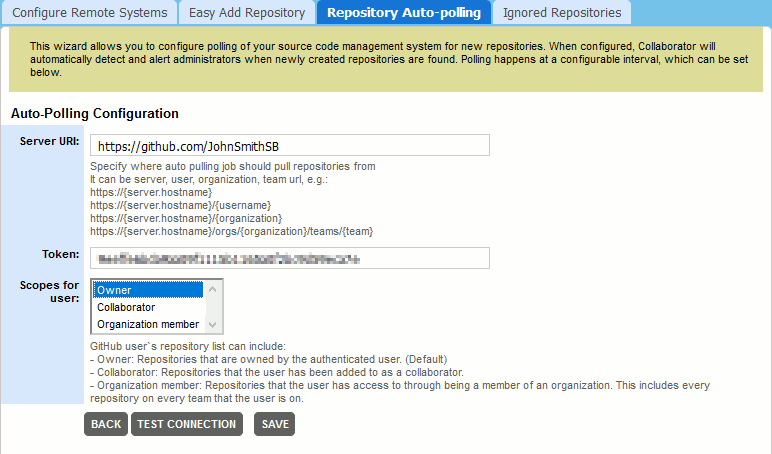 Fill in the edit boxes: |
Setting |
Description |
Server URI |
Required. The URI of GitHub server, user, organization or team to be polled for new repositories. |
Token |
Required. The personal access token of the GitHub account. Read Creating an access token for command-line use on GitHub documentation to learn how to obtain it. You will need to enable the following scopes: repo and admin:org. |
Scopes for user |
Optional. Defines which types of repositories to fetch. Owner: Repositories that are owned by the specified user. (Default) Collaborator: Repositories that the user has been added to as a collaborator. Organization member: Repositories that the user has access to through being a member of an organization. This includes every repository on every team that the user is on. Webhooks will be created for those repositories where allowed by the repository permissions for the specified user. |
After specifying these values, you can click Test connection to verify if you entered data correctly.
| 5. | After you specified the values, click Save. This will create an auto-polling configuration and display it in the Auto-Polling Configurations List. |
| 6. | Scroll down the Repository Auto-Polling tab and check that the Enable Auto-Polling setting is on and optionally change the Auto-Polling Interval setting. |
Now Collaborator will automatically check if any new repositories were found on the specified server. Once found, it will notify administrators and suggest creating integrations with these newly created repositories via the Easy Add Repository wizard.
Enable/Disable GitHub Integration
Once a new repository configuration is created, it is enabled automatically. However, you can enable and disable integration with GitHub servers manually. To do this:
| 1. | Navigate to the Admin > Integrations screen. |
| 2. | Locate the Enable GitHub Integration setting and change it to Yes or No, respectively. |