|
The SmartBear Collaborator extension for Microsoft Visual Studio provides integration between Microsoft Visual Studio and Collaborator. It allows you to create and participate in Collaborator reviews directly from within the Visual Studio IDE.
Get Started
| 2. | Select Collaborator | Show Tool Window from the main menu of Visual Studio to open the Collaborator View panel. |
| 3. | If the extension is not configured yet, it will invoke a Getting Started wizard suggesting to configure connection to Collaborator server and environment settings. |
How the Integration Works
The extension adds a number of panels, menus and settings to the Visual Studio. The "entry point" is the Collaborator view:
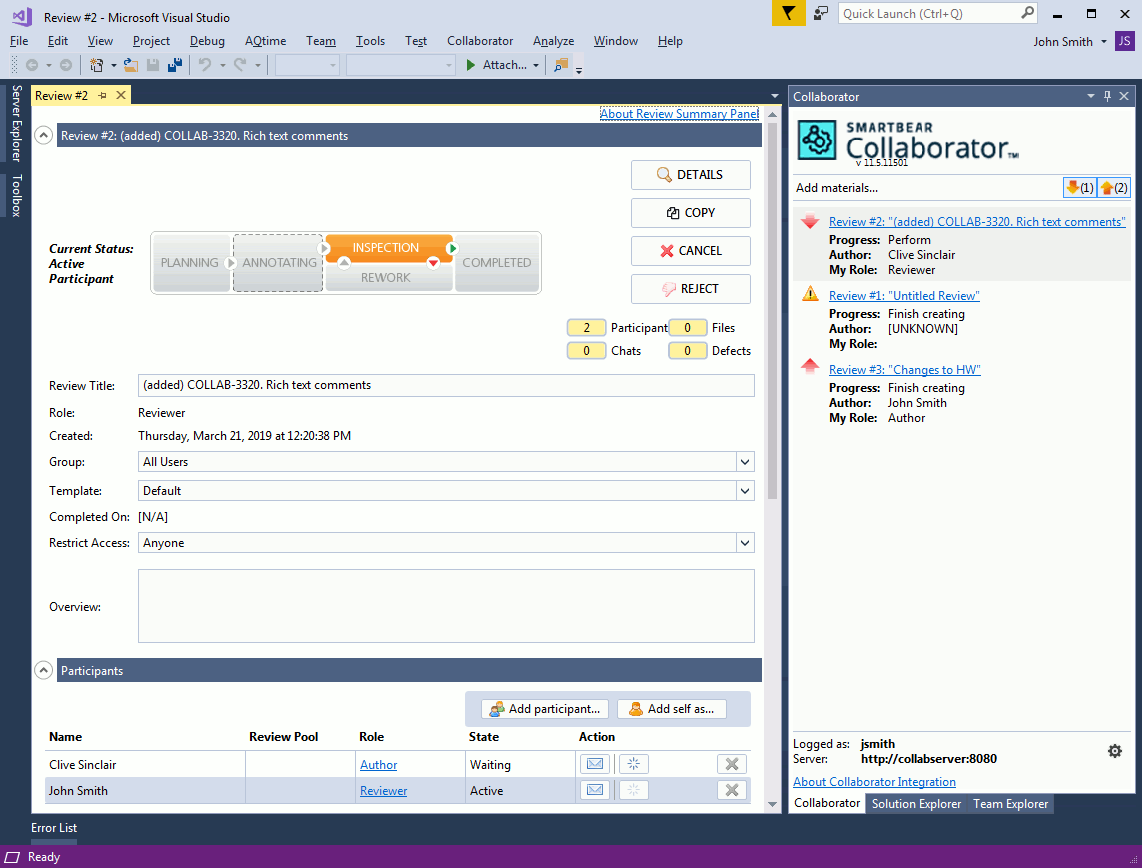
In this panel, you can view the reviews and invoke other panels and dialogs to perform all types of peer review tasks:
| • | Participate in someone else's reviews as a reviewer or observer. |
| • | Modify review details, add or remove review participants, annotate, reject or cancel your reviews, communicate with other participants. |
Requirements
| • | Microsoft Visual Studio 2019, 2017 or 2015. The Community, Professional and Enterprise editions are supported. |
| • | Collaborator Client on the computer, where you are going to installed the extension. The extension uses the Client to upload review materials to the server and to work with source controls. |
| • | Collaborator Server 12.0 and later. |
Known Issues
| • | Since the extension checks the Collaborator server periodically, it may take up to 2 minutes to retrieve information about newly created user from the server. |
Troubleshooting
If you run across any issues or problems, send the error log along with your question to Support.
The extension's error log resides at %userprofile%\.smartbear\vsext\log\vsext.log
|