|
Installing the Extension
| 2. | Unpack file from the downloaded .zip archive and run the CollaboratorVSExtension.vsix package. |
| 3. | In the VSIX Installer, choose the desired Visual Studio version and press Install. |
IMPORTANT: After installing the extension, you need to configure its settings before the first use. Also, we recommend to configure SCM settings in the Collaborator Client so that it can connect to your source control repository.
Removing the Extension
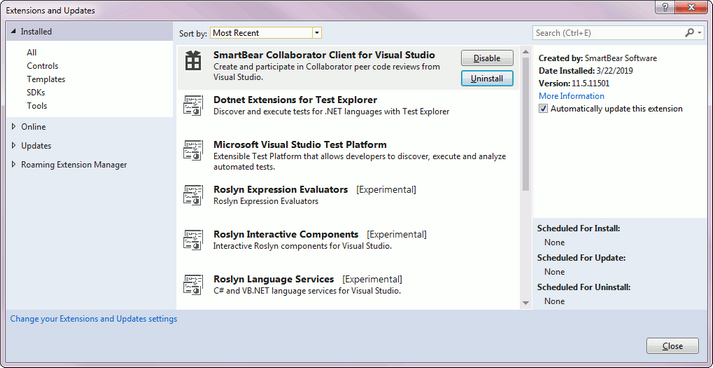
| 2. | Select Tools > Extensions and Updates from the main menu. |
| 3. | In the ensuing dialog, find the SmartBear Collaborator for Visual Studio extension and press Uninstall.
 |
| 4. | Restart Visual Studio to finalize the uninstallation. |
|