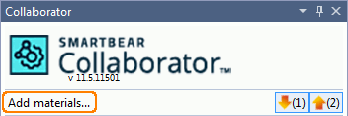
To create Collaborator from within Visual Studio IDE, use the Collaborator | Add materials main menu item, or the Add materials command in the toolbar of the Collaborator View in Visual Studio:
Requirements
Before using this command, we recommend that you configure SCM settings to let it connect to your source control repository. See also Version Control Integration.
How It Works
The command invokes the Add to Review Wizard that will lead you through the review creation process.
1. Select Review Materials
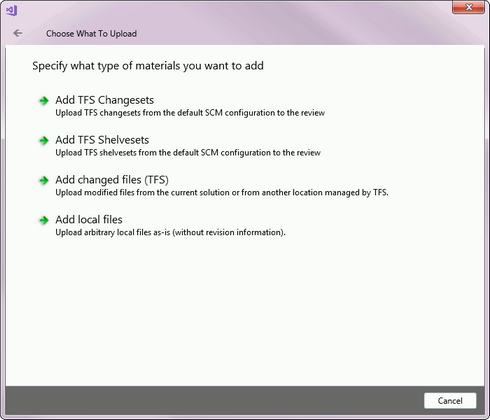
At first, you should select what type of materials to upload. The number of available options would depend on what SCM configuration you have chosen as the default in the extension settings.
| • | Add changelists/changesets/shelvesets - Upload changes that have been submitted to source control repository. The created review will contain all files that belong to the specified changelists, changesets or shelvesets along with the history of changes between revisions. |
| • | Add changed files - Upload upload pending changes (staged for, but not yet submitted to source control repository) from the current solution or from another location. The created review will contain the selected files along with the history of changes between the staged and the submitted revisions. |
| • | Add local files - Upload arbitrary local files. The created review will contain only the selected files without their revision history. |
The next page lets you choose exactly which materials will be uploaded added to the review. This page looks different depending which materials you are adding to the review:
1.1 Uploading changelists/changesets/shelvesets
This page also depends on type of chosen SCM system and item.
| • | For Git and Mercurial changelists: Press Add and specify the ID of desired changelist.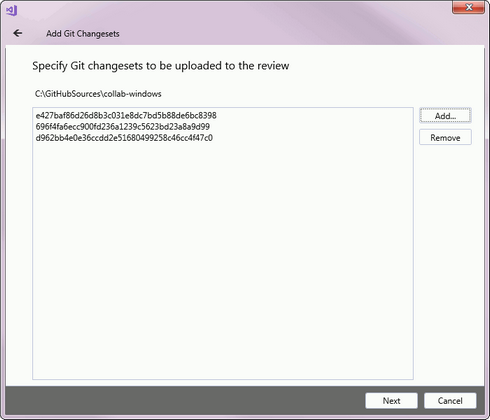 |
| • | For RTC changesets: Select desired workspace and component, click Find and then select the desired changesets. Use Ctrl or Shift for multiple selection.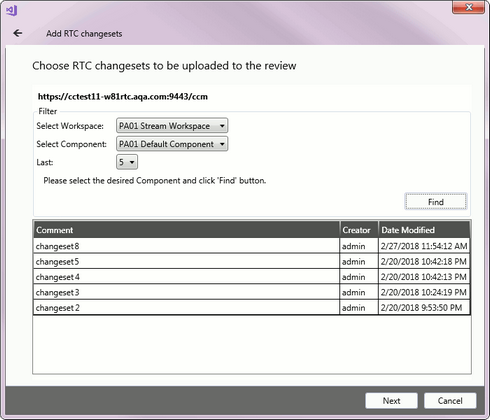 |
| • | For RTC work item changesets: Select project area and perform one of the listed queries, click Find and then select the desired work item. All changesets that belong to the work item will be uploaded to review.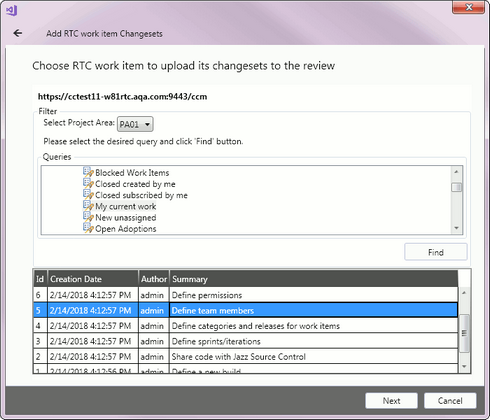 |
| • | For TFS changesets: Select desired team project, specify changesets by their ID, range of IDs or date interval, click Find and then select the desired changesets. Use Ctrl or Shift for multiple selection.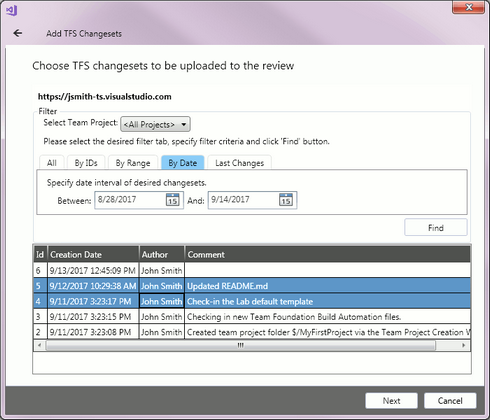 |
| • | For TFS shselvesets: Select the desired shelveset from the list. Use Ctrl or Shift for multiple selection.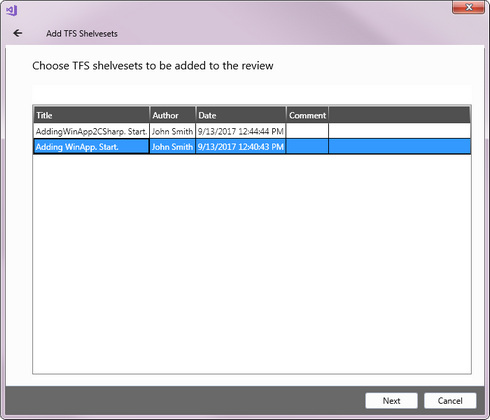 |
When done, press Next to proceed.
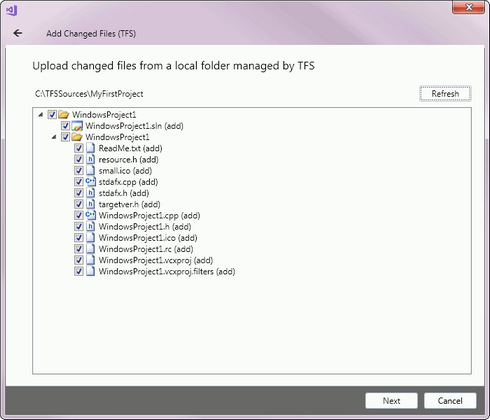
Select which of the modified files to upload.
When done, press Next to proceed.
Select this command to upload arbitrary local files. This command does not check if these files are in a source control repository or not, and does not add information on differences to the review along with the files. Use it if you need to create a review for the files that are not in source control.
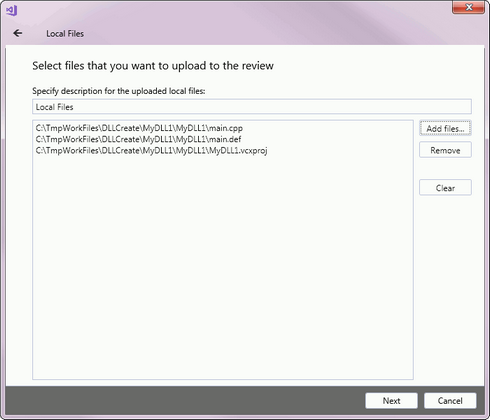
Click Add files to select the desired files in the ensuing Open File dialog, specify the commit message and press Next.
2. Select Supporting Documents
On the second page, you may upload any other documents that supplement the uploaded files.
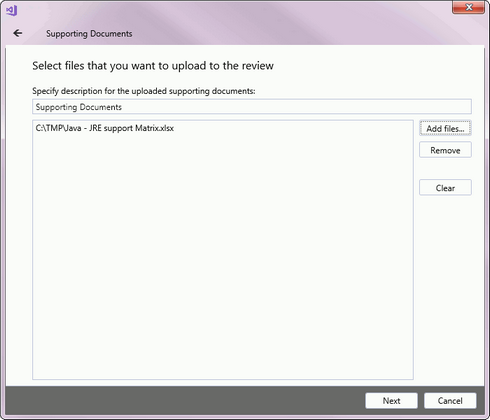
Click Add files to select the desired files in the ensuing Open File dialog, specify the commit message and press Next.
3. Select Review
The third page of the Add to Review Wizard asks you to specify which review you would like to add materials to. You can create a new review and add the materials into the newly created review, or you can add the review materials to an existing review.
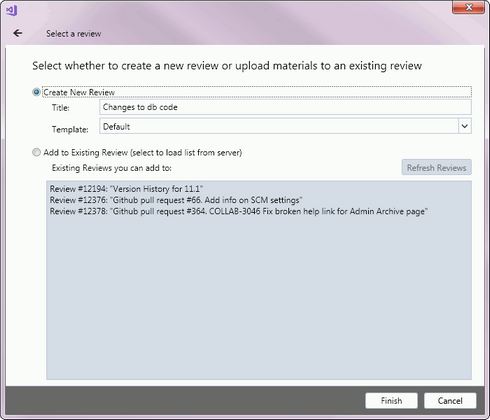
To add materials to a new review, select Create New Review, type a title to name your new review and select the review template.
To add materials to an existing review, select Add to Existing Review. Choose the review you would like to add the materials to. The list of possible reviews is created automatically by querying the server. This will generally be the same as the list of reviews in the Collaborator View.
Once you click Finish all chosen review materials will be uploaded to the Collaborator server.
Note: Uploading files may take some time. Please be patient. During the upload, a progress dialog will appear.
When the upload is complete, the review will be displayed in the Review Summary Screen.