Collaborator supports reviewing spreadsheets of the following formats:
| • | Microsoft Excel 95 and later (.xls, .xlsx, .xlsb, .xlsm, .xltm, .xltx), |
| • | OpenDocument Spreadsheet (.ods) |
Note: Reviewing spreadsheets is only supported in Collaborator Enterprise. For a complete list of differences between Collaborator editions, please see the comparison page.
Important: Document reviews is only supported on 64-bit Collaborator servers. On 32-bit platforms, Collaborator may fail to process the documents due to insufficient memory.
Upload Spreadsheets
To review spreadsheets, just attach them to the review as you would any other file and when you open the Diff Viewer, the content area will display the spreadsheets contents for review.
Alternatively, you can install SmartBear Collaborator for Excel plug-in and upload your spreadsheets directly from Microsoft Excel.
Notes: |
|
Viewing Differences
The UI displays a diff of two versions of a spreadsheet side-by-side. There is a panel at the bottom that shows the contents of the selected cell in both versions of the spreadsheet on top of one another for easy visual comparison. When you click in a cell, the value is displayed in the cell detail pane (equivalent to the formula bar in Excel). The values for the selected cell appear in the cell detail pane with the value for the "after" version on top:
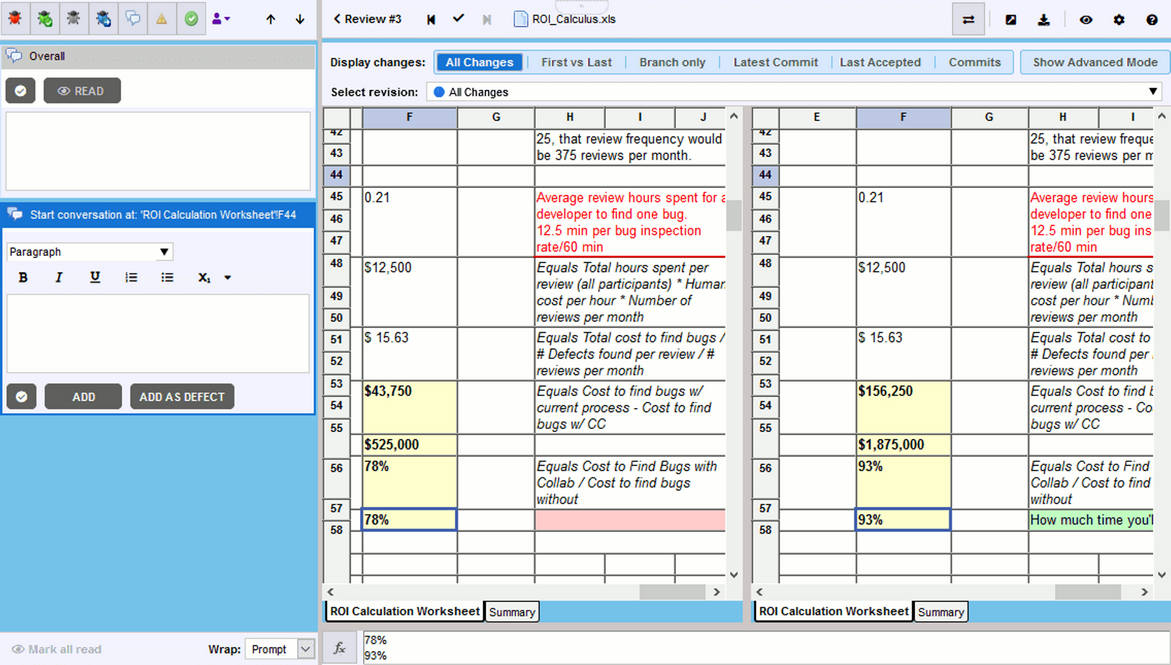
The use of color allows you to quickly identify changes in diffs so that you can address just what has been modified, added or deleted between spreadsheet revisions.
The way how Collaborator compares and highlights cell differences depends on the method selected in the Diff Cell Method option of the Display panel.

Highlighting cell differences with "By whole text" Diff Cell method
When By whole text is chosen as the Diff Cell Method, Diff Viewer highlights the entire cell with changes:
| • | When cell content was added it is highlighted with a green background in current revision panes. |
| • | When cell content was modified it is highlighted with a yellow background both in current and previous revisions panes. |
| • | When cell content was removed it is highlighted with a red background in previous revisions pane. |
| • | All other cells (empty or not) display with a white background. |

Highlighting cell differences in "By words" Diff Cell method
When By words is chosen as the Diff Cell Method, Diff Viewer highlights the exact text fragments that were changed inside the cell:
| • | When new text was added it is highlighted with a green background in current revision panes. |
| • | When cell text was modified it is highlighted with a yellow background both in current and previous revisions panes. |
| • | When cell text was removed it is highlighted with a red background in previous revisions pane. |
Common cases
The following applies to both of cell differences calculation methods:
| • | Empty cells (cells without content) could be highlighted when the Ignore Empty Cells option of the Display panel is disabled. In this case they would have the same color as added or deleted cells. |
| • | Inserting entire rows with content is interpreted as inserting a series of cells.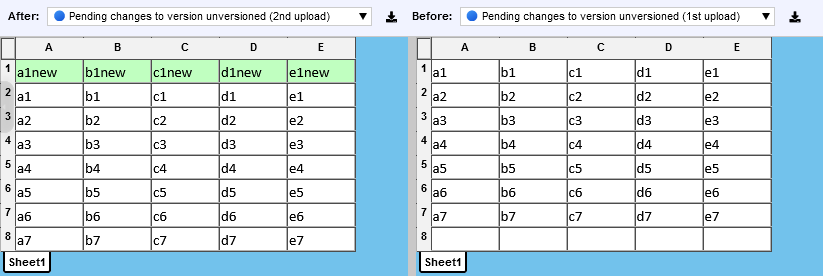 Adding rows |
| • | Deleting entire rows with content is interpreted as removing a series of cells.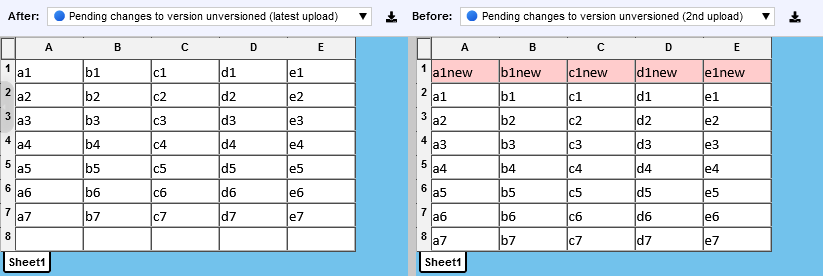 Deleting rows |
| • | Inserting entire columns with content could be interpreted either as inserting a new series of cells (just inserting new columns) or as modifying a series of cells (inserting columns and modifying nearby cells).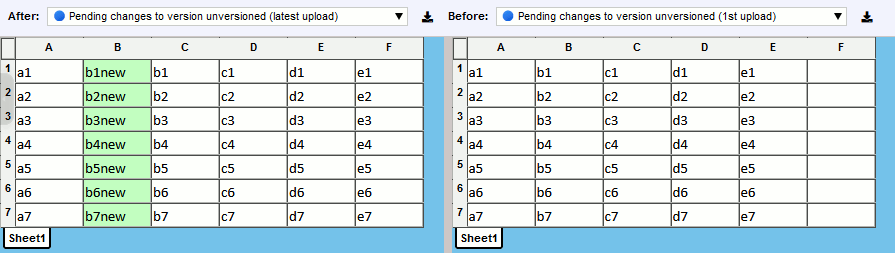 Adding columns |
| • | Deleting entire columns with content could be interpreted either as deleting a series of cells (just removing columns) or as modifying a series of cells (deleting columns and modifying nearby cells). |
| • | Merging two or more cells into one is interpreted as removal of content of nearby cells.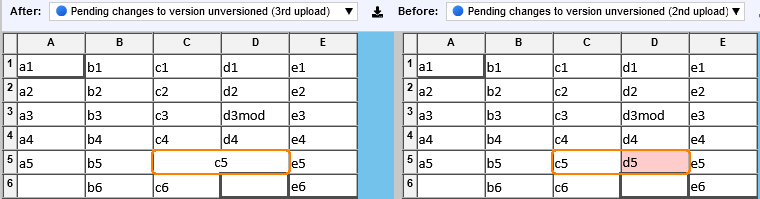 Merging cells |
| • | Respectively, un-merging a cell into two or more cells is interpreted as adding content of nearby cells. Un-merging cells |
Since it is difficult to compare spreadsheet revisions to meet all use cases, some changes may not be highlighted in diffs in the way that people would expect. We will continue to work on the spreadsheet diff feature to meet the broadest set of needs.
Notes: |
|
Reviewing Formulas
By default, Collaborator evaluates formulas and displays the resulting values.
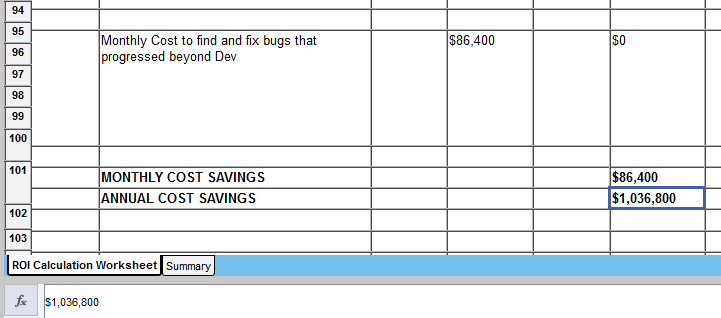
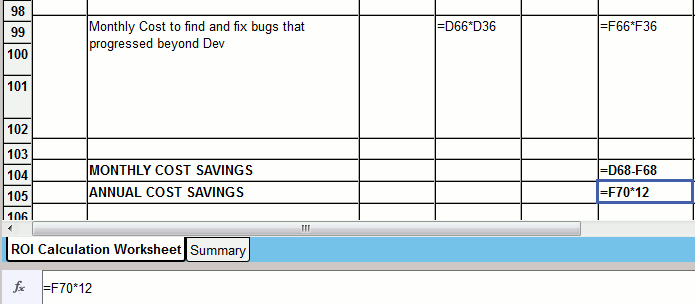
To review formulas on the entire spreadsheet, disable the Evaluate Formulas option of the Display panel. In this case, all spreadsheet cells will display their formulas (if any) instead of the resulting value.
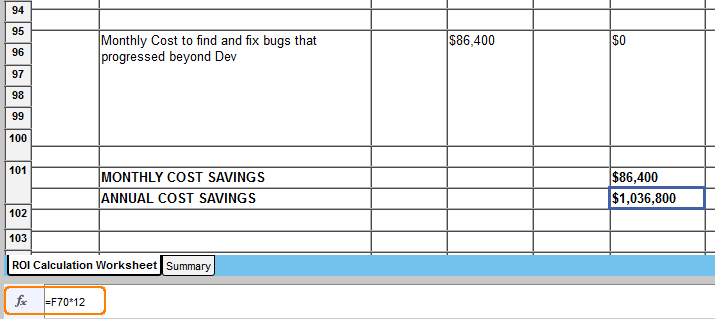
To review formula of some particular cell, select the cell and toggle the  button in the cell detail pane.
Display Options
The Display panel has specific options for spreadsheet review.
| • | When the Evaluate Formulas option is enabled spreadsheets will only show the evaluated results of the formulas, not the formulas itself. This setting affects the entire spreadsheet. To evaluate formulas for the selected cell, you can use the button in the cell detail pane. |
| • | When the Ignore Empty Cells option is enabled Diff Viewer does not highlight addition and deletion of empty cells. |
| • | The Diff Cell Method option specifies how to calculate and highlight differences in cell content. Possible values are By whole text and By words. Each of the methods was described in the Cell content difference section above. |
Making Comments and Marking Defects
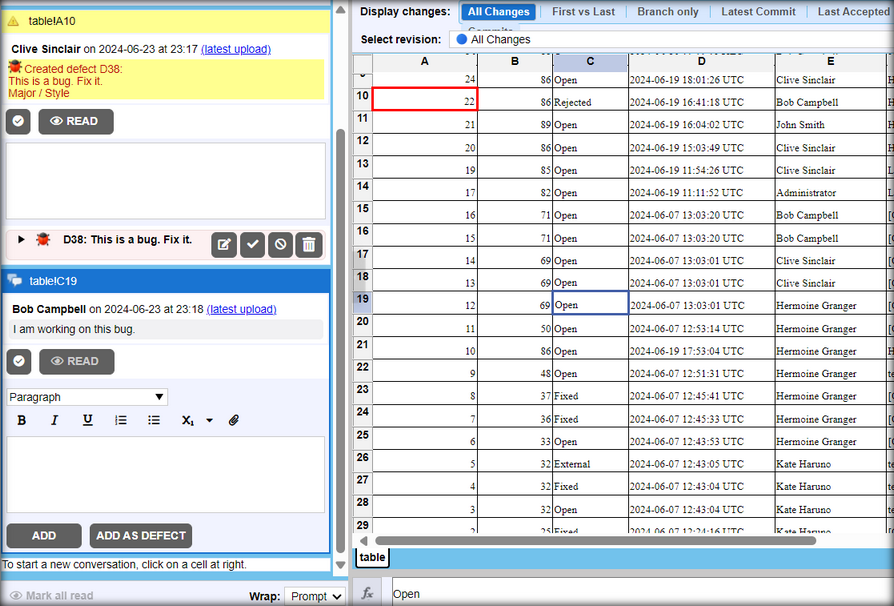
On the left of the main Diff Viewer page, there is a pane for chat threads, where you can view and make comments and mark defects that should be fixed. When reviewing spreadsheets, you can create global, annotation, overall for file revision and cell comments and defects.
To comment on specific cell within a spreadsheet, click the desired cell in the content view, type your comment in the text box and click Add. To add defects, click the desired cell in the content view, type the defect description, click Add as defect and fill-in the required fields. Comment and defect description could be in plain-text or use rich-text and Markdown formatting, they could also mention other Collaborator users.
Conversations on cells are displayed in alphabetical order by sheet name, not in the sheet order found in the version content. In the example above, conversations for "ROI Calculation Worksheet" would come before "Summary" work sheet. The name of the chat includes the name of the sheet followed by the location of the cell being discussed. For example, Summary!C10.
Spreadsheets can have content that displays, for example, in cell E5 of the original version and in cell G7 of the reviewed version. The Diff Viewer recognizes these changes, promotes comments to correct places in the newer version and navigates the Before and After panes independently to make this content visible during the review.
To learn more about communicating during the reviews, see Types of Review Comments and Defects and Review Chats, Comments and Defects topics.