When something goes wrong, refer to this section.
Known Issues
Check the Known Issues Appendix to see whether SmartBear already knows about this issue.
Version History
Check the Version History on the SmartBear website to see if this issue has been resolved in a later release.
Getting server information
To get debugging information about the server, go to the Collaborator web server and click the System link at the bottom of the screen:

Collaborator is configured by default to perform a very limited amount of logging. The primary purpose of the logs is to record information about error conditions that could potentially arise. When working with SmartBear Technical Support to diagnose issues often it will be helpful to send the logs (or a portion thereof) for investigation.
The logs are located in the following directory:
<Collaborator Server>/tomcat/logs
Enable server-side debug logging
To enable debug logging:
| 1. | Open the <Collaborator Server>/tomcat/webapps/ROOT/WEB-INF/classes/logback.xml file. |
| 2. | Locate the root element and change the logging level from "info" to "debug": |
<root level="debug" additivity="false">
<appender-ref ref="CodeCollaborator" />
</root>
| 3. | Save the file to apply changes. |
Remember to revert these changes after reproducing the problem and copying off the log file because this creates a large number of logging messages and degrades server performance.
Downloading server dumps for SmartBear technical support
Sometimes it will be useful for SmartBear technical support to get a "dump" of your server configuration and database data. You do this by filling out the form at the top of the System page.
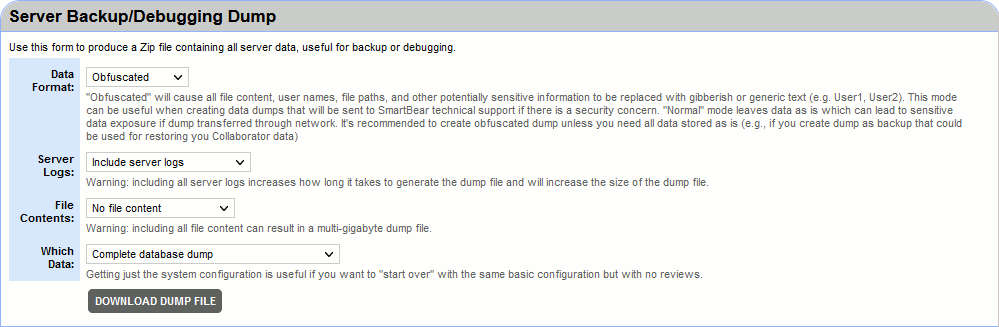
Leave the default "Obfuscated" value of the "Data Format" field which will generate dump after passing data through a filter that converts potentially sensitive information into unhackable text. For example, users are renamed "user1," "user2," and changelist text is replaced by the MD5 of that text. If file contents are included in the dump, each line of file content is replaced with the MD5 of that line to enable us to reproduce exactly the right line numbers and diffs you are seeing. This can be used to send us data when you are worried there might be sensitive information.
If you are worried about whether we are really cleaning all the data, you can check out the dump file yourself. It is just a ZIP file containing XML with information, so it is easy to inspect. In fact, if you still see some data you would like to change or delete, you can just do that in the XML, re-zip the file, and send it to us.
Server Logs
You can choose to include all server logs or none at all.
File Contents
You can choose to include all file content or none at all.
Here you can choose whether you would like to perform a complete database dump or just include the system configuration.
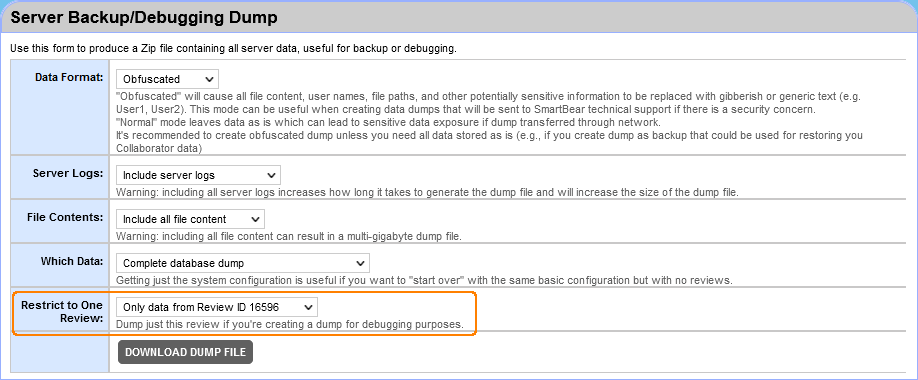
If just one review is broken, you can send us a dump of just the one review. To do that, first go to the review in question, then click the System link as before. Now you will see an additional field in the form for downloading review data (which includes all the file content as well).
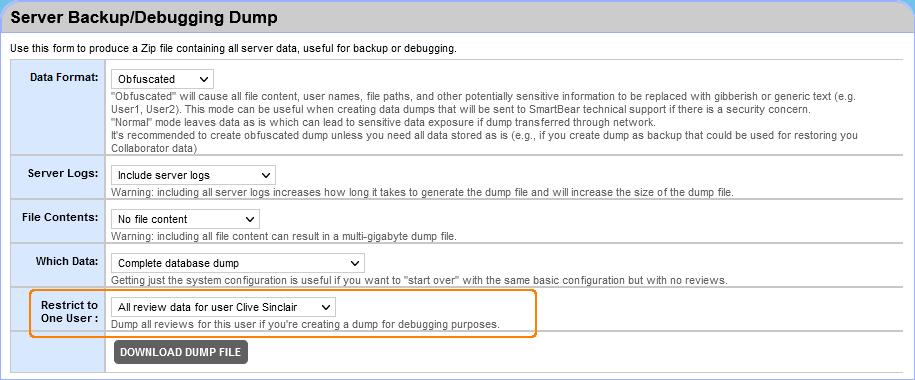
If reviews of some particular user are broken, you can send us a dump with reviews of this particular user. To do that, first go to the Admin | Users section, then click the [Review data] link next to the desired user. Now you will see an additional field in the form for downloading review data for that particular user (which includes all their reviews and all the file content as well).
The server is running slowly
Check out our performance tuning suggestions and use recommended hardware.
Large files consistently fail to upload or render
In order to review large artifacts, we recommend increasing the memory available to Collaborator server (instructions here).
If email is not working, here are some things to try:
| • | Make sure the SMTP Host and SMTP Port settings are correct. |
| • | Try sending a test email. Look in the server logs for error messages. |
| • | If you just performed a database migration/restore, email is automatically disabled. You need to enable it in the settings. |
Getting "Idle Timeout Waiting for Object" Error
This error is shown when the database connection pool runs out of connections to the database.
The fix is to increase the number of connections allowed in the pool. The server is capable of running with many more connections than the default; we keep the default fairly low so that in smaller installations we are not taking up too many database resources.
Fix this by going into the Tomcat servlet context XML file located here:
installation-directory/tomcat/conf/Catalina/localhost/ROOT.xml
Edit the property called maxActive and increase the number of connections. Even doubling this number is normal. A rule of thumb is to have 3 times the database connections (and server threads) as the number of simultaneous users you have under the biggest load.
The Collaborator server must restart for this change to take effect. You do not need to do anything to your database server.
Warning: Modifying the ROOT.xml file will cause Tomcat to dynamically reload the Collaborator application, terminating any active sessions. Changes to ROOT.xml should be done in the context of stopping and restarting the Collaborator service (that is, in a production environment coordinating the restart with user activity), regardless of whether the service itself is actually stopped and restarted, or just reloaded by Tomcat.
Frequently this problem also implies that you should have more web server threads in addition to more database connections. To increase that, edit the maxThreads property from this XML file:
installation-directory/tomcat/conf/server.xml
Stop and restart the server to load new settings from the server.xml file.
"NoHttpResponseException: The server ... failed to respond" Error
This error can occur if a client connection times out after the default 20 seconds. A heavily loaded Collaborator server or limited resources can be the root of this problem, and investigating the server performance and network connectivity may be warranted. Regardless, the connection timeout can be increased by editing the millisecond value of the connectionTimeout variable in the server.xml file described above. For example, for a timeout of 60 seconds, use:
connectionTimeout="60000"
In case of server-side errors, Collaborator will display a custom page with the description of the occurred error.
Display Tomcat Version on Error Pages
For security reasons, Collaborator does not reveal the exact version of Tomcat framework on any public-facing web pages. To troubleshoot some cases, you may want to display the Tomcat version information in error messages.
To achieve this:
1. Open the <Collaborator Server>/tomcat/conf/Catalina/localhost/ROOT.xml file.
2. Locate the ErrorReportValve element
<Valve className="org.apache.catalina.valves.ErrorReportValve" showServerInfo="false"/>
3. Change it to:
<Valve className="org.apache.catalina.valves.ErrorReportValve" showServerInfo="true"/>
4. Save changes to ROOT.xml and restart the Collaborator server.
Change the settings so the server can be accessed remotely
To change the Windows Firewall settings:
Start > All Programs > Accessories > System Tools > Security Center
Click the "Manage security settings for: Windows Firewall" link. On the General tab, make sure the "do not allow exceptions" box is not checked. On the Exceptions tab, click "Add Port" For "Name", use "Collaborator", for "Port number", 8080. Leave TCP selected. If you want, you can click the "Change scope" button to get more options about who can and cannot connect to the port. Click "OK" in each dialog to save the settings and try connecting again.
Contacting Technical Support
For technical support and general inquires, contact us.