Collaborator can be backed up while it is running. Also, there is a system for migrating data from one database to another.
Collaborator stores almost all data in the database initially set up for it. It also uses file content storage - a local directory that keeps copies of uploaded files. These are the two systems that need to participate in the backup/restore process.
Back Up Database
We recommend that you automate database backup process and perform it regularly.
The mechanism for backing up the database depends on the database. See the documentation for your database and use backup software designed to integrate with that.
Collaborator servers that use embedded database automatically create a daily database backup at 3 AM server time. This daily backups are stored in the file content storage (installation-directory/tomcat/collaborator-content-cache/db_backups). That is, on embedded databases you can just backup the content storage as described below.
There is an alternate method for backing up the database which is to perform the first half of a database migration and save the migration data file.
Back Up File Content Storage
The default location of file content storage - a local directory that keeps copies of uploaded files - is listed below (however, the default location can be changed by the system administrator):
installation-directory/tomcat/collaborator-content-cache
Typically, a backup mechanism will either copy this directory elsewhere or will keep a zip or other compressed archive file updated with the contents. You can do this while Collaborator is running, although most backup mechanisms will run at off-peak hours.
Files in this cache are stored in such a way that a file is written only once and thereafter is never changed. This means incremental backups of the directory are particularly easy -- only new files must be copied. Most file-copy utilities have a mode that means "only copy new files".
Restore a Back Up
To restore a Collaborator installation, first restore the database as directed in your database documentation. Then, install the Collaborator server software. Finally, restore the contents of the collaborator-content-cache directory in the new installation directory. You can do this last step while Collaborator is running.
If you have used the database migration technique to back up the database, refer to steps 3-11 of Restoring the Data Dump File for instructions on migrating the database data.
Migrating Data Between Databases
Collaborator has a generic mechanism for migrating data between databases -- even if the databases are completely different types.
Applications of this migration technique include:
| • | migrating between the embedded database and one of the other databases when a trial moves to a production environment |
| • | backing up a database in a database-independent and easily-inspected manner |
| • | when we add support for a new database and you want to switch over to it |
| • | we need to debug your database and you need to send a "dump" of your data to SmartBear Technical Support |
NOTE: Each license key is linked to the node ID, and it gets carried over during server migration. Therefore, a new license key is not needed when migrating the server.
There are two halves to the migration process: Creating the migration data dump file, and "restoring" the data dump file into a Collaborator installation.
1. Creating the Migration Dump File
Note: If your Collaborator server runs on a 32-bit Java virtual machine, set any non-blank value to the com.smartbear.ccollab.datamodel.manager.chunk.for.32.jdk setting in the ccollab-server.vmoptions file and restart the server, before creating a dump file.
To create the migration data dump file, log into the Collaborator web server, and click the System link at the bottom of the screen:

Near the top of the screen is a form and a button which will allow you to download a whole system dump:
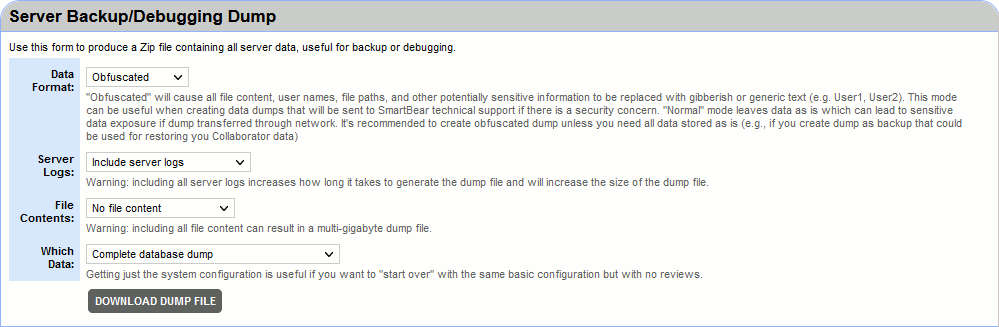
It contains the following settings:
Data Format: |
Obfuscated - Modifies the data to conceal sensitive information. This mode can be useful when creating data dumps that will be sent to SmartBear technical support if there is a security concern. Normal - Leaves the data as is which can lead to sensitive data exposure if dump transferred through network. This mode can be useful when creating data dumps for server backup and migration. |
Server Logs: |
Specifies whether to include server logs in dump file. Note: If you are creating a dump file to send to technical support, it is important to include the server logs. |
File Contents: |
No file content - Do not include file content. Include all file content - Include all file content. This may generate huge dump file and cause a longer download. |
Which Data: |
Complete database dump - This must be selected for a whole system dump. System configuration only - no review data - Selecting this will only save the system settings. |
Once you have filled out the form, click the "Download Dump File" button to download the database dump file. This is a ZIP file containing all your database data in a platform- and database-independent XML format, plus additional files that describes your server environment.
2. Restoring the data dump file
Loading this data into another Collaborator installation requires some effort. This process is intentionally complex to prevent accidental destruction of real data.
Below are the steps to restoring a database migration data dump file:
| 1. | Verify your Collaborator Server install. |
| Make sure the Collaborator server version and build number are identical between the server that created the data dump file and the server that is loading it. If the versions do not match exactly, the restore might not succeed. SmartBear maintains installers for previous versions of the server if you need one. You can always upgrade to another version after the migration. |
| Be sure when running the installer, you give the correct connection parameters to point the server to the database to which you plan to migrate. Note: Even if the Collaborator Server install location is not changing, you will still need to rerun the installer to point Collaborator to the correct database. |
| Once the install is complete, a browser window should open. Do NOT initialize the database as prompted in the browser. |
| 2. | Move the dump file into a known location. In this example we will assume the location is: |
c:\temp\ccollab-dump.zip
| 3. | On a 32-bit Java virtual machine, set maximum Java heap size to 1.5Gb or above (-Xmx1500M) in the ccollab-server.vmoptions file. |
| 4. | Make sure the Collaborator server where you will load the dump is not running. This will not work on a running server. |
| 5. | Open the Tomcat session configuration file located here: |
installation-directory/tomcat/conf/Catalina/localhost/ROOT.xml
| 6. | Find the parameter called database-migration-data-path, or create one if it does not already exist. It should look something like this: |
<Parameter name="database-migration-data-path" value="c:\temp\ccollab-dump.zip" override="false" />
| 7. | Make sure the value string matches the location of the dump file, as in the example above. Use an absolute file path. |
| 8. | Save the configuration file. |
| 9. | Use a database administration tool to make sure the database configured for use with Collaborator has no tables in it. If there are any tables in the database the restore will not work. This prevents accidental restoring over an existing database. |
| 10. | Start the Collaborator server. |
| 11. | The server will automatically load the data from the database migration data dump file. If there were any problems with migration, you will see a helpful error message in the server log. The server will also log progress reports as data is loaded up, so if you have a large database and you wish to monitor migration progress you can "tail" the log file to see what's happening. Loading migration data can take a long time, so be patient! |
| 12. | Upon starting after restoring a migrated database, email notifications will be disabled. This is to prevent users from receiving spurious duplicate email notifications when administrators restore into test configurations. You may re-enable email notifications from the email administration page. |