Collaborator supports reviewing DOORS documents that are exported as web view archives.
There are several ways to upload a DOORS documents to a Collaborator review: export it manually and then upload it to Collaborator server or use the Collaborator Add-On for DOORS to export and upload requirement documents directly form IBM DOORS Classic.
 Collaborator supports upload documents with different baseline version and displays it as new version of the same document.
Export and upload manually
| 1. | Open the desired requirement in DOORS Classic. |
| 2. | Switch to the File tab, choose Export and then HTML. |
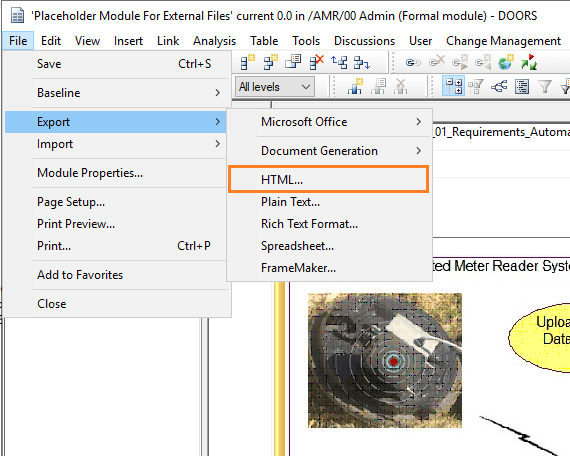
DOORS supports main two export modes: Export current document and Export current document and all linked documents. For the last option set of linked document is exported and they save working cross-links, that allow to navigated between linked requirements, placed in the different documents.
| 3. | Choose Table layout. |
| 4. | Compress exported HTML (and supplementary) files to single zip archive. |
| 5. | Log into Collaborator Web Client. |
| 6. | Create new review or open an existing one. |
| 7. | Scroll to the Review Materials section. |
| 8. | Click Upload and then select DOORS Archives from the drop-down list. |
| 9. | In the ensuing dialog, choose one or more DOORS archives you want to attach and then click Upload. |
Export and upload with Collaborator Add-On for DOORS
Installation and upload process described in the Collaborator Add-On for DOORS overview.
There is a possibility in DOORS to select which columns should be exported. Row with the requirement IDs must be included into exported columns - it’s used for requirements identification and diffs calculation in Collaborator.
Different versions of document should be exported with the same set of columns - it’s critical for correct diffs calculation.
The UI displays differences between two revisions of a DOORS requirement documents in a side-by-side layout. They are calculated based on requirements ID: Collaborator compares content of rows with the same ID and highlights diffs, if they are found. Also, Collaborator highlights diffs if some rows were added/deleted.
Collaborator doesn’t check the order of row with the same ID in the different document versions.

On the left of the main Diff Viewer page, there is a pane for chat threads, where you can view and make comments and mark defects that should be fixed. When reviewing DOORS documents, you can create global, annotation, overall for file revision and cell comments and defects. Comment and defect description could be in plain-text or use rich-text and Markdown formatting, they could also mention other Collaborator users.
To comment on a specific cell, click the desired one in the content view, type your comment in the text box and click Add. ‘Comment’ icon appears in the left-top corner of the cell, top of the cell is highlighted in grey.
To add defects, click the desired cell in the content view, type the defect description, click Add as defect and fill-in the required fields. For new bug created, red ‘bug’ icon appears in the left-top corner of the cell, top of the cell is highlighted in red. For the bugs marked as fixed, ‘bug’ icon changed color to green, top of the cell is highlighted in green.
Note: defect or comment can be assigned to whole cell only; there is no way to select part of cell’s content and link defect/comment to it.
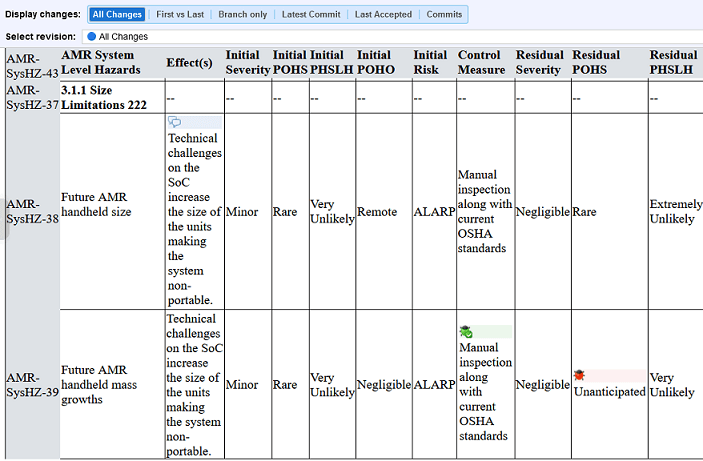
To learn more about communicating during the reviews, see Types of Review Comments and Defects and Review Chats, Comments and Defects topics.
Navigation between Diffs & Comments by arrows in Diff Viewer works as usual.
If there is a set of linked documents uploaded, Collaborator supports navigation between linked requirements, placed to the different documents, by cross-link. When user clicks the cross-link then Collaborator opens document, that link refers to, and navigates the user to the row with linked requirements.

When two versions of the document are opened in the Diff Viewer, and user selects row on the one side, then Collaborator opens and highlights the row with the same requirements ID on the other side of Diff Viewer (if such row exists).
Display options
The Display panel has specific options for DOORS document review.
| • | When the Freeze first row option is enabled Diff Viewer will freeze first row which contains name attribute for the column. |
| • | When the Freeze first column option is enabled Diff Viewer will freeze first column which contains requirement ID in the documents under review. |
Default value for the both options is enabled. User’s choice is stored in the Web-browser cache.