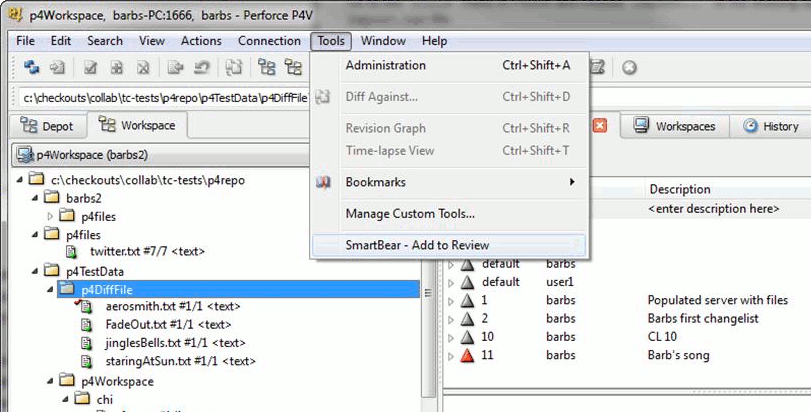
The Collaborator client installer includes an integration point with P4V and P4Win. When you right-click on one or more Changelists in the GUI a new menu item appears at the bottom of the Tools menu allowing you to add those Changelists to a Review.
Installation
If you installed the client yourself and opted to "Configure Addons To Perforce Visual Tools", then you should not have to manually configure the Perforce visual tools integrations. However, if the Collaborator client was installed by an administrator on your computer, or the configuration failed at install time, you can manually configure them as follows:
P4V Installation
Go to the "Tools" menu in P4V and choose "Manage Custom Tools...". In the dialog box click "Import Tools...". In the ensuing open-file dialog, navigate to the Collaborator Client installation directory and select the P4V-Tools-Import.txt or P4V-Tools-Import.xml file.
P4Win Installation
Go to the "Tools" menu in P4Win and choose "Import..".. In the ensuing open-file dialog, navigate to the Collaborator Client installation directory and select the P4Win-Tools-Import.txt file.
There should now be a menu item under "Tools" with the text "SmartBear - Add to Review". It will be dimmed unless a Changelist is selected.
Warning: The plug-ins will work only if the Perforce command-line tool (p4) is in your PATH environment variable.
It is also available in the pop-up menu when you right-click a Changelist:
Working with multiple Perforce workspaces and servers
The P4V/P4Win plug-ins work perfectly and automatically with multiple Perforce servers and servers.
All the Perforce connectivity parameters are taken from the UI, so whatever workspace, server, and authentication you are currently using when you right-click the item will be used automatically be the plug-in.
None of this affects the behavior or configuration of the command-line client, so you can freely use the plug-ins without disturbing that configuration.
Troubleshooting
If you are experiencing problems with the P4V/P4Win plug-ins, it will help SmartBear technical support if you send in a debugging log. To do this, edit the custom tool configuration (Tools > Manage Custom Tools > Edit), and add a --debug argument to the beginning of the arguments list. This will create a log file at the following location: ~/.smartbear/log/ccollab.log on Unix platforms and %USERPROFILE%/.smartbear/log/ccollab.log on Windows platforms.
Please contact our technical support and send the log file along with a full description of what you were trying to do when the error occurred.