Double-clicking an Action Item will open the associated Review in the Review Editor. (If you prefer, you can configure your preferences to open the Review in a web browser instead.) This editor lets you perform a Review without leaving Eclipse. The content of the editor updates automatically as the Review changes (other users make comments, new files are uploaded, and so on).
When the Review Editor is active, the Conversations View will show the overall Review conversation.
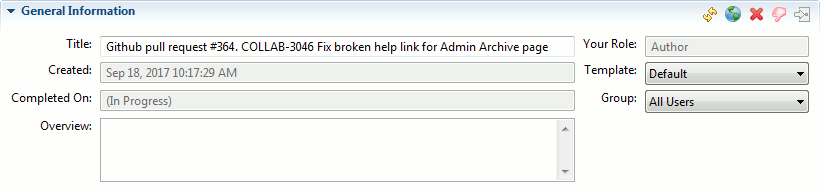
The General Information section shows you information about the Review as a whole, and lets you edit certain fields, including Review custom fields. Toolbar buttons in this section allow to refresh review information, open review in a web-browser, cancel, reject or re-open the review.

The Participants section shows the users participating in this Review and their Roles. You can change a user's Role by dragging-and-dropping them to a different Role. You can remove a user from the Review by right-clicking and selecting Remove from the context menu.
Click the Add Participants... icon in the toolbar of the Participants section to toggle the section for adding a new Participant to the Review.
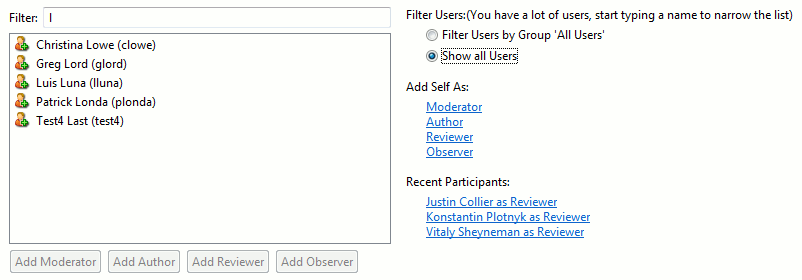
Drag users from the list to one of the Role lists above to add them to the Review in that Role. You can also click one of the Add <Role> buttons to add the selected users to the Review in that Role. Click on the links in the Recent Participants area to quickly assign recent participants to the Review. Typing in the Filter field will filter the users list to help you find the users you want.

The Participant Custom Fields section shows the value of Participant Custom Fields for each Participant. Note this section only appears if the Template of this Review has Participant Custom Fields configured.

The Checklist section displays the checklist associated with the review (if any).
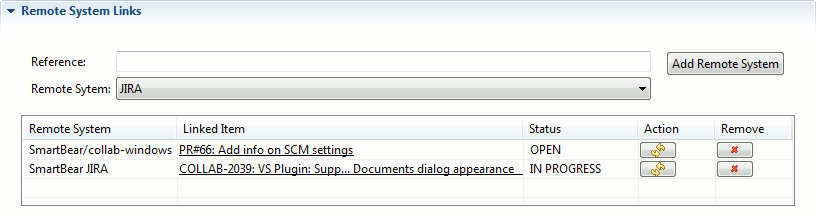
The Remote System Links section lists all pull requests, direct pushes and issue-tracking items linked with this review. Because of a limitation of the SWT control, the Remote System Link table cannot have multi-line cells. When multiple items are linked (for example, multiple commits), the table displays only the first item. The full list of linked items will be displayed in the cell's tooltip and in the Overall Chat section.
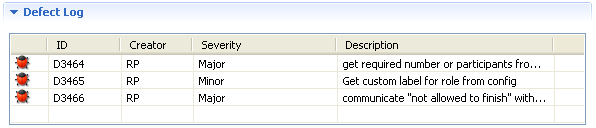
The Defect Log section shows all of the Defects in the Review, both overall Review Defects and Defects on files.
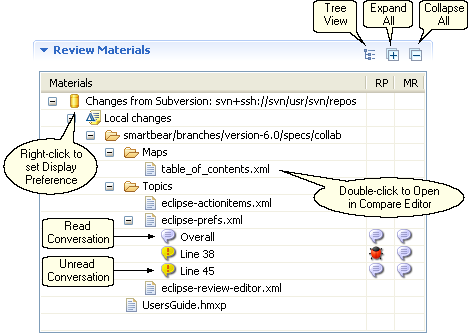
The Review Materials section shows the changelists and files which are part of the Review. Double-click on a file to open it in the Compare Editor.
The section toolbar controls how the materials are presented:
The presentation of folders. You can select from Compressed Tree, Tree, and Flat. |
|
Expand all levels in the tree. |
|
Collapse all levels in the tree. |
Right-click on the "Version Control" icon to set your Display Preference for that Version Control system. Depending on the Version Control system and available changelists, you can select from Do not Roll Up, Roll Up All Changelists, and Roll Up Non-Atomic Changelists.
Conversations on files are listed underneath the files in the tree. If the conversation has unread comments the icon is highlighted in yellow.
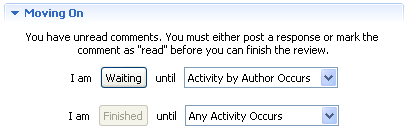
The Moving On section allows you to specify whether you are Waiting on Review activity or have Finished with the Review (with the option to re-engage based on future activities). These choices move reviews into different phases. The options in "Moving On" vary depending on the Phase of the Review and your Role. "Moving On" also allows you to control - to a certain extent - the notifications you receive for a particular Review.