You must configure your connection to the Collaborator server; all other preferences are optional.
You can find the Eclipse Plug-in configuration in the Preferences dialog along with all other application preferences:
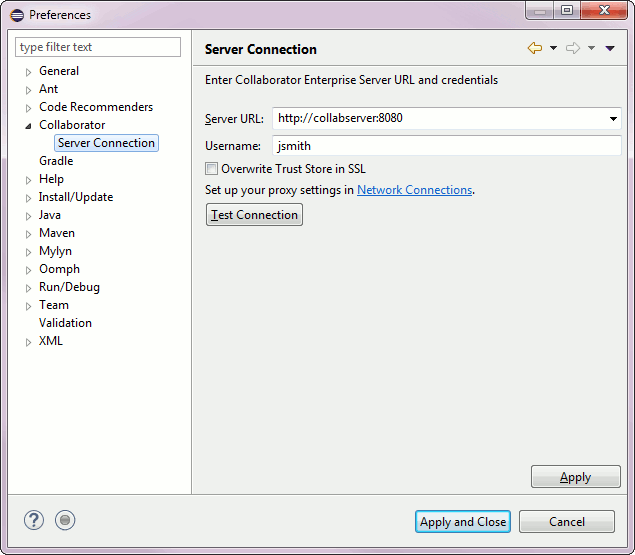
The Server URL must include the correct port number and path if applicable. The Username and Password are the same as you use when logging into the web server.
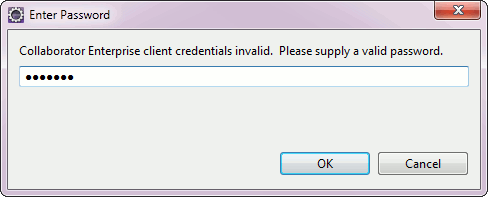
The password entry is displayed on the following connection form. You can specify your password or login ticket. When single sign-on authentication is disabled, specify password. When single sign-on authentication is enabled, specify login ticket instead:
Also, you may specify whether Eclipse Plug-in should override the java.net.ssl.truststore VM option with hard coded default values ($JAVA_HOME\lib\security\cacerts). The latter option requires restarting the Eclipse in order to apply.
Use the Test Connection button to make sure the connection is working. If it fails the error message will be helpful.
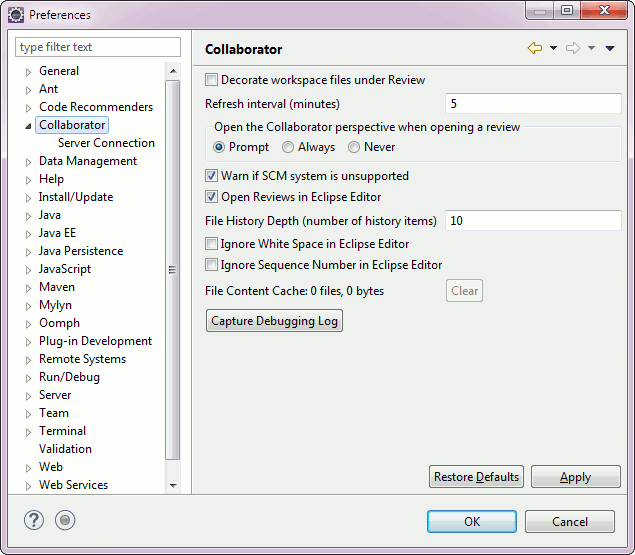
Specifies whether to enable Label Decorations for files which are currently under review. |
|
How often to refresh the Action Items View with data from the server. Markers and Label Decorations are also refreshed at this time. |
|
Automatically switch to the Collaborator Perspective when opening a Review. |
|
When adding files to a Review, warn if SCM system (or client) is not supported. |
|
Open Reviews in the Eclipse Review Editor. If this option is not checked, Reviews will be opened in a browser. |
|
Specifies the number of file revisions to keep. |
|
Controls whether white-spaces are taken into account when showing differences in Eclipse Compare Editor. |
|
Controls whether COBOL sequence numbers are taken into account when showing differences in Eclipse Compare Editor. |
|
The estimated size of the local file content cache. Press Clear to delete the local content cache (content will be automatically downloaded from the server as needed). |
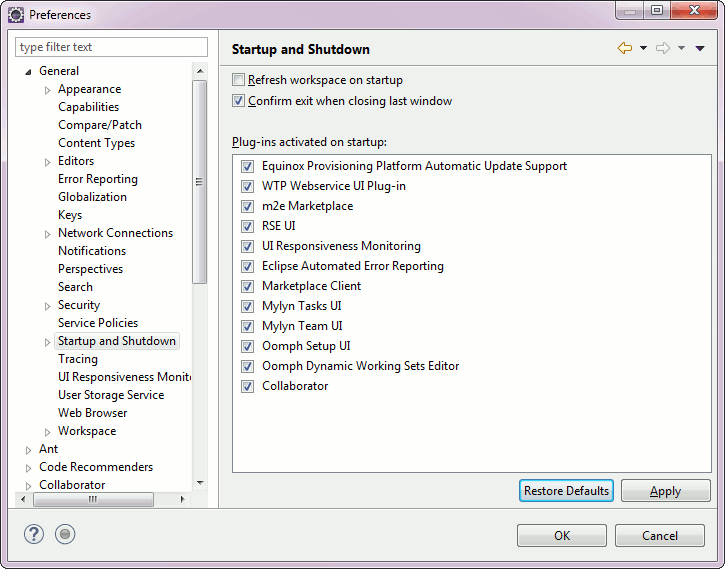
The Collaborator Eclipse Plug-in registers itself with Eclipse to be started automatically when Eclipse starts up. This is necessary to refresh Markers and Label Decorations automatically. If you un-check Collaborator from the Plug-ins activated on startup list then Markers and Label Decorations will not appear until the first time you show the Action Items View.