Collaborator has a sophisticated search facility allowing you to find reviews in many ways. Uses include:
| • | Find reviews by review ID. |
| • | Find reviews with substrings in title and custom fields. |
| • | Find reviews with specific participants. |
| • | Find reviews of particular changelists by check-in comment or changelist ID. |
| • | Find reviews of certain files by file path. |
| • | Find reviews having a substring in comment or defect text. |
Starting a Search
To start a search you can type the search term into any of the following:
| • | The search box at the left side of the menubar: |

Entering search term in Web User Interface
| • | The address bar or search box of your browser (if your Collaborator server was added as browser's search provider): |
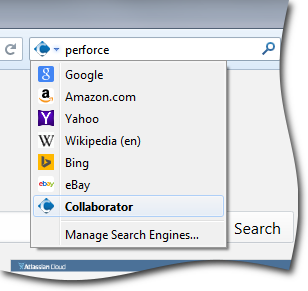
Entering search term in Mozilla Firefox
The system will automatically search in all the ways listed above.
If you have entered the review ID number, you will automatically be taken to review. See Jumping to Reviews section for details.
Search Results
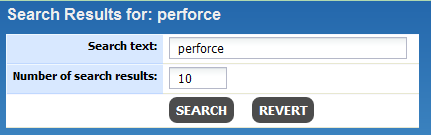
The number of displayed search results will be limited if the search produces too many results. The default number displayed will usually be "10". This can be changed in the form that will appear at the top of the search results. To display more or less than shown, change the value in the Number of search results field and click Search.
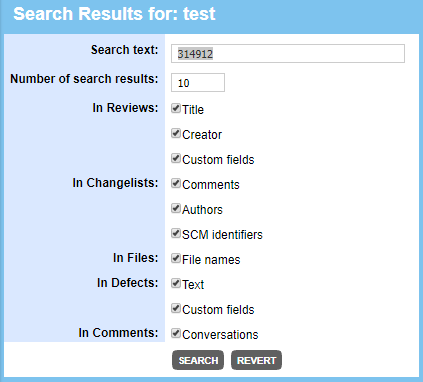
Important: Collaborator does not search the contents of custom fields by default (since this significantly reduces search performance). Instead, the search results page display additional fields that define in what areas to perform new search. In this panel you can enable searching in custom fields.
Because there are many types of searching, each result block is drawn separately. For example, below are the results of searching inside review title and custom field text:
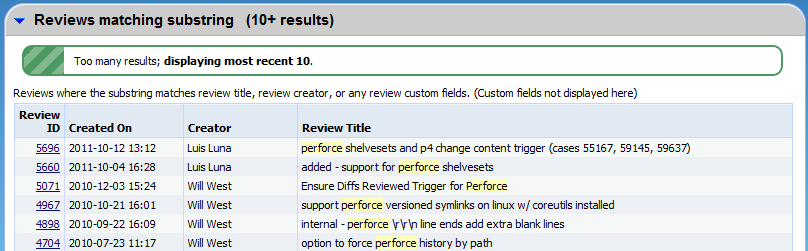
Note several features of the search results:
| • | Text at top of the block explains exactly what the block is searching on. |
| • | Reviews are displayed in creation-date order, most recent first. |
| • | Specific search term is highlighted in yellow. |
| • | Jump to a review by clicking the ID link. |
| • | When there are many results, a message appears near the top in green. |
You may notice that some reviews do not have the yellow highlight. Why did these reviews match the search? This search looks not only at the review title and participants but also in all custom fields. Those fields are not, however, displayed in this view, so nothing can be highlighted. (Custom fields are not shown because there can be a large number of them which would make the search results difficult to read.)
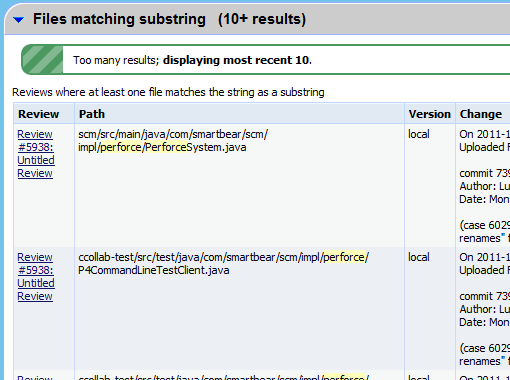
Here is another example where the block is searching over files present in the review:
You can jump to a review by entering the unique review ID number into the search box. If the number entered matches a review ID number, you will automatically be taken to review. This allows you to bypass search results and quickly find the searched review.
Enter the Review ID number into the search box on the Home page and press Enter:

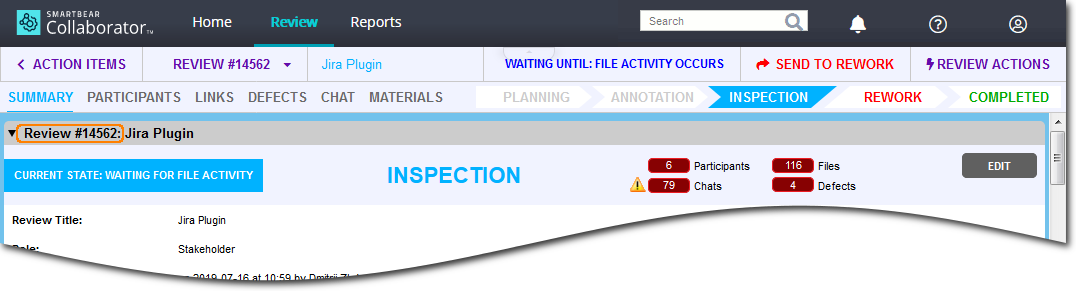
The specified review will be displayed in the Review screen: