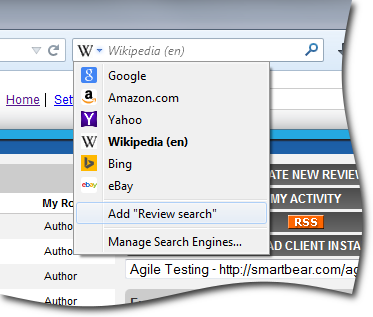
You can add Collaborator to the list of search engines of your browser. In this case you can search for reviews, participants, files and other directly from your browser's address bar or search box.
How it works
To perform a search in Collaborator from within the web browser, we need to add your Collaborator server as the browser's search provider. (See instructions below.)
Once this is done, you can open any arbitrary web page (not necessary from Collaborator Web UI) and enter the desired search term in the browser's address bar or search box.
Then you need to select Collaborator as the search provider (if it is not set as the default provider) and press Search.
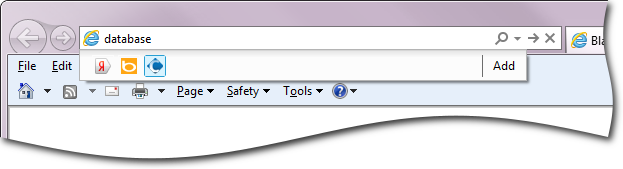
Entering search term in Internet Explorer
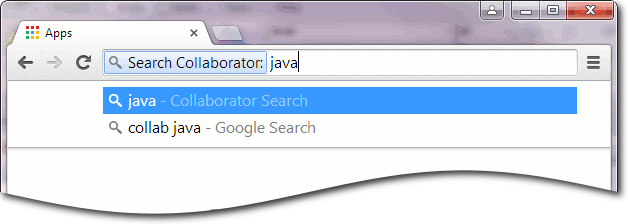
Entering search term in Google Chrome
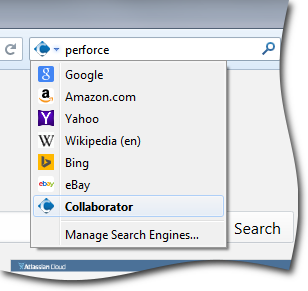
Entering search term in Mozilla Firefox
Your Collaborator server will perform a search and display search results for the given term.
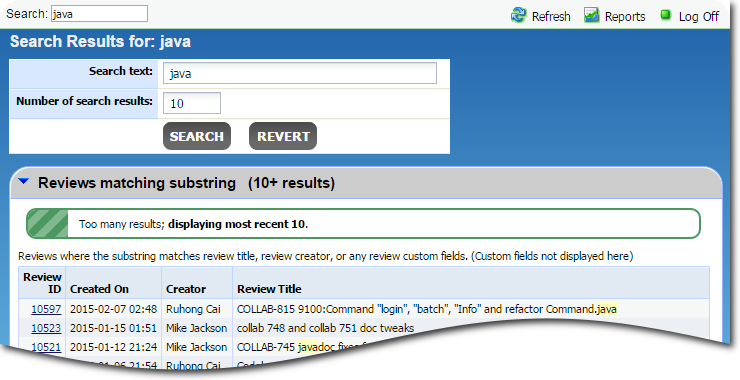
Results of Collaborator search
Adding Collaborator as Browser's search engine
Collaborator uses the OpenSearch technology to act as the browser's search provider. The exact instructions on adding custom OpenSearch providers depends on a browser. Below are instructions for the most popular browsers.
Internet Explorer:
| 1. | Create a *.reg file with the following content: |
Windows Registry Editor Version 5.00
[HKEY_CURRENT_USER\Software\Microsoft\Internet Explorer\SearchScopes\Collaborator]
"DisplayName"="Collabortor"
"URL"="http://yourServer.com/go?page=SuperSearch&superSearchField={searchTerms}"
"FaviconPath"="C:\\loclPathToFavicon\\CC.ICO"
"FaviconURLFallback"="http://yourServer.com/i/cc.ico"
| 2. | Change http://yourServer.com to the actual URL of your Collaborator server (including the protocol name: http or https). |
| 3. | Save the file and run it. |
| 4. | Confirm to make changes to the registry. |
| 5. | (Optional) Open Internet Explorer, go to Tools | Manage Add-ons | Search Providers, and set Collaborator as the Default Search Provider. |
Google Chrome:
| 1. | Navigate to navigate to the URL of the Collaborator Web Client. |
| 2. | Click Chrome menu. |
| 3. | Select Settings. |
| 4. | Go to the "Search" section. |
| 5. | Press "Manage Search Engines". |
| 6. | Under "Other search engines" select "Collaborator" |
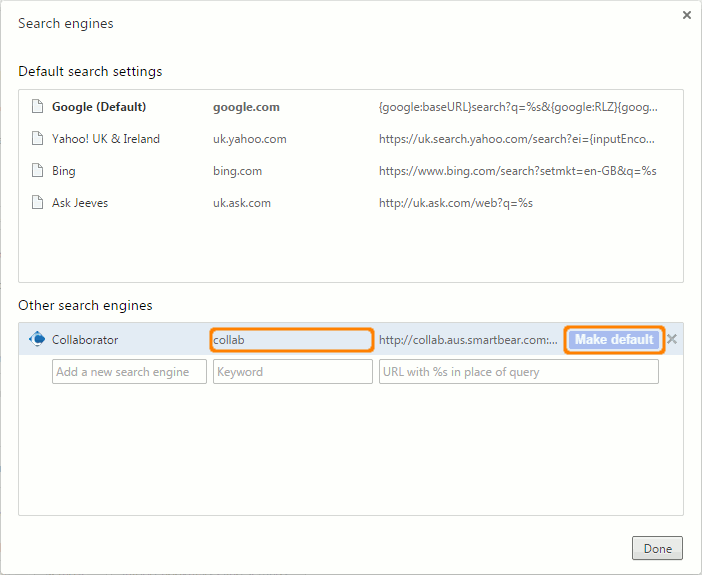
| 7. | Specify a more memorable text shortcut for the Keyword field. That is, instead of the full URL of your Collaborator server enter, for example, "collab". Keywords are entered in the address bar to denote which of search engines to use. |
| 8. | Press "Make default". This will add your Collaborator server as the default search engine. |
| 9. | Press Done and close Chrome settings. |
Later on you may restore your default search engine and use the specified keyword to search for the term on your Collaborator server.
Mozilla Firefox:
| 1. | Navigate to navigate to the URL of the Collaborator Web Client. |
| 2. | Open the search engine list and select "Add Review search". Firefox will add it to your list and make it the active search engine. |