After you installed the Collaborator plug-in for Rational Team Concert, you need to configure follow-up actions in Team Concert.
| 1. | In the Rational Team Concert Client, open your project by clicking its name in the Stream section: |
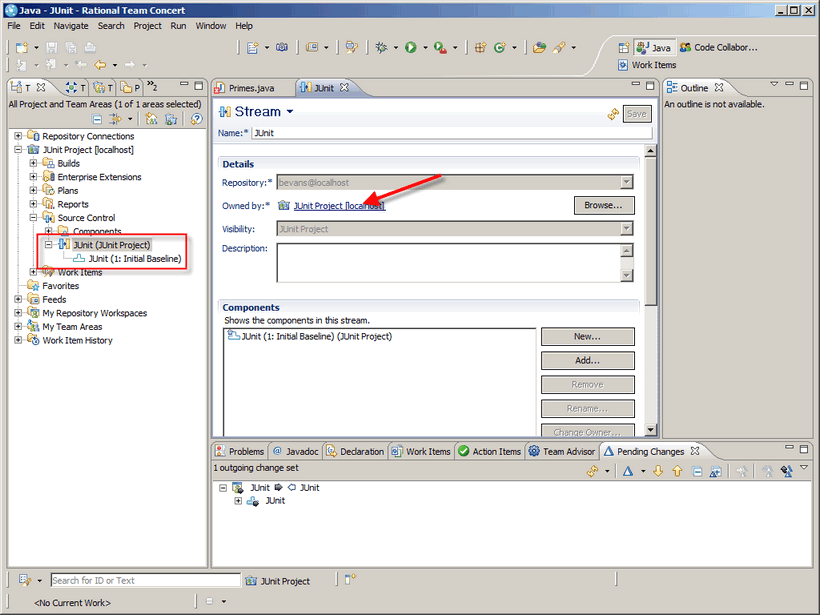
This will open the Team Area view.
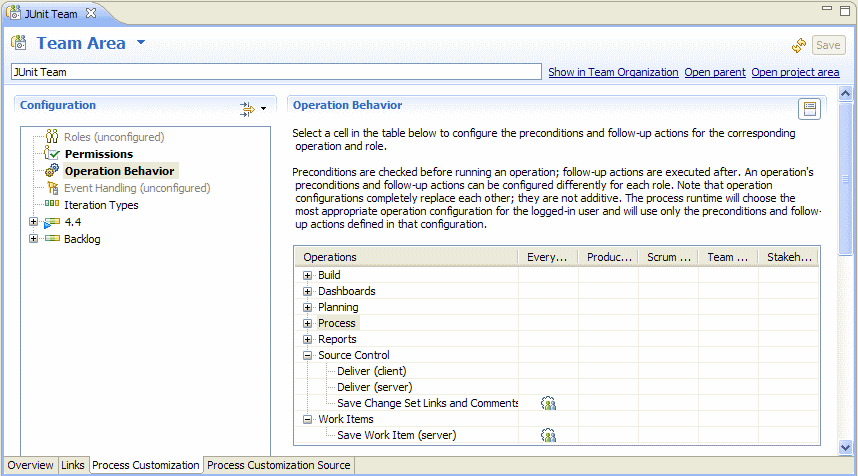
| 2. | In the Team Area view, select Operation Behavior from the tree on the left and then go to Source Control | Save Change Set Links and Comments on the right and add a follow-up action Update reviews for each linked work item to it. |
| 3. | Select Operation Behavior from the tree on the left, then choose Work Items | Save Work Item (server) on the right, and add the follow-up Upload changes from work item to it: |
Update Reviews for Each Linked Work Item
This follow-up action creates a review associated to a work item when a new changeset is added to that work item.
The changeset must be new. If you add changes to some existing changeset associated with the work item, the review is not automatically updated. In this case, you need to change the work item's state and save the changes. If you have another follow-up action configured (see below) this will update the review.
The action's settings are stored in an XML file. You can change the action settings, and they will override the plug-in's settings. To do this, simply edit the XML file of the action. Below is a sample XML snippet with action settings:
<followup-action description="Collaborator - Update Reviews for each linked Work Item" id="com.smartbear.collaborator.rtc.process.ChangeSetModified" name="Collaborator - Update Reviews for each linked Work Item">
<CollaboratorURL value="http://localhost:8080"/>
<CollaboratorProxyHost value="proxyhost"/>
<CollaboratorProxyPort value="22"/>
<CollaboratorUserID value="admin"/>
<CollaboratorUserPassword value="123"/>
<retries value="1"/>
<retryDelayMs value="500"/>
</followup-action>
Here are some notes on the file contents:
| • | All child elements of the followup-action element are optional. If you do not specify some values, they are taken from the global plug-in settings. |
| • | The CollaboratorProxyPort and CollaboratorProxyPort can have empty values to override the global plug-in settings. |
| • | If you need to specify the user that will work for multiple Collaborator servers, create a user with the same name and password on all the needed Collaborator servers and then specify this user name and password in the global plug-in settings. |
| • | The password is stored as plain text on the XML configuration. |
| • | The action requests some information from the Team Concert repository. This information may be unavailable at the moment the action runs, so the action may need to wait for an answer. |
To prevent possible issues dues to these delays, use the retries and retryDelayMs values. The retries value specifies the number of times the follow-up action repeats its requests, and the retryDelayMs value indicates the number of milliseconds the action will wait for a response. Both settings accept only positive integer numbers as their values.
Since the delay can depend on the Rational Team Concert server settings, there are no pre-defined value that will work on every server configuration. You can start using small numbers for the values (like 3 retries and 500 ms delay) and then increase or decrease these values until you find a configuration that works best for you.
The Collaborator plug-in uses this follow-up action to track the changes of a work item state.
The action's settings are stored in an XML file. You can change the action settings, and they will override the plug-in's settings. To do this, simply edit the XML file of the action. Below is a sample XML snippet with action settings:
<followup-action id="com.smartbear.collaborator.rtc.process.UploadToCollab">
<CollaboratorURL value="http://localhost:8080"/>
<CollaboratorProxyHost value="proxyhost"/>
<CollaboratorProxyPort value="22"/>
<CollaboratorUserID value="admin"/>
<CollaboratorUserPassword value="123"/>
<type value="Defect"/>
<type value="Enhancement"/>
<type value="Task"/>
<StateChangedTo value="New"/>
<OnStatus type="Story" state="Implemented"/>
<updateReviewers value="false"/>
<newReviewOnCancel value="false"/>
</followup-action>
Here are some notes on the file contents:
| • | All the elements are optional. |
| • | The settings CollaboratorURL, CollaboratorProxyHost, CollaboratorProxyPort, CollaboratorUserID, and CollaboratorUserPassword override the plug-in settings' values. |
| • | There are several elements that define the scope of work items, for which Collaborator will create reviews automatically: |
| ▪ | type specifies the work item types for that Collaborator will create reviews. You can specify multiple type elements in the settings. You specify a type by its display name, not by its id. This name is case-sensitive. |
| ▪ | StateChangedTo specifies the work item states that Collaborator will trace (Collaborator will create a review for a work item when this work item is switched to the specified state). You can use multiple StateChangedTo elements in the settings. |
| ▪ | OnStatus combines functionality of both type and StateChangedTo. It specifies a couple of values (type and state) in one setting. These values can be types and states specified by the type and StateChangeTo elements, or any other types and states. That is, OnStatus elements is just one more way to define the conditions that trigger review creation. There can be multiple OnStatus elements in the settings. |
| • | The Collaborator plug-in can trace changes in the Approvals list of a work item. When you add an entry of the Reviewer type to this list, the plug-in sends a command to the Collaborator server to update the Participants list of the review associated with that work item. See How Integration Features Work. |
The updateReviewers setting lets you enable or disable this functionality. If the value is true or not specified, the Collaborator will update the Participants list of a review. To disable this functionality, set the value to false.
| • | The newReviewOnCancel option specifies whether the follow-up action will create a new review for a work item, if its previous review was canceled or rejected. At that, all the changes from the work item changesets will be added to the new review. After the new review is created, the action replaces a link to the previous review with a new review link. The work item will have only one link to a review. |
Other Configuration Actions
In addition to configuring the Collaborator plug-in for Rational Team Concert and follow-up actions, you also need to configure the Collaborator server. For detailed information on this, see topics of the Configuring Servers and Plug-Ins section.