When someone invites you to a review, you receive an email notification. To take part in this review you need to open Collaborator Web Client.
1. Log into the Web Client
Start your favorite web browser and navigate to Collaborator Web Client URL. If asked, enter your user name and password in the login screen.
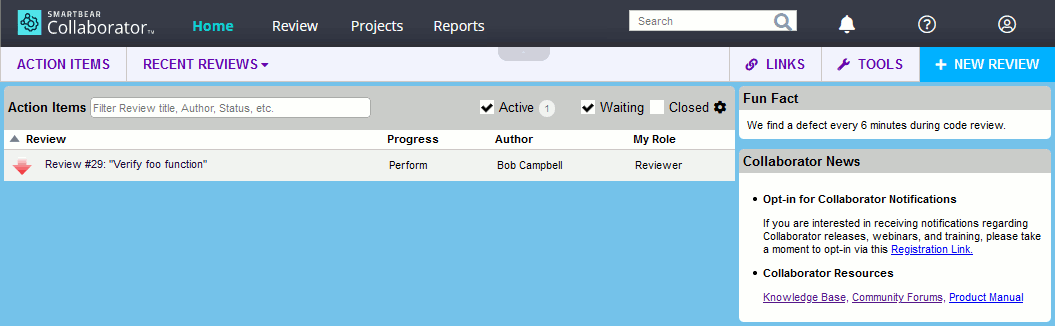
In the Action items list on the Home screen, you will see a new incoming review.
2. Open Review Summary screen
Click the review in the Action items list to open it in the Review Summary screen where you can see the details about this review.
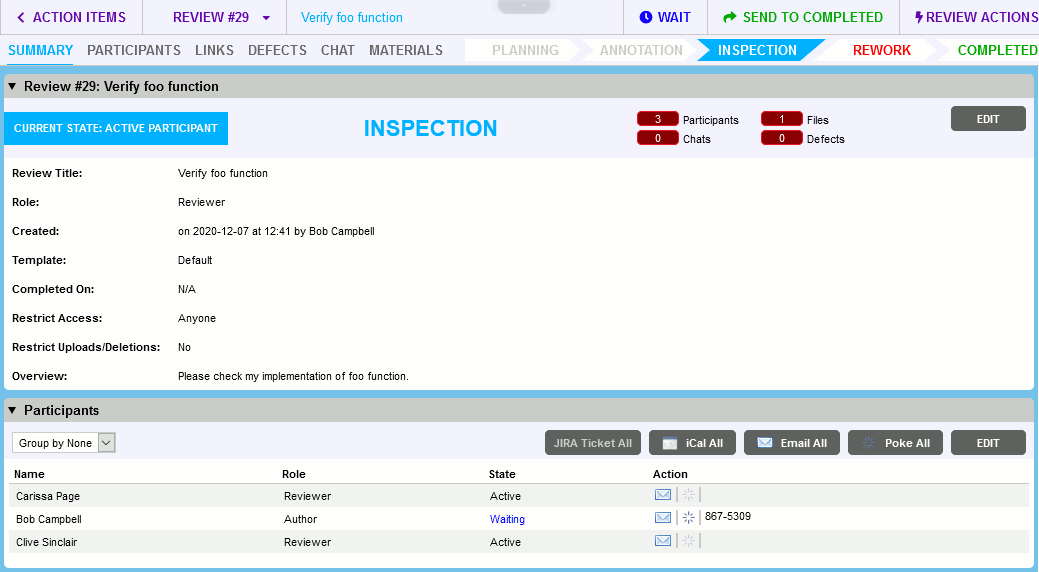
Notice that you are the active participant of this review and the review is in the Inspection phase.
3. Inspect review materials
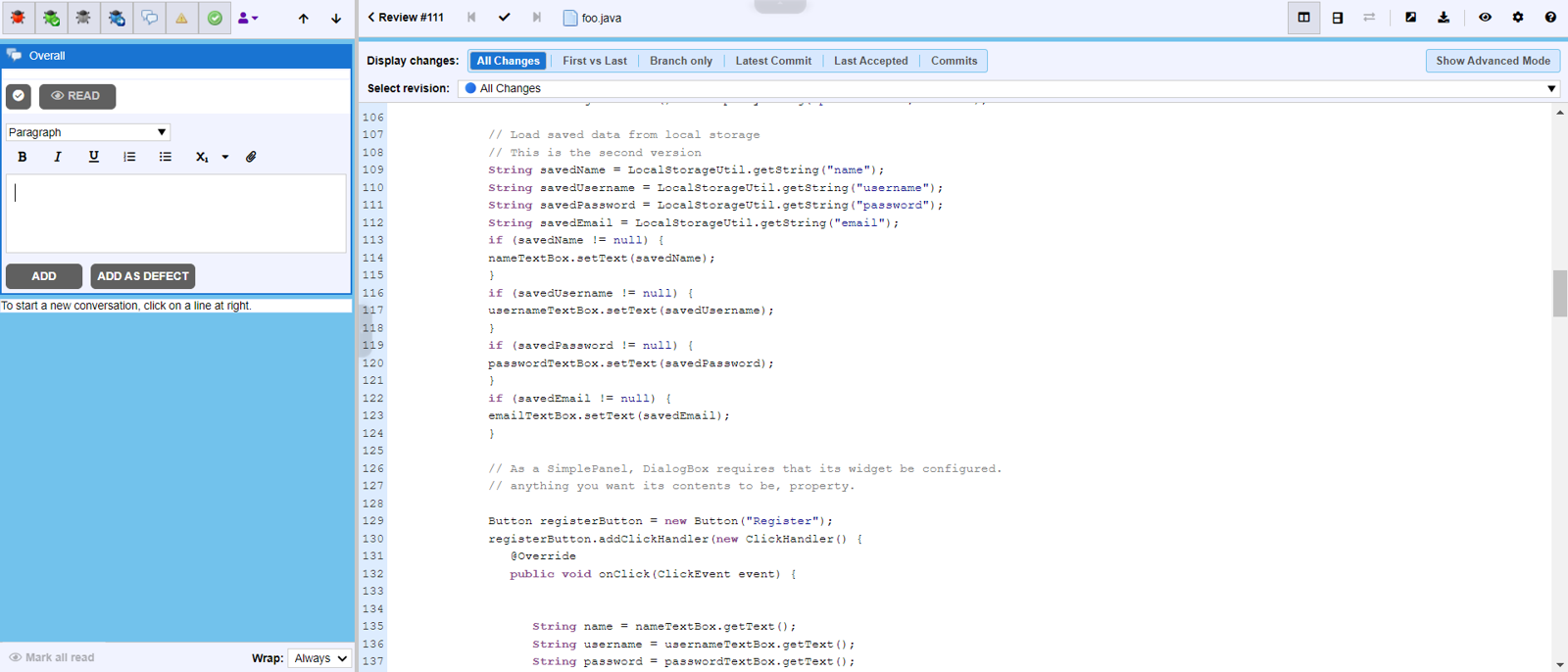
Scroll to the Review Materials section (or click Materials in the toolbar) and click the uploaded file (or the first of several uploaded files). The Diff Viewer will open.
Diff Viewer displays the contents of the chosen file and allows to add your comments and defects on this file. The Viewer appearance changes a little depending on a type of the current file.
If a version history is available for the file (for example, when it was added from a source control system or when it was reworked by the author), the Diff Viewer shows the current and previous versions of the file and highlights the differences between them.
4. Add your comments, look for and verify defects
While reviewing, you most likely find some issues with the materials or would like to ask or tell something to the author. For this purpose you can add comments and defects.
If you are reviewing a file that has already been reworked, then you will need to verify whether the defects have been fixed.
| • | To add a comment, click on the line (in source code and text files), cell (in spreadsheets) or area (in documents and images) you want to comment on, type your comment and click Add. Comments are threaded into a conversation that stays tied to a specific line, cell or area. 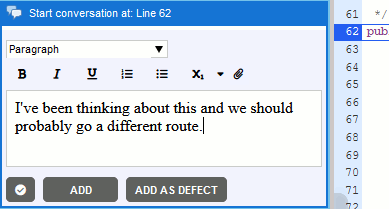 |
| • | To add a defect, click on the line, cell or area to which you want to attribute the defect, enter issue description and click Add as defect. In the ensuing pane specify defect severity level and type and click Add defect.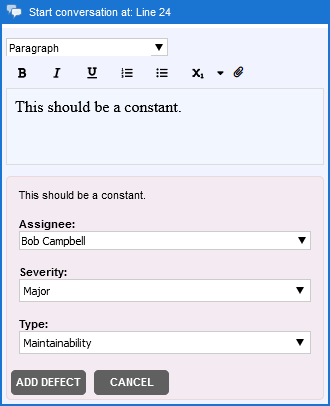 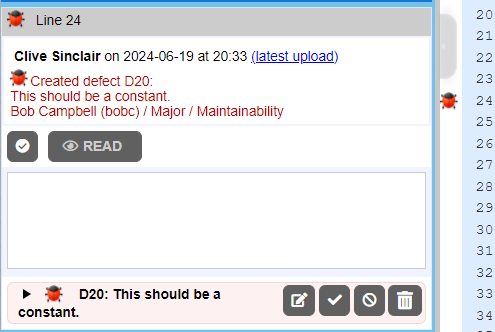 |
| • | To mark a previously found defect as fixed, scroll to the defect and press Mark fixed.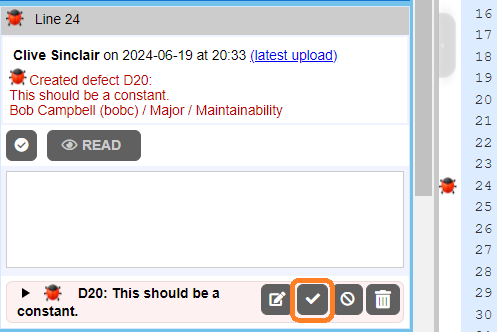 |
Besides creating comments and defects that relate to a specific line or area you can also create comments and defects that relate to entire files (in the Overall section of Diff Viewer) as well as comments and defects that relate to the whole review (in the Chat section of the Review Summary screen). See Review Chats for more information on making conversation during reviews.
When you have examined the current file, you can proceed to another file that was uploaded to the review (if any). To view the next or previous files, you may use the File navigation buttons on the Diff Viewer toolbar:

Having inspected all the files that were uploaded to the review, return back to the Review Summary screen.
To return back to Review Summary screen, click a button with review number (Review #29 in image above) on the Diff Viewer toolbar.
5. Finish inspection
In Review Summary screen header you can find several review action buttons: Wait, Send to rework, (or Send to completed) and so on.
| • | To signal other participants that you have temporarily stepped out from the review but plan to return, press Wait. In the ensuing list select when Collaborator should re-invite you to the review.  Wait Options |
| • | To indicate that you have found some defects that need to be fixed, press Send to Rework. This will change the review phase to Rework and return it back to authors so that they can fix the found defects. |
| • | To indicate that you approve the changes in the uploaded materials, press Send to Completed. When all participants approve the review it will be closed.  A review cannot be closed until all its defects are resolved: either marked as fixed, deleted, or tracked externally. |
Where to Go Next
To learn how about correcting the found defects as an author, see Reworking Defects.