Before using the Confluence plugin, you must specify Collaborator server and user credentials for each Confluence Space.
Settings
To configure settings for Confluence Space:
| 1. | Open your Space. |
| 2. | Go to Space tools-> Apps. |
| 3. | Enter credentials. |
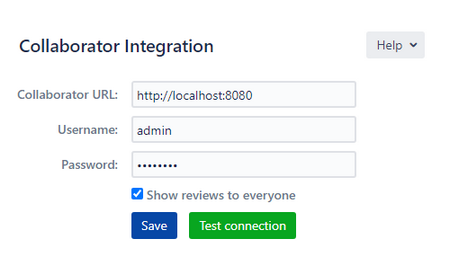
Collaborator integration preferences
The Confluence plugin have the following settings:
Server URL |
Denotes which Collaborator server to use. The Server URL must include the correct port number and path if applicable. If your server uses HTTPS, you may need to install its certificate as described earlier. |
Username |
Specifies user credentials. The user name and password are the same as you use when logging into the web server (the password or login ticket is requested when you log in for the first time). You can specify your password or login ticket. When single sign-on authentication is disabled, specify password. When single sign-on authentication is enabled, specify login ticket instead. |
Once enabled, the Confluence plugin will show all reviews in the Collaborator which is connected to the confluence document to everyone, no matter authenticated he or not. |
|
Test connection |
Check connection to the Collaborator server without saving username and password. To store credentials for further actions press Save button. |