When users open any text-based file in the Diff Viewer and the "Syntax Coloring" option is enabled, Collaborator attempts to determine a computer language of this file and apply an appropriate syntax highlighting to it.
Collaborator has built-in support of syntax highlighting for most popular computer languages: C++, C#, Java, Ruby, Perl, ASP.Net, Python, SQL, HTML, XML and many others. Additionally, Collaborator administrators can create custom syntax highlighting schemas to add syntax highlighting for any other computer language.
The Syntax Highlighting page of the Admin screen allows you add, manage and delete syntax highlighting schemas for various computer languages.
Syntax highlighting schema denotes what fragments of text should be highlighted as keywords, strings, constants, comments and so forth. It also specifies a list of file extensions to which the scheme will be applied. All syntax highlighting schemas are completely configurable, that is, you can specify new file extensions, add or delete keywords, modify patterns for strings, comments and so forth.
Important. In order to see highlighting schema updates within existing reviews, end-users may need to clear their browser's cache or upload new revisions of the review material.
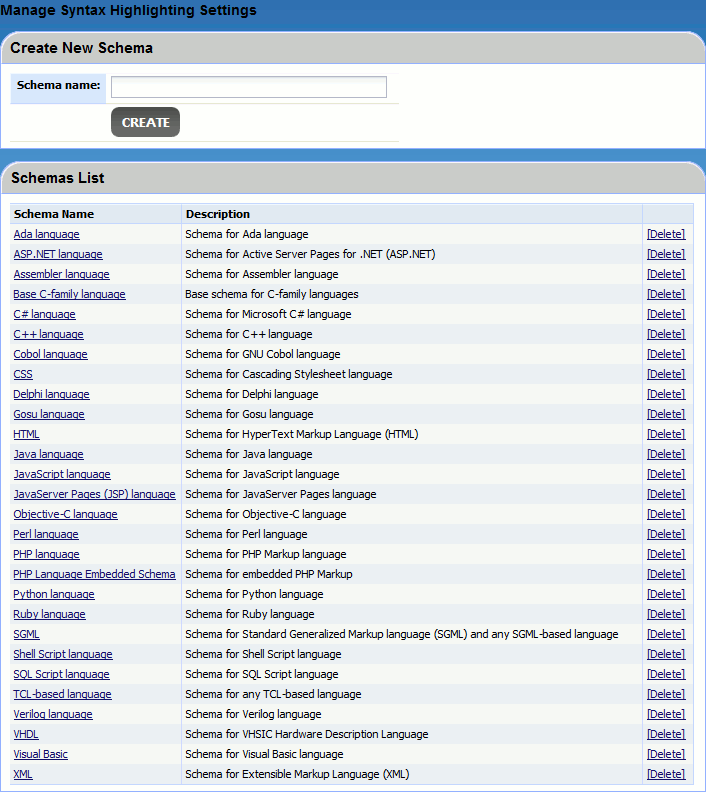
The Schemas List provides a list of all available schemas, both predefined (default) and custom-created.
Creating a syntax highlighting schema
To create a syntax highlighting schema for a new computer language, scroll to the Create New Schema section, specify name for a new schema and press Create.
This will create a blank schema which you can configure as you like.
Deleting a syntax highlighting schema
To delete a syntax highlighting schema, locate the desired schema in the list and press Delete link next to it.
Resetting predefined syntax highlighting schemas
To reset predefined syntax highlighting schemas to their initial state, scroll to the Restore default highlighting schemas section and press Restore Defaults.
This action affects only predefined schemas, it does not alter custom schemas.
Modifying a syntax highlighting schema
Click the name of the desired syntax highlighting schema in the Schemas List. This will display schema editor.
The editor has several tabs to configure different aspects of syntax highlighting. All the tabs will be described below.
On the General tab you can specify general set of scheme parameters.
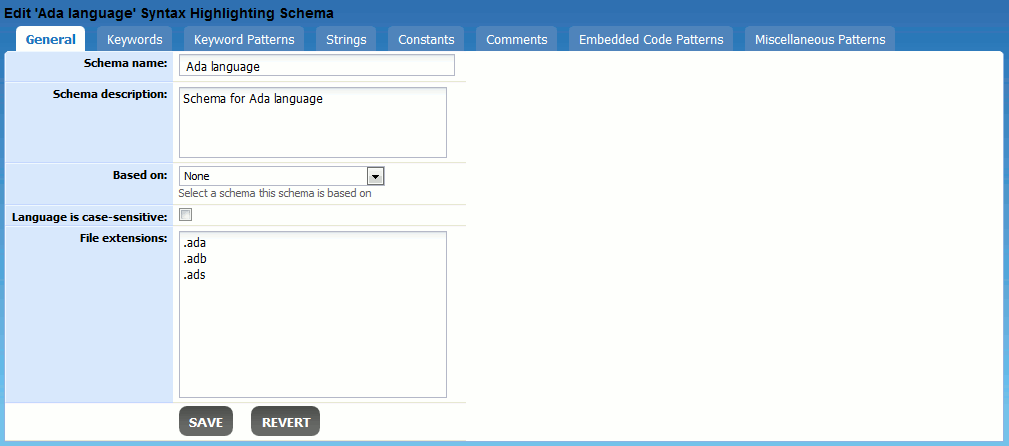
Defines a name of the syntax highlighting schema. |
|
Defines a detailed description for the syntax highlighting schema. |
|
One computer language could be based on another computer language. For example, C++ and C# languages are based on C language and HTML is based on SGML. Syntax highlighting schemas may inherit a number parameters from their parent schemas, so that you will not need to redefine the same parameters twice. Select "None" if the desired computer language is not based on any other language. Otherwise select a schema of the parent language in the drop-down list. |
|
Specifies whether the computer language is case-sensitive. |
|
Defines a list of extensions which may have source code files of the selected computer language. Specify each extension separated by semicolon, comma or space characters, or specify them on a separate line. Prefix each with a dot character. Collaborator checks this list of file extensions to determine a syntax highlighting schema to apply for a file displayed in the Diff Viewer. |
On the Keywords tab you can specify a list of reserved identifiers and keywords used by the selected computer language.
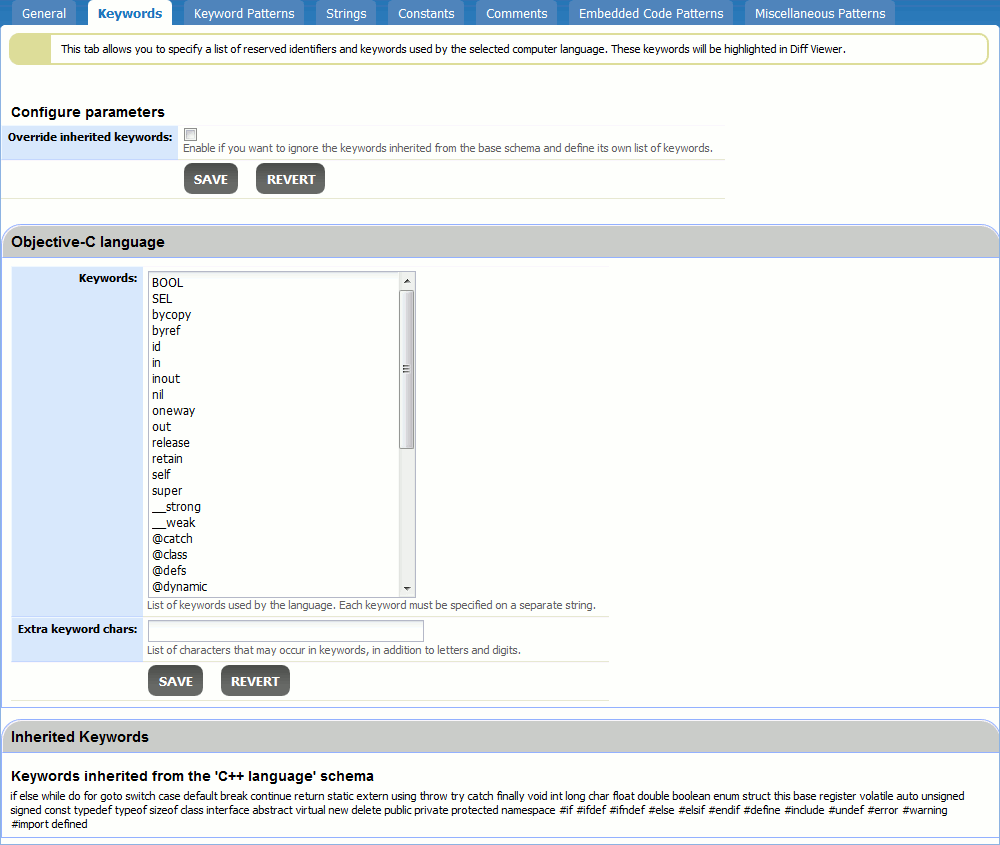
This option is displayed only if current schema is based on some other schema. Indicates whether you want to ignore the keywords inherited from parent schemas and define its own list of keywords. The list of keywords inherited from the parent schemas is displayed in the bottom of the tab. |
|
List of keywords used by the language. Specify each keyword separated by semicolon, comma or space characters, or specify them on a separate line. |
|
Some computer languages may have keywords that consist of 2 or more words/identifiers separated by some special characters. For example, Cobol language has keywords like ALPHANUMERIC-EDITED, SEGMENT-LIMIT and so forth. Use this setting to define a list of characters that may occur in keywords of this language, in addition to letters and digits. Specify each character separated by semicolon, comma or space character. |
In addition to reserving specific lists of words, some computer languages reserve entire ranges of words or notation formats. For example, HTML tags or CSS selectors have a specific notation format. Another example is C and C++ languages where any identifiers that start with two underscore characters are reserved.
To apply syntax highlighting to a specific fragments of source code, Collaborator uses regular expression patterns. Each syntax highlighting schema allows specifying multiple patterns to highlight keywords, strings, constants, comments, embedded code and other important fragments of source code.
On the Keyword Patterns tab you can specify a list of patterns to denote reserved identifiers and keywords used by the selected computer language.
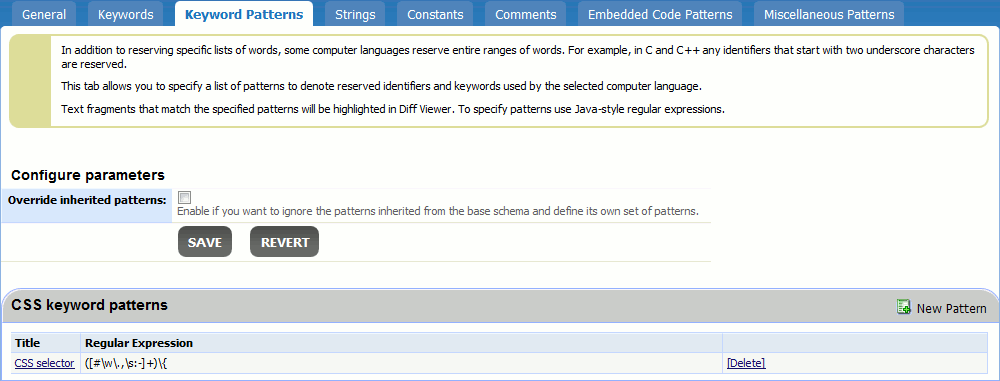
This option is displayed only if current schema is based on some other schema. Indicates whether you want to ignore the patterns inherited from parent schemas and define its own set of patterns. The list of patterns inherited from the parent schemas is displayed in the bottom of the tab. |
To edit an existing pattern, click its name in the list. To create a new pattern, click New Pattern. Any of these actions will display a "Configure lexeme pattern data" form:
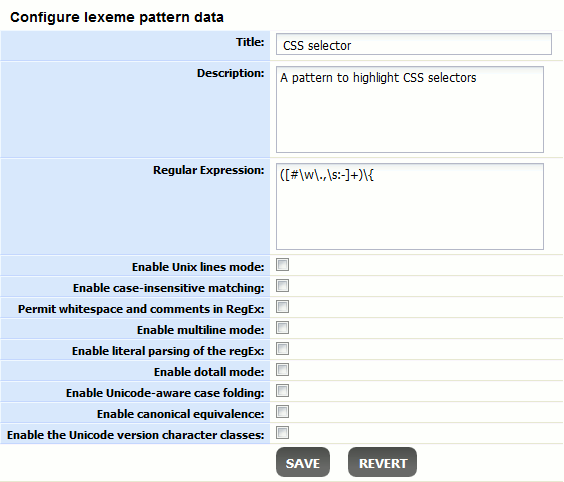
Defines a name of the lexeme pattern. |
|
Defines a detailed description for the lexeme pattern. |
|
A Java-style regular expression that identifies the desired fragment of text. |
|
When this flag is specified then only the '\n' line terminator will be recognized in the behavior of ., ^, and $. |
|
When this flag is specified then two characters will match even if they are in a different case. By default, case-insensitive matching assumes that only characters in the US-ASCII char-set are being matched. To enable Unicode-aware case-insensitive matching, enable both this and the "Enable Unicode-aware case folding" flags. |
|
When this flag is specified then white-spaces will be ignored, and embedded comments starting with # will be ignored until the end of a line. |
|
In multiline mode the expressions ^ and $ match just after or just before, respectively, a line terminator or the end of the input sequence. By default these expressions only match at the beginning and the end of the entire input sequence. |
|
Treat pattern string as a sequence of literal characters. In this case, metacharacters or escape sequences will not have any special meaning. |
|
In dotall mode, the expression . matches any character, including a line terminator. By default this expression does not match line terminators. |
|
When this flag is specified then case-insensitive matching (if enabled by the "Enable case-insensitive matching" flag) will be performed in a manner consistent with the Unicode Standard. By default, case-insensitive matching assumes that only characters in the US-ASCII charset are being matched. |
|
When this flag is specified then two characters will be considered to match if, and only if, their full canonical decompositions match. The expression "a\u030A", for example, will match the string "\u00E5" when this flag is specified. By default, matching does not take canonical equivalence into account. |
|
Enables the Unicode version of Predefined character classes and POSIX character classes. |
Once specified the pattern data, click Save. Add as many patterns as you need.
Other tabs of syntax highlighting schema editor have the same functionality, but deal with different syntactical elements:
On the Strings tab you can specify a list of patterns to denote string literals within the selected computer language.
On the Constants tab you can specify a list of patterns to denote constants.
On the Comments tab you can specify a list of patterns to denote comments.
Some computer languages may include fragments of code on another computer language. Typical examples are client-side and server-side scripts. Based on HTML, they include fragments of embedded code on JavaScript, PHP, ASP.Net, Ruby and other languages.
Collaborator may apply syntax highlighting to embedded code as well. To do this, you need to define a list of patterns that will match the fragments of embedded code in the Embedded Code Patterns tab and select which syntax highlighting schema must be applied to these fragments in the Embedded code schema drop-down list.
On the Miscellaneous Patterns tab you can specify a list of any other syntactical elements to be highlighted.