This topic describes how to setup Collaborator integration with TFS work item system. To learn general principles of how any issue-tracking integration operates, see Issue-Tracking Integrations: Overview.
| 1. | Open the Collaborator login page in a browser and log in to Collaborator as an administrator. |
| 2. | In Collaborator, go to Admin >General and ensure that server's External URL is valid and is accessible to TFS server and vice versa. Configure a firewall or enable tunneled connections to do so. |
| 3. | Go to Admin > Integrations > Issue-Tracking Services |
| 4. | In the New Remote System Configuration section, select TFS and click Create. This will display the configuration settings. |
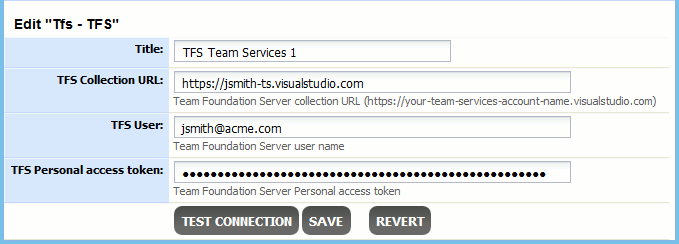
| 5. | Specify the setting values: |
Setting |
Description |
Title |
The configuration name as it will be displayed in Collaborator's user interface. |
TFS Collection URL |
For self-hosted version of Team Foundation Server, specify the URL of Team Foundation Project Collection to work with. For instance: http://tfs.acme.com/my-collection For SaaS version of Team Foundation Server, specify the URL of your Visual Studio Team Services account (without project or collection names). For instance: http://jsmith-ts.visualstudio.com |
TFS User |
The name of Team Foundation user. The specified user must have read-write permissions to TFS projects. Administrator permissions are NOT required. You may specify a regular user, or create a dedicated user for this integration. |
TFS Personal access token |
The personal access token of the user. For detailed information on generating a personal access token, follow Microsoft documentation. |
After specifying these values, you can click TEST CONNECTION to verify if you entered data correctly.
| 6. | After you specified the values, click Save. This will create and enable TFS integration. |
| 7. | Switch to the Admin > Integrations page. The Integration Status section allows you to quickly enable or disable integrations with remote systems. |
| 8. | Locate the Enable TFS Integration setting and verify that it is set to Yes. |
Establish trusted connection
When your on-premises server use SSL connection, its certificates may not be trusted by Collaborator server. In this case you will need to import that certificate as trusted.
To establish trust, you need to import the public key of your on-premises server as a trusted certificate to Collaborator keystore file. Perform the following actions on the machine, where Collaborator server is installed:
1. Get the certificate file from your on-premises server or network administrator.
2. Locate the keystore file which you have generated while configuring Collaborator HTTPS connection.
Default location is <Collaborator Server>/tomcat/conf/collab.ks, yet that could be changed while generating keystore.
3. Use Java’s keytool utility to import the certificate in Collaborator keystore file. You can find keytool in the $JAVA_HOME/bin directory:
$JAVA_HOME/bin/keytool -import -alias on-prem-server -keystore <collab-keystore-path> -trustcacerts -file <certificate-file-name>
For more information on command-line arguments of the keytool utility, see keytool documentation.
4.  Most likely you will be prompted to confirm the validity of the certificate. It is imperative for the security of the overall system that you verify the key matches the trusted material. Before accepting the certificate, you should contact the administrator that sent you the certificates and verify that the certificate fingerprints that you see match the certificate fingerprints that they intended to send you.
5. The final step is to configure Collaborator to use the newly created keystore. Open the <Collaborator Server>/ccollab-server.vmoptions file in a text editor, and add the following lines to it:
-Djavax.net.ssl.trustStore=<collab-keystore-path>
-Djavax.net.ssl.trustStorePassword=<collab-keystore-password>
6. Restart the Collaborator server.
Now the integration between Collaborator and TFS work items is configured and running.