Collaborator is available on the Docker Hub, which allows you to quickly deploy Collaborator server in Docker. This guide explains how you can launch a Collaborator instance in Docker container.
1. Install and start Docker Desktop
At first, you will need to setup Docker infrastructure on your machine. This is as simple as, download, install and launch Docker Desktop.
2. Get Collaborator image
Next, you will need to pull Collaborator image to your machine. To do this type the following command in terminal:
docker pull smartbear/collaborator-server
3. Launch Collaborator server in Docker
To launch Collaborator in Docker container use the standard docker run command.
For example:
docker run -p 9080:8080
-v collab-config:/usr/local/ccollab_server/config
-v collab-jdbc:/usr/local/ccollab_server/jdbc
-v collab-contentcache:/usr/local/ccollab_server/tomcat/collaborator-content-cache
-v collab-webserver:/usr/local/ccollab_server/tomcat/collaborator-webserver
-v collab-hsqldb:/usr/local/ccollab_server/tomcat/hsqldb
--name collaborator-server
smartbear/collaborator-server:latest
The command above performs the following actions:
| • | Launches the container with the name collaborator-server from the latest release of the smartbear/collaborator-server image. |
| • | Exposes the container's 8080 port (which is the default port of CollaboratorWeb Client) to the 9080 port of the host machine. |
| • | Mounts several persistent volumes that will keep container data when the container is stopped, restarted or deleted. We will describe each of the volumes below: |
| • | collab-config - stores ROOT.xml and ccollab-server.vmoptions configuration files. |
| • | collab-jdbc - stores database driver for Java platform. |
| • | collab-contentcache - stores file content storage – a folder that keeps copies of uploaded files. |
| • | collab-webserver - stores webserver data. |
| • | collab-hsqldb - stores Hypersonic embedded database. Not required when using other supported databases. |
External databases
By default server is started using Hypersonic embedded database. To use external database perform the following actions:
| • | Launch MySQL, Microsoft SQL Server, or Oracle database in a separate container. |
| • | Download the appropriate JDBC driver and copy it into the collab-jdbc volume. |
| • | Configure database server as described in Database Installation. |
4. Perform first-run initialization
Start a web browser and navigate to http://<container-ip>:8080/ui or to the http://localhost:9080/ui to access the Collaborator Web Client.
The rest of the configuration and administration process is done using the Web Client.
Log into Web User Interface using the built-in administrator account: admin and admin as password.
 Afterwards, you should specify your own password for the built-in administrator account in the Users category of Collaborator settings.
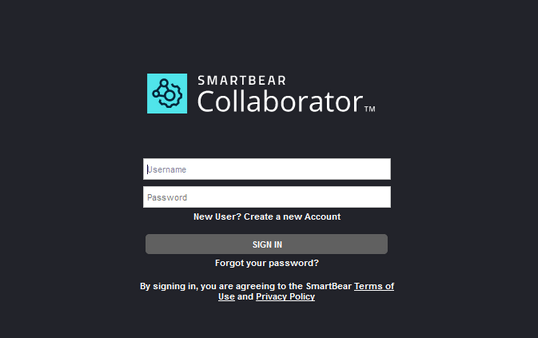
Login screen
Once you have logged in as the admin, you will be redirected to the First-Run Initialization page. This page is displayed only once after the installation and asks you to provide necessary information to set up the Collaborator server.
In the Product Initialization section you will need to choose which product you would like to use: Collaborator Community, Collaborator Team or Collaborator Enterprise.
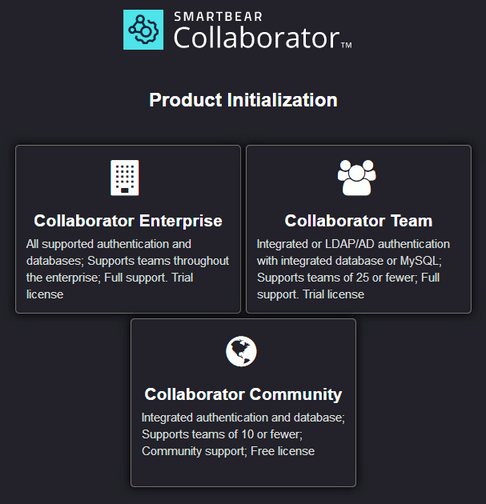
Product Initialization screen
All products have the same goal, to make your peer review process easier and more effective, but provide different sets of features. Collaborator Community is intended for small developer groups, Collaborator Team is for medium groups and Collaborator Enterprise is for large enterprise level companies. To view all differences between Collaborator editions, please read this page.
5. Configure basic system settings
After the first-run initialization, you are redirected to the Home page. This will be the starting page for administrating and working with Collaborator. Later on, after logging in you will start your work with Collaborator from the Home page.
This page looks much the same as your average Collaborator user’s home page. For the administrators the page additionally displays the Admin section on the top toolbar and the System link in page footer.
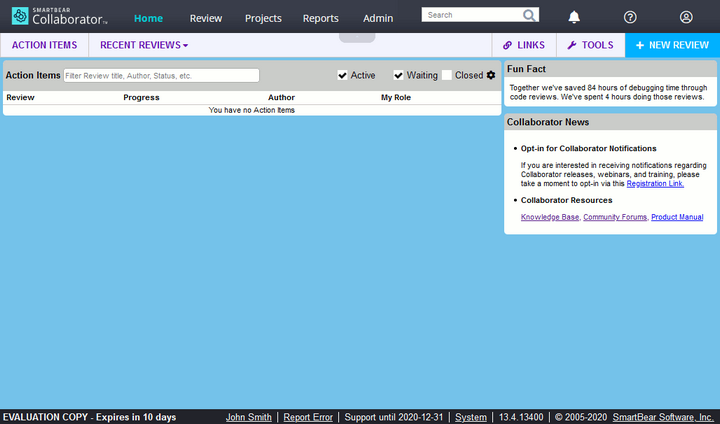
Collaborator Web Client Home Page
As the Collaborator administrator, you would like to familiarize yourself with the administration settings, so click the Admin section in header menu.
The Site-Wide Administration Settings section is where you can configure the settings of your Collaborator server.
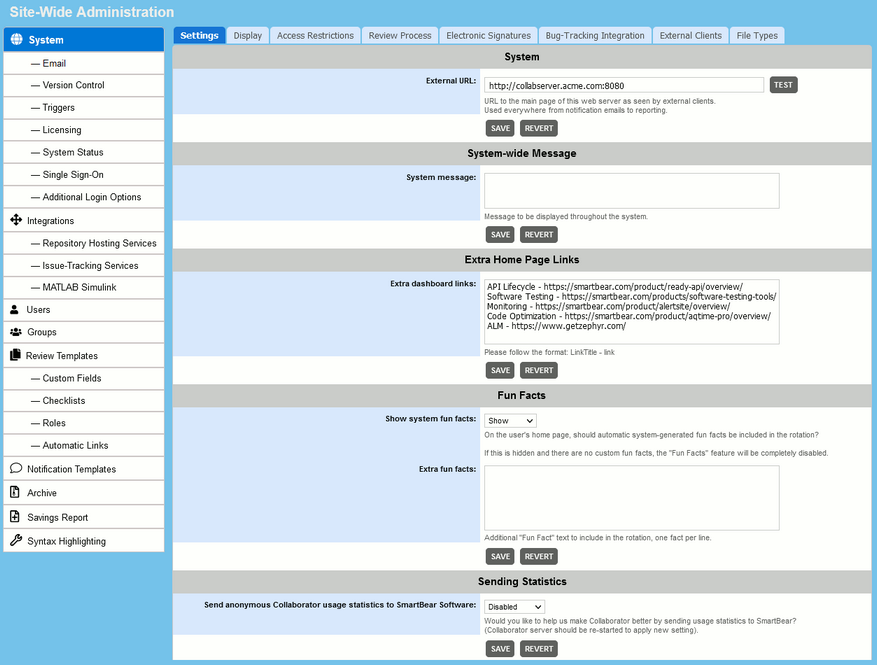
Site-Wide Administration Settings
The administration settings are grouped into a number of categories: General, Users, Groups and so on. You can read the detailed description of each setting in the Collaborator Settings section.
When configuring a Collaborator server for the first time, pay your attention to the following settings from the System category:
| • | External URL – Enter the full URL to the main page of the web server on which Collaborator was installed, as it would be seen by external clients. |
| • | Access Restrictions – Control who has access to reviews, reports, subscriptions, and systems information. |
| • | Review Process – Control what users can or cannot do during the review process. |
Besides, most likely you would need to configure the following categories, as well:
| • | Email - Configure SMTP server settings and email notifications. |
| • | Integrations – Setup integrations with remote repository systems like GitHub, GitLab or Bitbucket, or with issue-trackers like JIRA. |
6. Activate your licence
If you have an external internet connection, Collaborator will attempt to contact our licensing server so that we can automatically set you up with a 30-day trial license. Your licensing status is displayed in the bottom-left side of home page footer.

If you do not have an external connection, or if a firewall prevents access to our licensing server, you need to obtain a license code manually.
To request a license, please fill out this form:
https://smartbear.com/product/collaborator/free-trial/
To enter a permanent license code, or a trial license code that you obtained manually:
1. Click Licensing category of the Admin section.
This will open a page that gives you information regarding the licensing, such as when the license expires, when the support and upgrades expire, how many seats you have and so forth.
2. Find the "Node ID" field in the "Current License" pane. The Node ID is an 8-character value that is unique to every installation. Node ID is tied to every license code we generate.
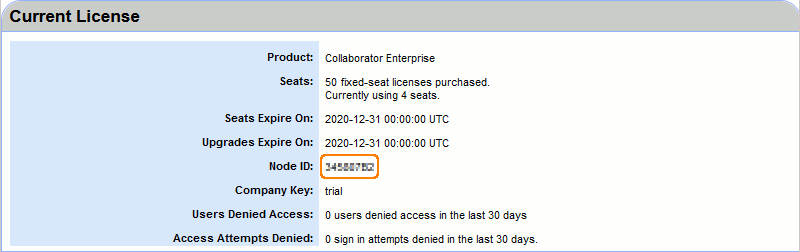
3. Copy an 8-character value of Node ID and send it to your Account Manager to activate your license. If you do not know who your Account Manager is, just send the Node ID to sales@smartbear.com.
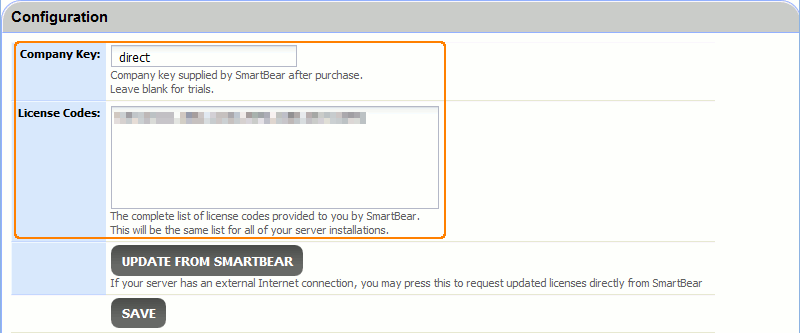
4. After you send us the Node ID, you will receive an e-mail with a company key and license code. The company key is "trial" for temporary licenses and a word or phrase for permanent licenses. The license code will be a 32-character code. Enter the company key and the license code in their respective fields, and click Save.
That is all. Collaborator server is installed, configured and ready for operation.
Where to go next
To get detailed information about the server, its configuration and maintenance, read Server Administration section.
To learn about using Collaborator in a daily work, see Getting Started For Developers and Web User's Guide sections.